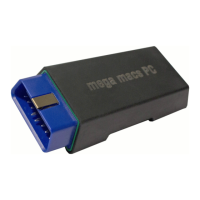
mega macs PC
Configuring the mega macs PC
Update of the mega macs PC and PC VCI Software
10.2.1 Preconditions for an Update
Ensure the following to perform updates:
• The mega macs PC software is installed on a web-compatible PC.
• The PC VCI is connected to a web-compatible PC through USB cable or Bluetooth®.
• A Bluetooth®-compatible PC or Bluetooth® adapter is plugged into the PC.
• The corresponding licenses are activated by Hella Gutmann.
• The driver package Hella Gutmann Drivers is installed on the PC.
• Voltage supply of PC and PC VCI is guaranteed.
10.2.2 Calling Up System Information
Here you will find all information required for the identification of the mega macs PC software.
Proceed as follows to call up system information:
1. Select Update under > Settings in the main menu.
2. Select >System<.
An info window appears.
Here you can find information including the software and hardware version and the device number.
10.2.3 Setting the Language
Here you can set the language version if the software is multilingual. After having set the language, the update will be
installed in this language.
Proceed as follows to set the language:
1. Select Update under > Settings in the main menu.
2. Select >System<.
3. Open the list under Language setting with
.
The compilation of languages depends on the prevailing software.
4. Select the requested language.
The selection will be saved automatically.
10.2.4 Starting the Test
Check the present software for incorrect or missing files here.
Proceed as follows to start the test:
1. Select Update under > Settings in the main menu.
2. Select >System<.
3. Open the list under Step with
.
4. Select >Check<.
5. Start the check with
.
Installation is being checked.
The delivered list after completion of the installation test must not include an incorrect file.
The message Device software OK appears if the present software is OK.
31


 To Next Page