Contents
System
Installation
Using
the product
Assembly &
Disassembly
BIOS
Appendix
System
Introduction
Touch Screen
MSR
Kitchen Printer Bell
Winclon (Backup)
Winclon (Restore)
POS Driver & Utility
Backup your current Window user environment into restore field.
It is much easier to operate if you know where the data is being backed up.
Storage Backup■
Winclon (Backup)
①
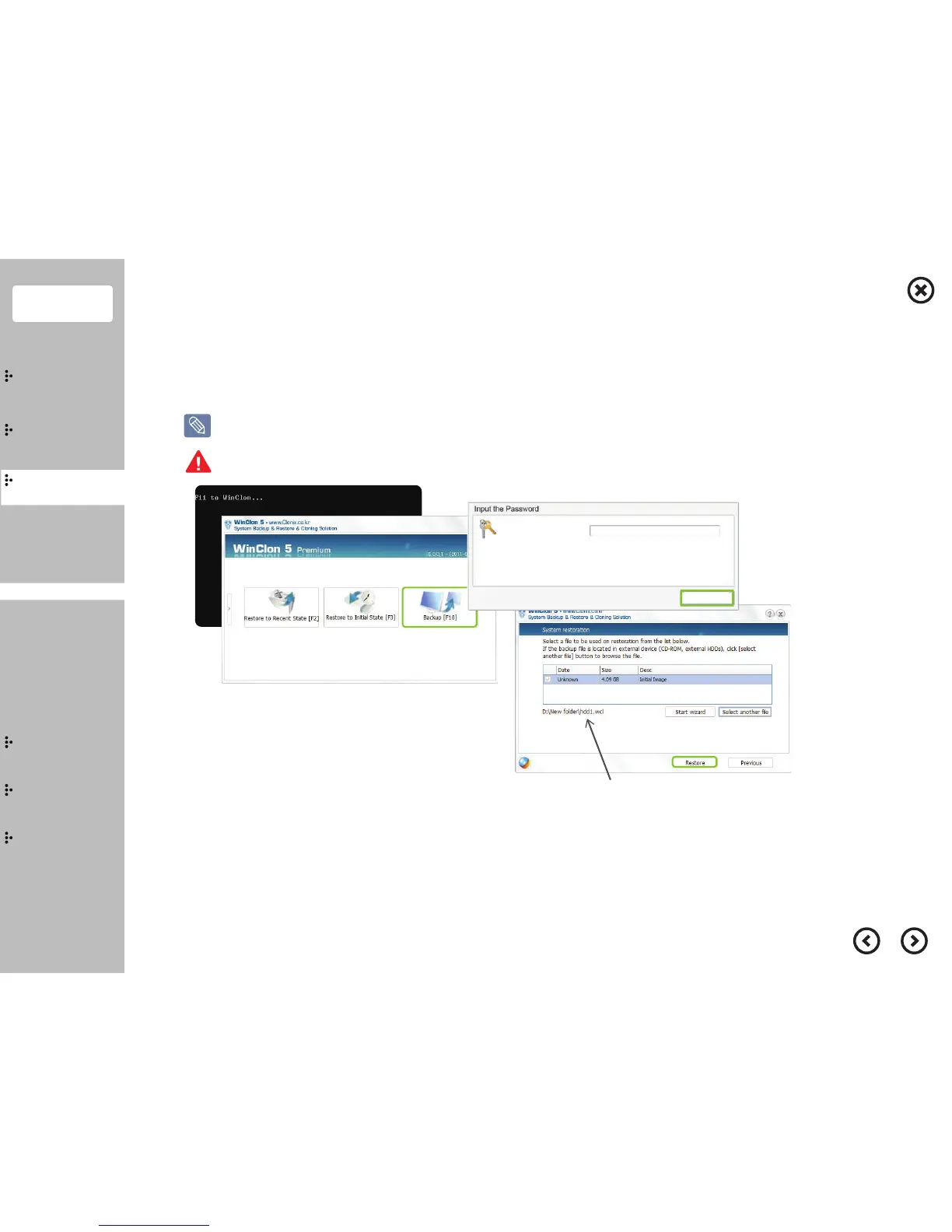
Connect the keyboard and mouse to the system.
After turning on the system, follow the on-screen instructions:
press <F11> when the “F11 to WinClon ...” message appears on the screen within 2 to 4 seconds (PC POST process).
② When WinClon appears on the screen, press <F10> key on your keyboard or click the mouse to select “Backup”.
③ After entering the password, press the <OK> button to continue the backup. (Password: pos)
(The programs may vary depending on different model.)
You need to connect keyboard before you turn the power on.
Location of backup image
pos
Password
OK


 To Next Page