●
[ POSReady 7, Windows 7, Windows 10 ]
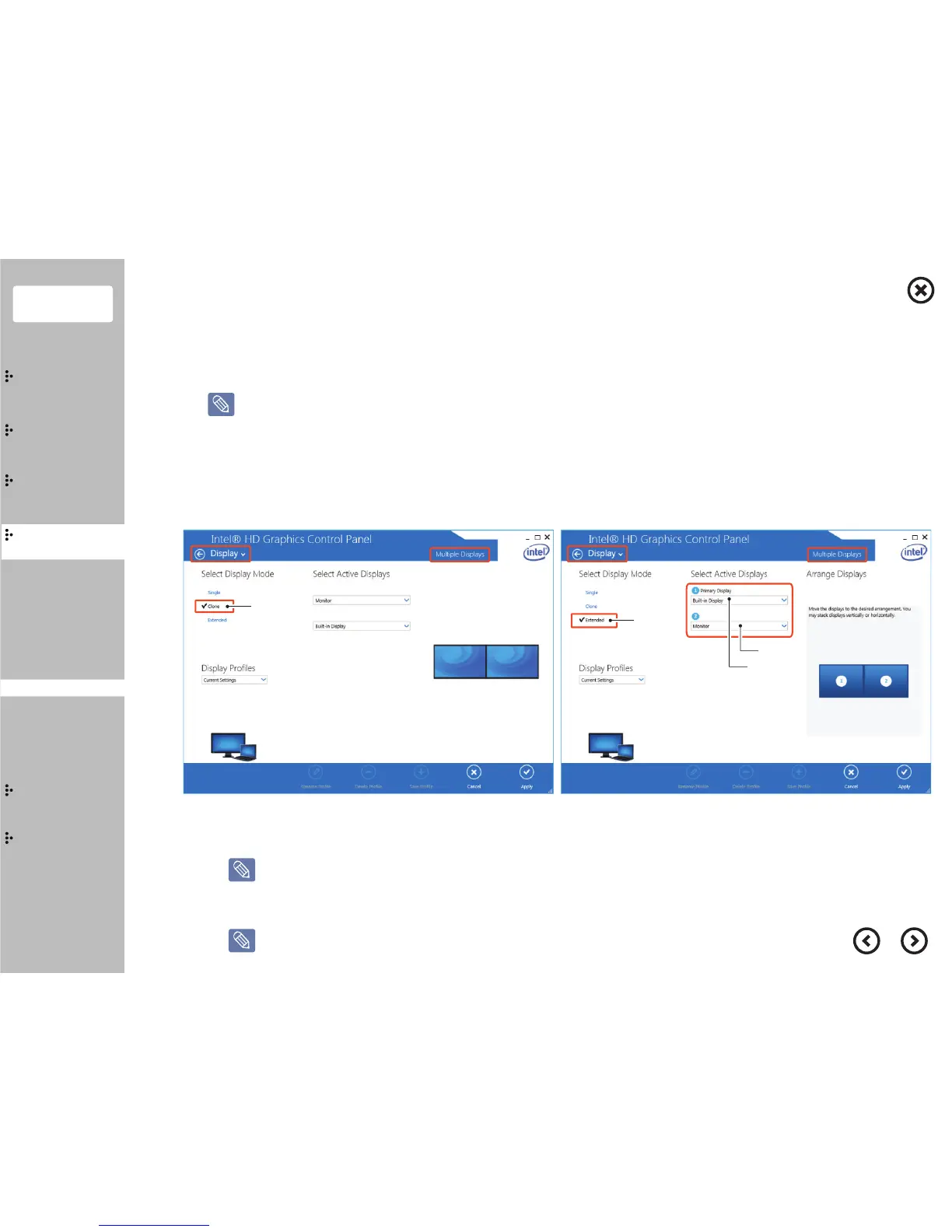
Clone mode
Extend
mode
Contents
System
Installation
Using
the product
Assembly &
Disassembly
BIOS
Appendix
System
Introduction
MSR
Stand
Storage(HDD/SSD)
Cover Rear
EMI
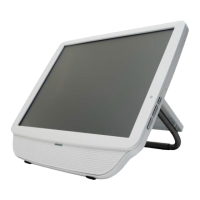
Second Monitor
VFD
Wall Mount
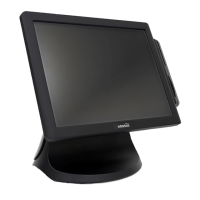
Main Monitor
Second Monitor
[ Auto display setting ]
If the dual-monitor is leaned, Adjust the setting by pressing
the "auto display setting button" that is located at the back of the monitor.
[ Second touch monitor setting ]
When using the second touch monitor, you should be aware of that the clone mode and
extend mode has different setting method. For the detail information, please visit our website.
9.7” Second Monitor & Touch Monitor - Step 2
Second(touch) monitor Setting
① Turn the power on and boot up with OS.
②
In the desktop, click right button, graphics properties → display → multiplel displays choose a setting.
The setting method may vary regarding to OS and version of graphic drivers.
Please refer to relevant website for the latest driver and detailed setting method.


 To Next Page