12 / 34
Navigation
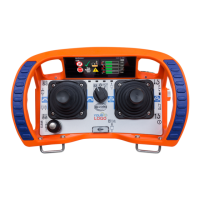
The multifunctional switch radiomatic
®
iCON (turn forward = away from the operator / turn backward = to
the operator; perspective with hip belt) with integrated selection button is used for display navigation.
By pressing the selection button, the operator can:
show and select menus and Softkeys for selections,
activate objects for input,
save input / settings,
select functions with Softkeys.
Navigation between the two displays
By turning the radiomatic
®
iCON, one page of the display is always navigated first. If the radiomatic
®
iCON
is turned further forward or backward, buttons of the current display and then the other display are
selected.
Menus
The display content is divided up into three menus:
Start menu
Customer menu
HBC menu
Start menu
The first page of the Start menu shows how the transmitter can be activated. After successful activation
of the transmitter, customized content, such as the company logo or service address, are shown. Then the
operator sees the first page of the customer menu.
Customer menu
The configuration of the customer menu is customized. Depending on the application, different content
can be defined.
ed description of the customer menu has to be p
art of the operating manual of the specific
machine in use. All instructions the operator has to follow in connection with the feedback
information have to be written there as well.
HBC menu
The HBC menu is a fixed part of the display and cannot be changed.
In this menu, warnings and system information can be shown and settings can be performed .
To access the HBC menu:
You are in the Customer menu.
1. Navigate with the radiomatic
®
iCON to the navigation bar in the lower edge of the display and select it
by clicking the radiomatic
®
iCON.
2. Navigate to the HBC menu by turning the radiomatic
®
iCON and select it by clicking the radiomatic
®
iCON. The HBC menu is accessed.


 To Next Page