25
6.2 GRAPHICAL USER INTERFACE
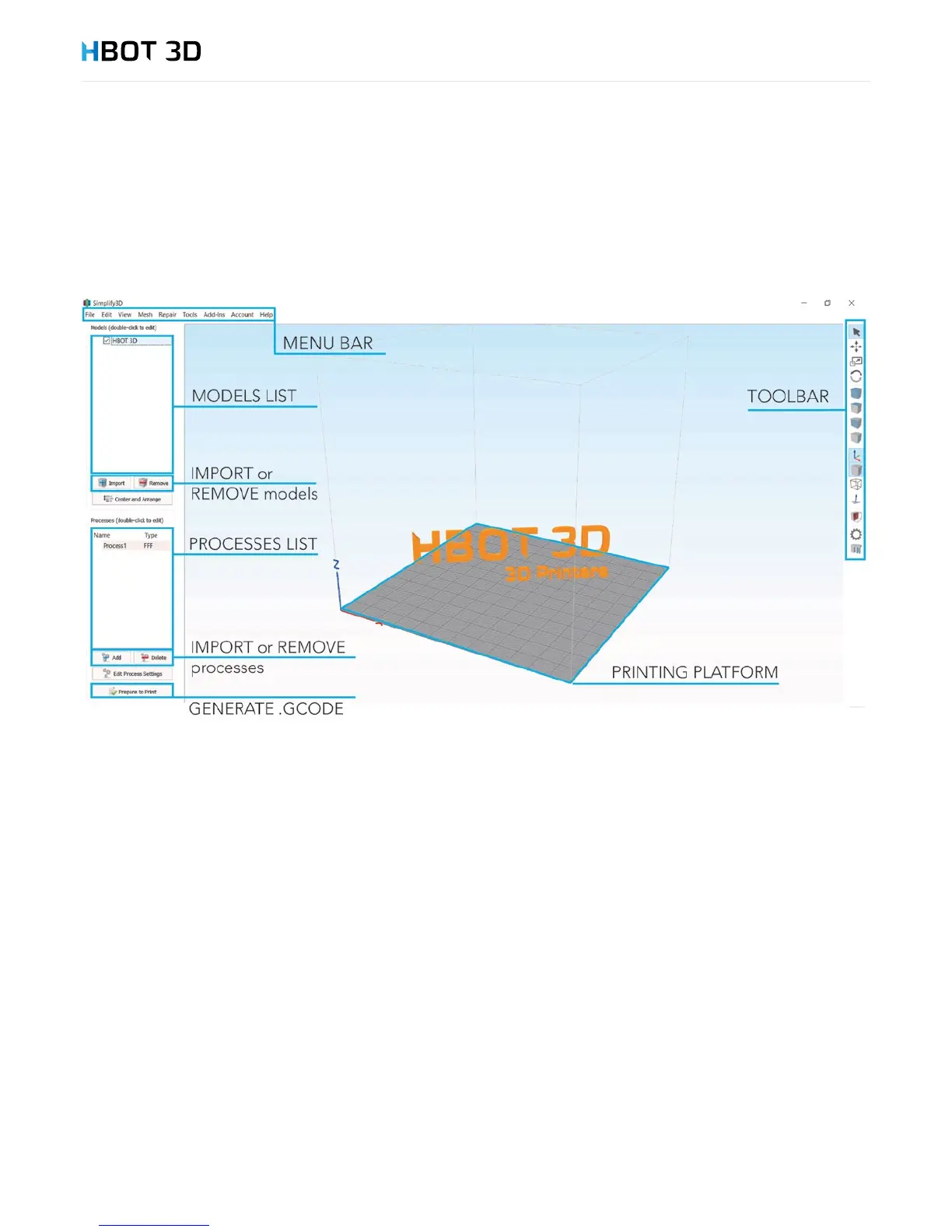
You should familiarize yourself with elements of graphical user interface of Simplify 3D. Names used on the following illustration are
often referred to later in this manual and without knowing them you will not be able to properly prepare your le for printing.
6.3 IMPORTING MATERIAL CONFIGURATIONS
To correctly generate a print le you have to import the material congurations prepared by us. Correct completion of this operation
enables you to correctly congure basic parameters of your machine.
STEP 1
Download the latest package of material congurations from manufacturer’s website at www.hbot3d.com and save in the selected
location on your computer disk.
STEP 2
Unpack all les. Make sure that ve les with the *.fff extension have been unzipped to the Congurations folder.
STEP 3
From the menu bar select FileImport FFF Prole, locate the folder with the saved les, select all and choose OK.
After a while a message appears conrming that the conguration has been imported into the program memory.


 To Next Page