27
Free transformation
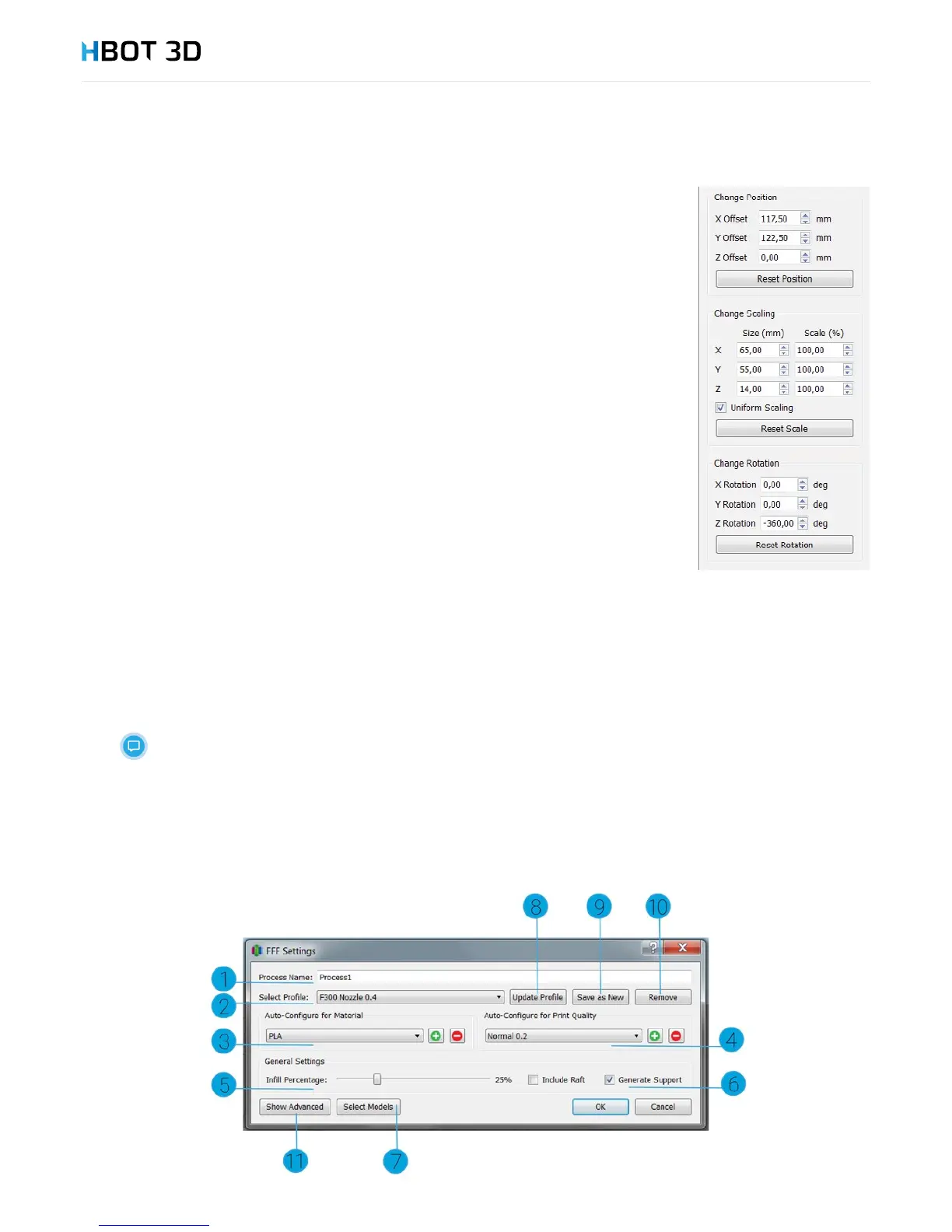
To set the exact position, scale and rotation of your model, double-click on the model. It will pop up
a menu bar on the right. In the rst eld you can change the name of your model in the project.
Change Position allows you to enter the exact position of the center of the model coordinate system in
relation to the center of the build platform coordinate system.
Change Scaling allows you to change your model dimensions by entering new dimension or a scale
value. Also, it is possible to disable the scaling factor (Uniform scaling)
Change Rotation rotates your model by a precise value in degrees.
Each section has a reset button for resetting position, scale and rotation to your default settings.
Orientation relative to the surface
From the menu bar select EditPlace Surface on Bed
Click on the selected triangle of your model.
Copying
From the menu bar select EditDuplicate Models
In the window enter the number of copies and conrm by clicking Copy
Mirroring
From the menu bar select EditMirror Mesh
Select the axis in which you want your model to be mirrored.
Visibility
To hide or unhide your model on the project printing platform, either select or deselect the checkbox next to the name of the model in
the list of downloaded models.
Deselecting a checkbox and hiding the model will not delete the le from your project.
6.6 CONFIGURING PRINTING PARAMETERS


 To Next Page