26
6.4 MODIFYING THE DEFAULT SETTINGS
In order to improve the comfort of working with Simplify 3D it is recommended to modify some settings.
From the menu bar select ToolsOptions and modify your settings in accordance with the following guidelines:
Tab Parameter Setting
Preferences
Speed Display Units mm/s
Middle mouse button resets view deselected
Always show full 3D transform gizmo selected
Visualization Use orthographic camera with no perspective selected
6.5 IMPORTING MODELS AND ORIENTATION
Importing
Importselect one or several les to be imported into your project.
Supported le formats: *.STL i *.OBJ.
Automatic orientation
Center and Arrange
To bring your model dropped below the build platform to the build table, select EditDrop Model to Table.
Moving
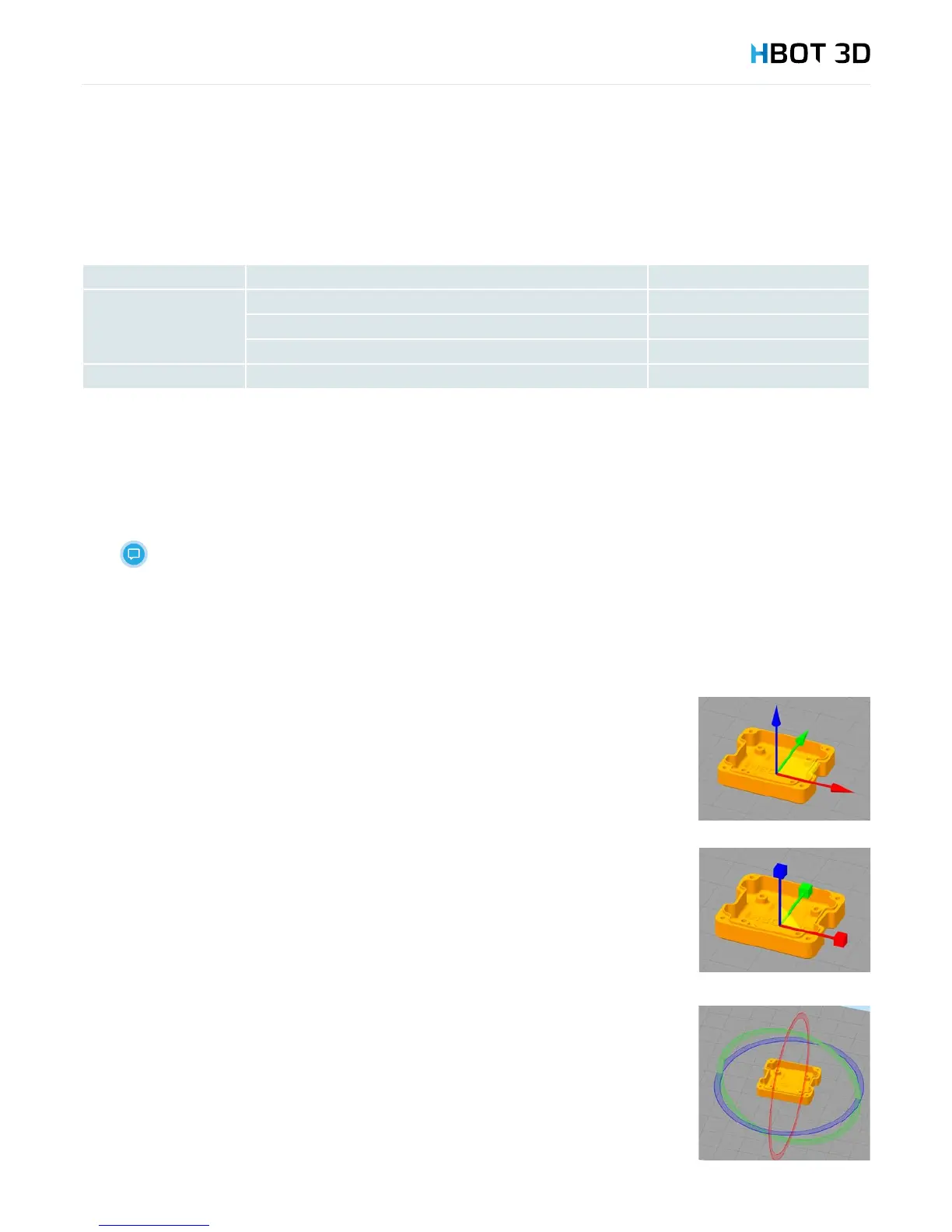
From the menu bar select Translate models
Catch your model and move it freely in the XY plane. By selecting appropriate arrows move your model
towards a given axis.
Scaling
From the menu bar select Scale models
If you want your model to be to scaled up or down while maintaining a uniform scaling, click
on the model and drag in any direction. If you want to stretch or shrink your model along just one
axis, catch and drag the cube of the relevant axis.
Rotating
From the menu bar select Rotate models
To rotate your model around a given axis, click on the respective ring and drag.


 To Next Page