DS-7108HI-S series Net DVR User Manual
22
Channel: List the channel number DVR has.
Status: Channel work status has 4 cases: means idle. Green means the channel is
recording (including real time recording, alarm recording, motion detection recording). Red means
network transmission. Orange means both recording and network transmission.
Start/Stop: “” means you can start corresponding channel recording. “×” means you can
stop recording.
Start All: Press this button to start all channels recording.
Stop All: Press this button to stop all channel recording.
Press [ESC] key to enter the preview mode. Press [MENU] key to enter main menu. Press
[PLAY] key to enter the playback menu. Press [PTZ] key to enter the PTZ control mode.
4.7 Playback
Note: The user must have “Playback” right.
Playback interface
In preview mode, press [PLAY] key, in the pop-up login dialog, select user name and input
correct password, you can enter the “Playback” interface.
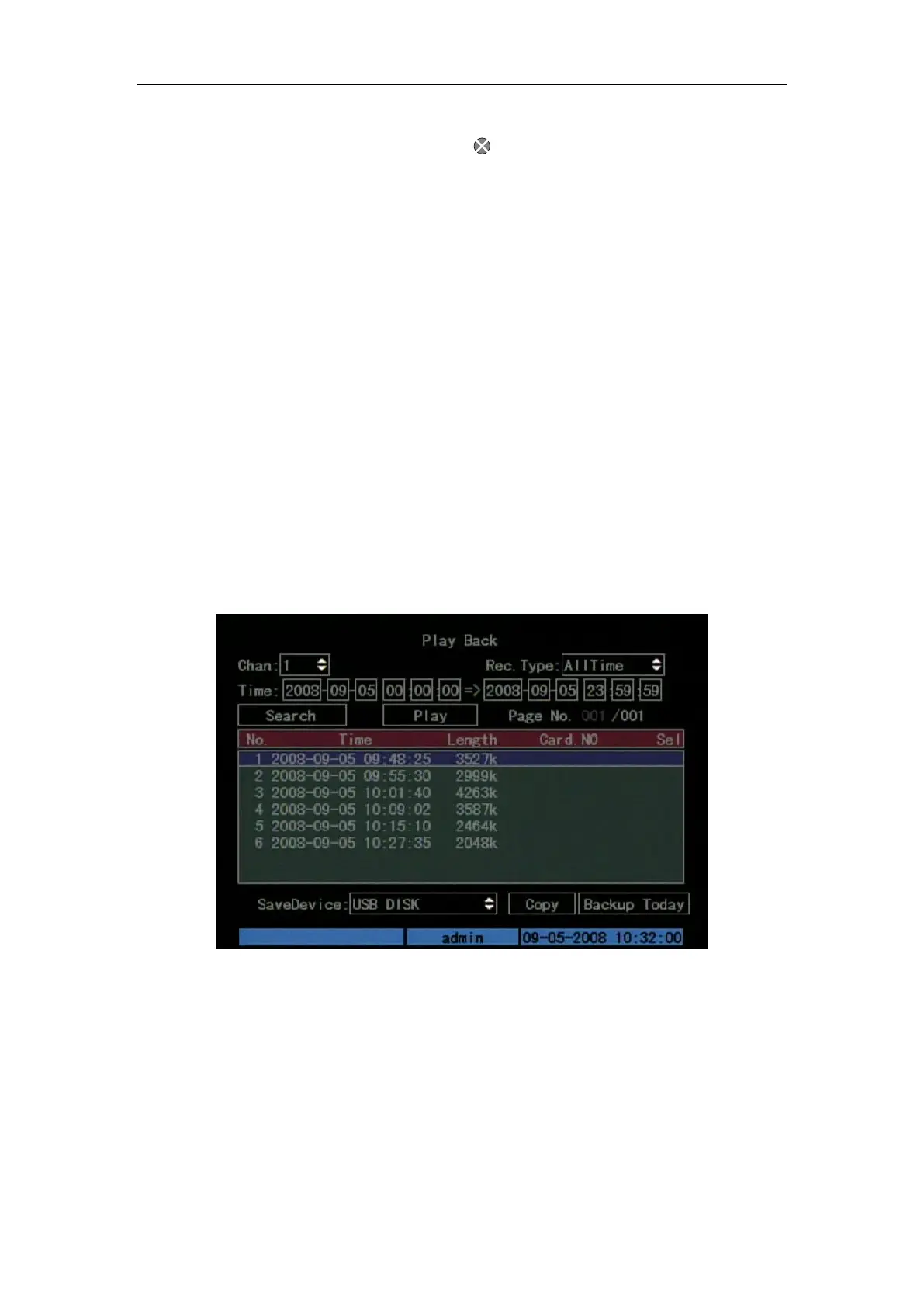
In menu mode, press [PLAY] key, you can enter the “Playback” interface directly. Shown as
Fig. 4.9 below
Fig. 4.9 Playback operate interface
Description
Select a Channel: Move the “Active Frame” to “chan”, press “edit” button, then use [↑] or [↓]
key to select a channel.
Rec Type: Use [↑] or [↓] to select recorded files type. The file type options have “All”, “All
Time”, “Motion Detect”, “Alarm” and “Manual”.
Time Section: You can define the search time section. Move “Active Frame” to the time edit
box, use numeric keys to input the detail time.


 To Next Page
 Loading...