13
Basic Features
Turning the TV On for the First Time
The Installation Guide Menu appears the first time you turn
on the TV. It will assist you to specify the Language Setting,
Country Setting, Time Zone Setting, Use Mode, Network
Setting and Channel Search.
Make sure that you have:
Installed the remote control batteries.
Connected an antenna or cable.
Connected the power cord.
Press the [POWER] button to turn on your TV, it will go
straight into Setup Wizard menu.
Press the [▲/▼/◄/►] buttons to navigate between the
menu's options and change the settings. Press the [OK]
button to confirm.
Language Setting - Select your desired language to be
displayed on the menu.
After the language is set, you will enter the Welcome
interface, press “Next” to enter the next step of the wizard.
Country Setting - Select the country where you will operate
the TV.
Time Zone Setting - Select the local time zone according to
your region (just for Australia area).
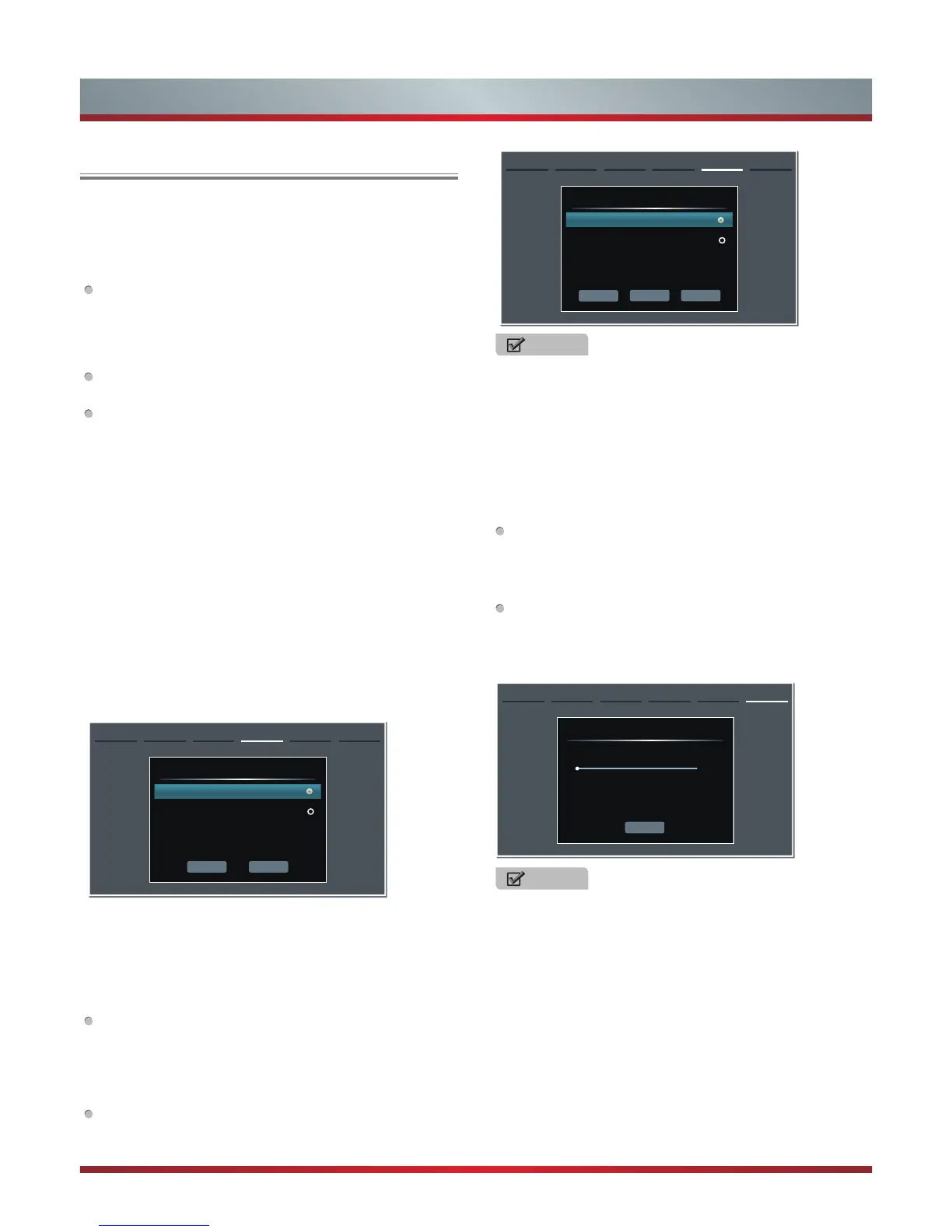
Use Mode - Select your Mode Setting: Home Mode or Shop
Mode. Home Mode is the recommended setting which offers
full functionality of the television.
4. Use Mode
Previous Next
Shop Mode
Next: Network Setting
Use Mode
Home mode optimizes the picture for normal
home use
Home Mode
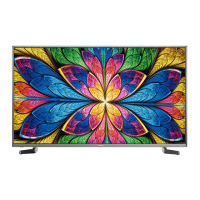
Network Setting - Connect your TV to access the network.
When the Network Setting menu opens, Service Statement
will appear. Press the [▲] button to enter text content and
press the [◄/►] buttons to scroll through the pages. Please
read it carefully.
If select “Agree”, you can set your TV to your local area
network (LAN) with a Ethernet or wireless connection
to access the internet. For more information of Wired
Network and Wireless Network, see page of "Using the
Network Menu".
If select “Disagree”, you will enter the channel search
menu to scan progresses.
5. Network Setting
Previous Next
Wireless Network
Next: Channel Search
Select Network
Connect a network cable to TV
Skip
Wired Network
NOTES
•
If you selected Wired Network, please make sure that you
have connected the network cable to the LAN port on the
back of your TV.
•
On the Select Network screen, if you press “Skip", you
will switch to "Channel Search" menu directly.
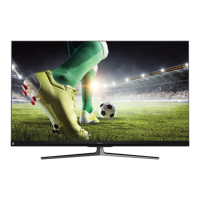
Channel Search - Search and store all available TV
channels automatically.
On the Channel Search screen, If you select “Skip", your
TV does not scan for channels. If you select “Scan", your
TV automatically starts Channel Installation available in
your viewing area.
Depending on the reception condition, it may take up to
15 minutes or more to complete storing the channels. In
this process, if you want to interrupt the channel search,
please press the "Stop" button.
6. Channel Search
Channel Search
Please allow 15 minutes to complete.
ATV Program Installed: 0
3%
DTV Program Installed: 0
Stop
NOTE
If you want to reboot the Installation Guide, you can
switch on the Setup wizard in the Setting menu, but if the
channel was locked in the menu, you need to enter the
password to enter the scan channel mode.
After scan, you will enter the complete interface. It will
display all informations that you set just now and then you
can press "Go" to exit the wizard.



 To Next Page