24
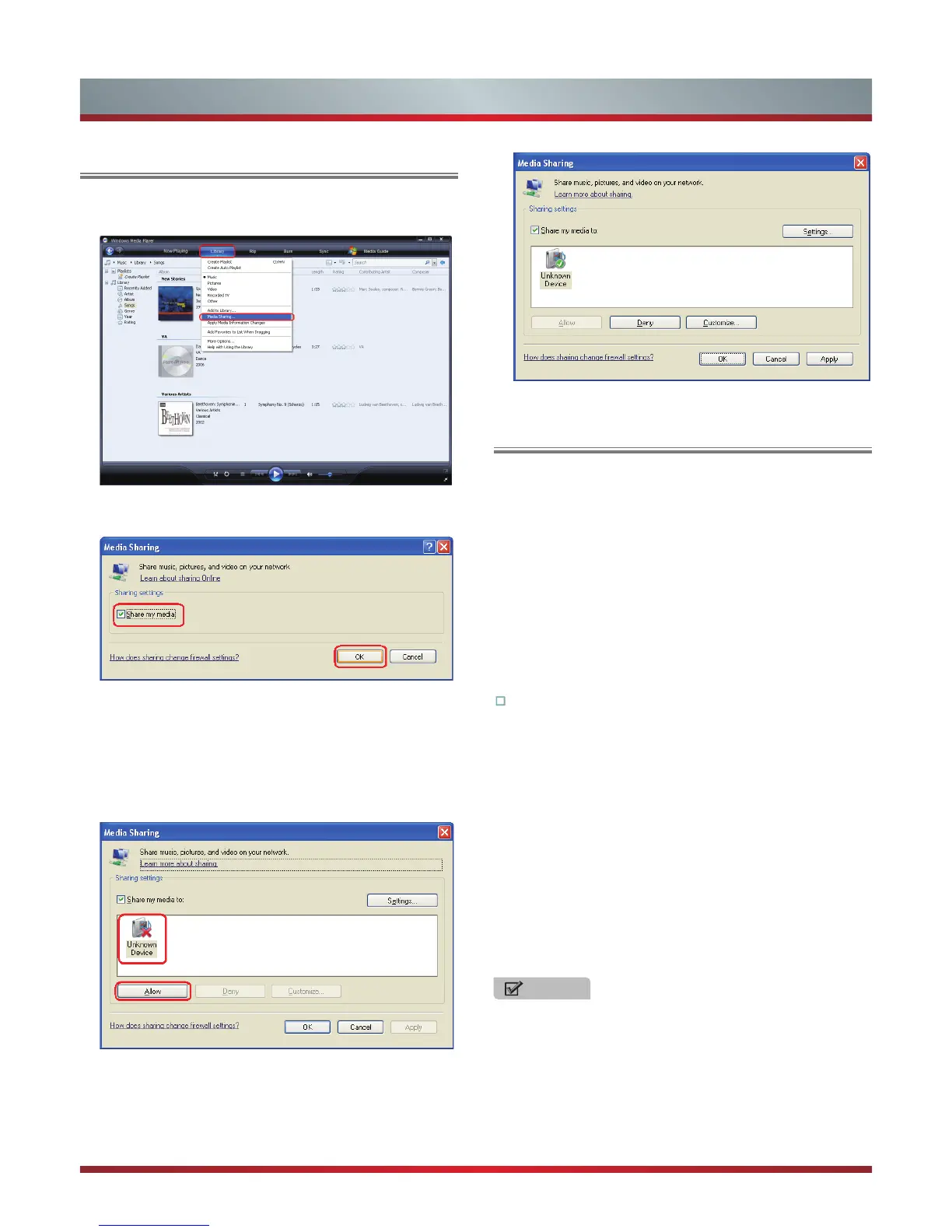
1. Click “Library” and move the cursor to select “Media
Sharing...” as shown in the following screen shot.
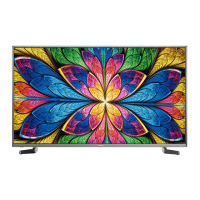
2. In the Media Sharing dialog box, select the Share my
media check box and click “OK”.
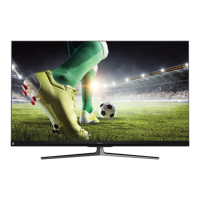
3. After turnnig on the media sharing, you need to select the
devices that should have access to your Player library.
In the list of devices below the Share my media to check
box. An equipment icon will appear on the white area if
the DLNA Settings has been correctly set. Select a device
and then click “Allow” as shown in the following screen
shot.
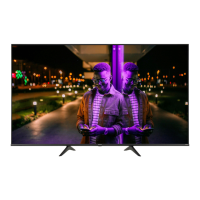
4. Then the TV can access to the shared files in the
computer.
For information about how to customize what media you
share with the device, see "Change settings for sharing
media" in Windows Media Player Help.
With the HiBeam you do not have to huddled friends and
family around the small screen of your mobile devices in
order to beam video, music or pictures with them.
Simply browse, discover and beam media files from your
Android or iOS devices to your TV using the Twonky Beam
application (You can download Twonky Beam from Google
play store or the Apple App store).
The Twonky home screen has a list of officially compatible
HTML5 website from which you can select and share video,
music or picture. A Beam logo will be visible if the content is
compatible with the TV.
Operation introduction
1.
TV side:
•
Confirm the TV is connected to a local area network.
•
Set DLNA to On ( Menu >Network >Applications >DLNA ).
2.
Device Setup:
•
Download the Twonky Beam application.
•
Confirm the device is connected to the same local area
network as the TV.
•
Launch the Twonky Beam application.
•
Select a Display Device.
•
Choose a video, music or picture that you want to Beam to
your display.
•
Touch Beam logo.
•
The video, or other shared contents load directly to TV.
NOTES
·
The HiBeam may not be accessible when there are
some prior applications working (such as Skype or
firmware updating). You need to close these prior
applications or waiting for the firmware updating finished,
then the HiBeam will work.
·
If a mobile device has access TV, you can set the
access privileges to Allow or Deny in "Menu >Network >
Applications >My Shared Devices"
Setting to Share Files
HiBeam
Basic Features


 To Next Page