21
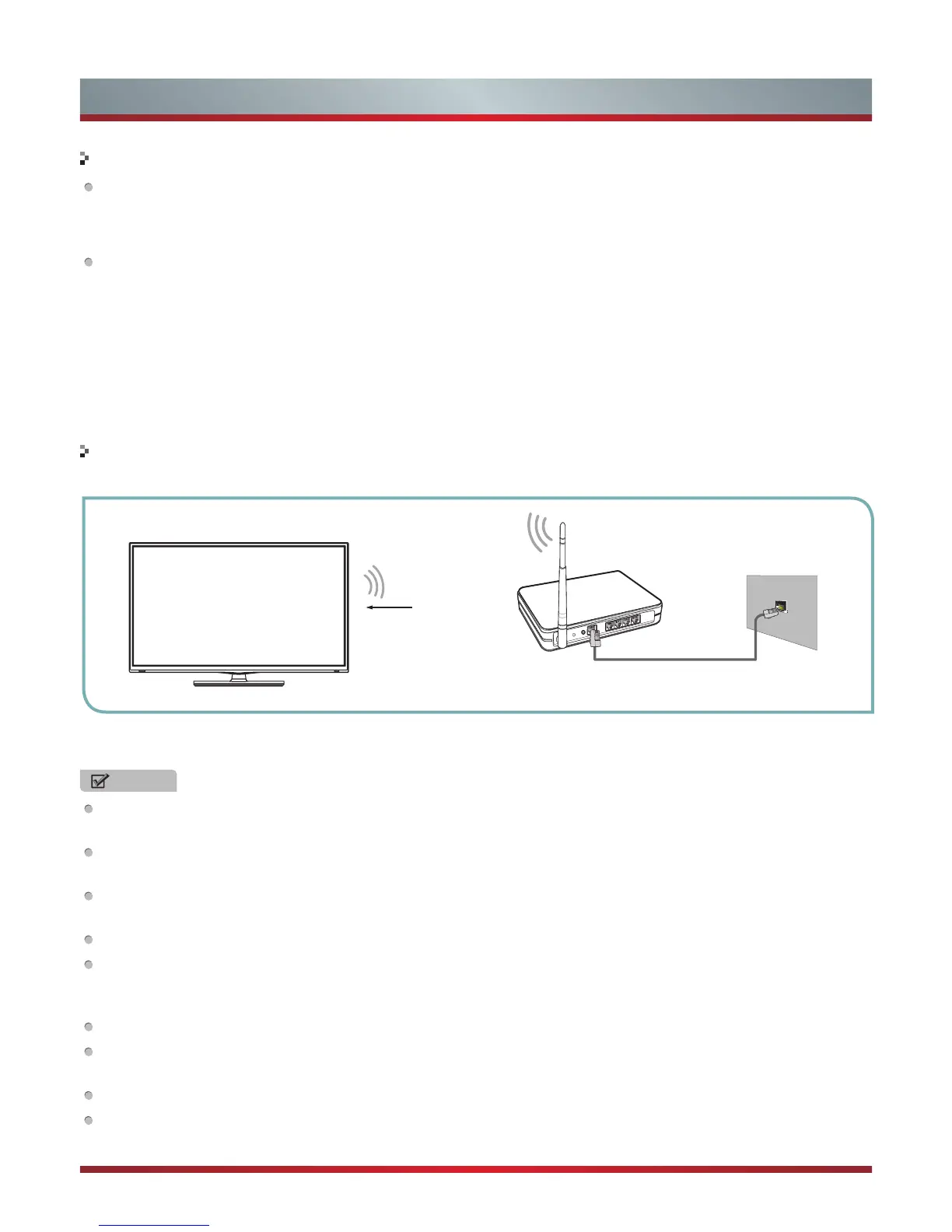
To connect your TV to your network wirelessly, you need a wireless router or modem. See the illustration below.
Wireless IP Sharer(Router)
(with DHCP Server)
LAN Cable
Wireless LAN Adapter
built-in TV set
The LAN Port on
the Wall
The TV’s built-in Wireless LAN Adapter supports the IEEE 802.11 b/g/n communication protocols. Manufacturer recommends
using IEEE 802.11n router. When you play the video over a IEEE 802.11b/g connection, the video may not play smoothly.
Connecting to a Wireless Network
Basic Features
NOTES
You must use the TV’s built-in Wireless LAN Adapter to use a wireless network, the set doesn’t support external USB
network adapter.
To use a wireless network, your TV must be connected to a wireless IP sharer. If the wireless IP sharer supports DHCP, your
TV can use a DHCP or static IP address to connect to the wireless network.
Select a channel for the wireless IP sharer that is not currently being used. If the channel set for the wireless IP sharer is
currently being used by another device nearby, this will result in interference and communication failure.
If you apply a security system other than the systems listed below, it will not work with the TV.
If Pure High-throughput (Greenfield) 802.11N mode is selected and the Encryption type is set to WEP, TKIP or TKIP-AES
(WPS2 Mixed) for your Access Point (AP), Manufacturer TVs will not support a connection in compliance with new Wi-Fi
certification specifications.
WPA-PSK is highly recommended security mode.
If your AP supports WPS (Wi-Fi Protected Setup), you can connect to the network via PBC (Push Button Configuration) or
PIN (Personal Identification Number). WPS will automatically configure the SSID and WPA key in either mode.
Connection Methods: You can setup the wireless network connection three ways (Scan, Manual, Auto).
After the initial setup is complete, please wait for at least two minutes to allow the TV recalls the network setting each time
you turn on the TV.
How to set up automatically
1. Select IP Setting and press the [OK] button to enter it.
2. Set the Address Type to Auto. Auto acquires and enters the necessary connection values automatically.
How to set up manually
1. Press the [▲/▼] buttons to select IP Address and press the [◄/►] buttons to move the cursor to the entry field. Then press
[0~9] buttons to enter the numbers
2. Press the [▲/▼] buttons to select the next options to enter the numbers. When done, press the [Menu] button to return to
the previous menu.
3. Select Connection Test to check the internet connectivity. If the test is not successful, please check whether the configuration
is correct.
Ethernet Setting


 To Next Page