23
Basic Features
If your computer does not support DLNA, you may install
software that supports DLNA such as TVersity or Windows
Media Player (Version V11 or higher). We recommend
Windows Media Player as the installation and setup is
easier.
1.
On the PC taskbar, click Start.
2.
Point to All Programs, and then click Windows Media
Player.
3.
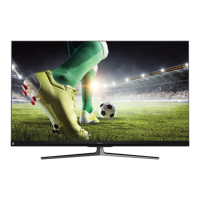
Click “Library” tab and then “Add to Library...” as shown in
the following screen shot.
4.
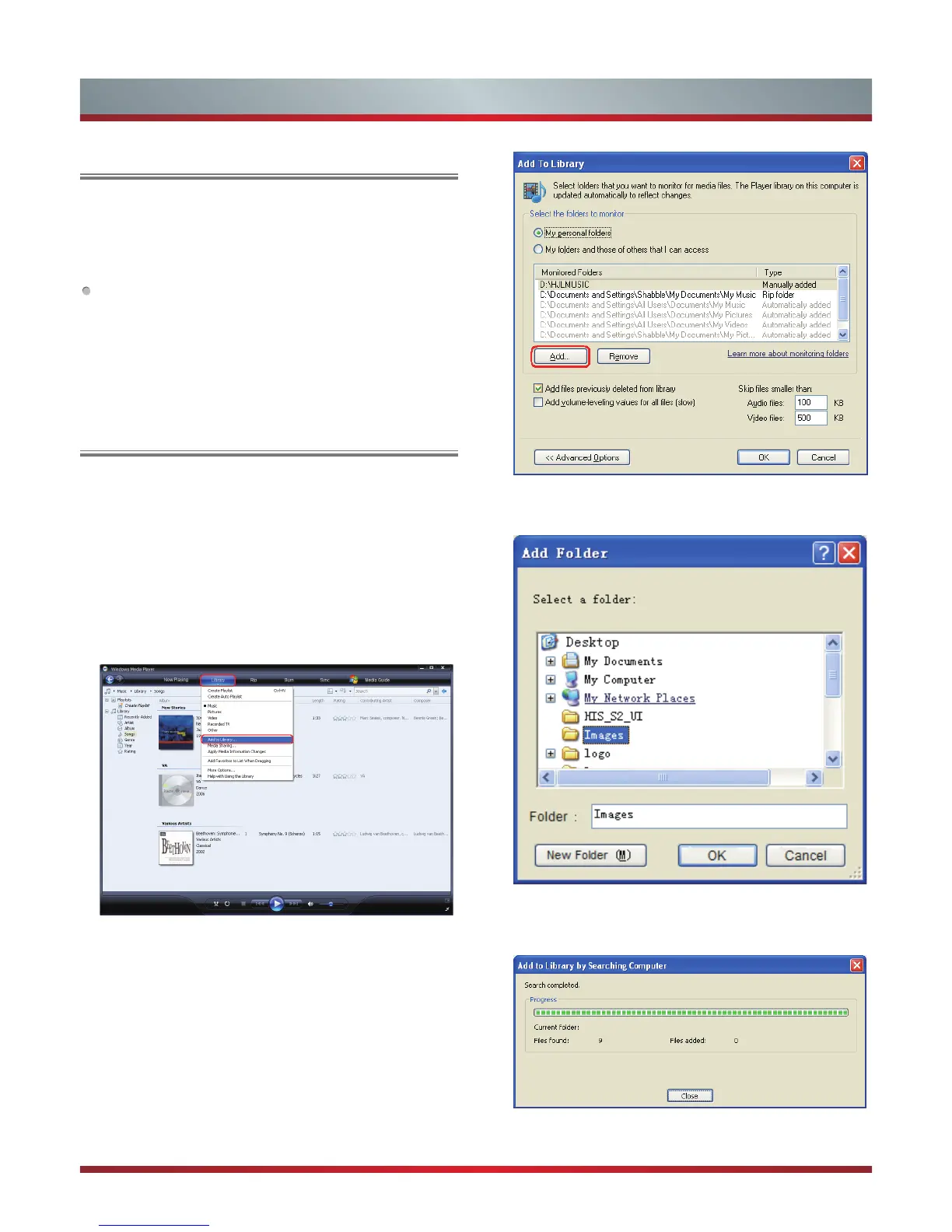
In the Add To Library dialog box, click “Add” as shown in
the following screen shot.
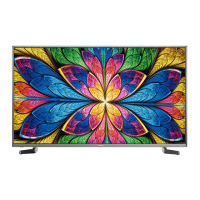
5.
Select a folder and click “OK”.
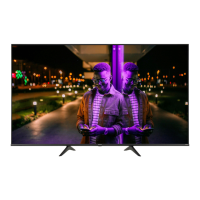
6.
Click “Close” to close the dialog.
You can use DLNA Certified computers, TVs, and other
devices to play or transfer the videos, pictures, and music
stored on your phone. For more about DLNA (Digital Living
Network Alliance), visit www.dlna.org. Make sure your phone
and TV are both connected to the same Wi-Fi network.
Set DLNA to On:
1. On the Network screen, select Applications and press
the [OK] button to enter the submenu.
2. Press the [◄/►] buttons to set DLNA to On.
DLNA Setting
Media Share Settings in Computer


 To Next Page