30
Network Function
Brief introduction
The user can browse and launch any application from
the Opera App store dashboard. These applications are
based on Opera Devices SDK and are displayed in a
layout optimized for widescreen television. In the Opera
TV Store, there are a lot of high-quality, HTML5-powered
TV apps available. You can choose any apps you like and
either use them online or add them to "My Apps" for easy
use. "My Apps" is located under the "More APPS" section.
Operation instructions
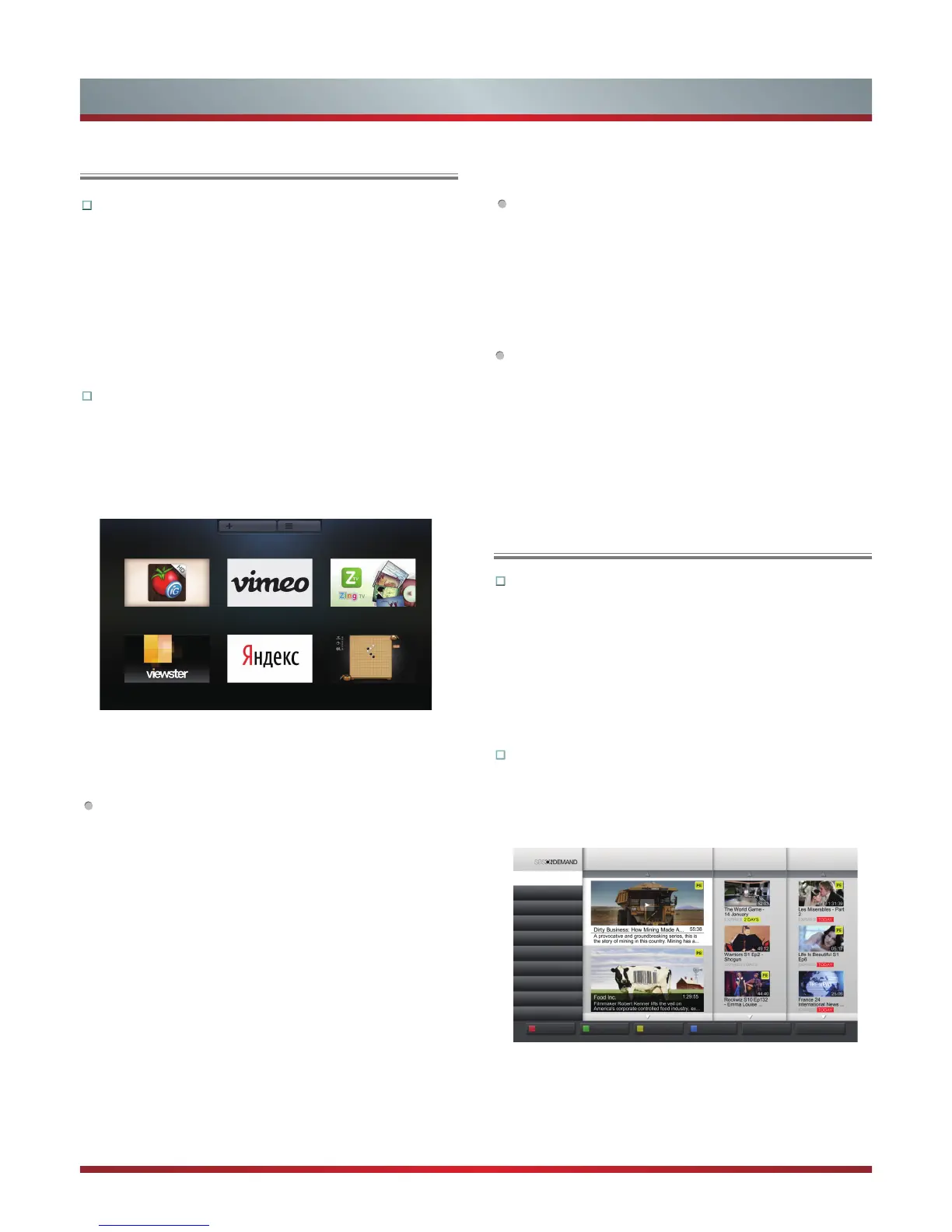
1. Press the [HiSmart] button to display HiSmart Hub.
2. Press the [▲/▼/◄/►] buttons to select the Opera
Apps icon and press the [OK] button to enter My Apps
interface. You can select the applications you want to
enter and press the [OK] button to confirm.
My Apps
iG Receitas vimeo Zing TV
Viewster Yandex
五子棋
MORE APPS MENU
The picture are reference only.
3. Press the [Return] button to return to the upper menu or
press the [Exit] button to close the apps.
How to add more apps
1. Press the [▲/▼] buttons to select the "MORE APPS"
button on the top of the screen and press the [OK] button
to enter it.
In the More Apps' subpage, the application is classified
by All categories, New, Popular, Watch, Listen, Play,
Socialize, Shop, Read, Use.
2. Press the [◄/►] buttons to select the classification and
press the [▼] button to enter.
3. Press the [▲/▼/◄/►] buttons to select the applications
which you want to install and press the [OK] button to
enter the installing interface.
4. Press the "ADD TO MY APPS" button to install the
applications or press the "OPEN" button to enter the
application interface directly.
If the applications have been installed, they will be shown
in My Apps interface.
How to remove the installed apps
1. Press the [▲/▼] buttons to select the "MENU" button on
the top of the screen and press the [OK] button. A pop-up
menu appears on the screen.
2. Press the [▼] button to select "REMOVE APP" option,
select the application which you want to delete, then
press the [OK] button.
SelfService
1. Press the [▲/▼] buttons to select the "MENU" button on
the top of the screen and press the [OK] button. A pop-up
menu appears on the screen.
2. Press the [▼] button to select "About" option and press
the [OK] button to view the service information.
Brief introduction
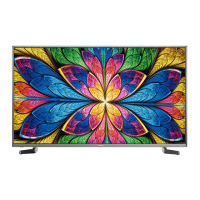
With the SBS ‘Catch On Demand’ App, you can choose
Film, Comedy, Documentary, Drama, Entertainment,
Food, News, Sport or Program A–Z to explore different
types of video. The videos are further divided into three
columns: ‘Featured’, ‘Catch-up on last night’, and ‘Last
chance’. A search box is located on the top right-hand
corner of every SBS On Demand page.
Operation instructions
1.
Press the [HiSmart] button to display HiSmart Hub.
2. Press the [◄/►] buttons to select the SBS icon and
press the [OK] button to enter it.
Film
Home
Comedy
Documentary
►
FEATURED
CATCH-UP ON LAST NIGHT LAST CHANCE
Drama
Entertainment
►
Food
►
News
►
Sport
►
Search Play Video My Videos Help Return Exit
Programs A-Z
►
3. Press the [◄/►/▲/▼] buttons to select the category
or video you want to access, and press the [OK] button
to enter it.
4. To use other features, press the button showed in the
help bar.
Opera Store
SBS
(Just for Australia area)


 To Next Page