26
Digital Media Player
Playing Video Files
Playing Music Files
1. Press the [◄] button to switch to the left hand side
menu bar, select All or Video by pressing the four-way
directional [▲/▼/◄/►] button on the remote.
2. Press [►] button on the remote control to select the
USB source and then Press the [OK] button to enter.
3. Press the [▲/▼/◄/►] buttons to select the folder that
contains the video you want to view.
4. Press the [OK] button to play the video.
5. Press the [■/Return] buttons to exit and return to the
previous directory.
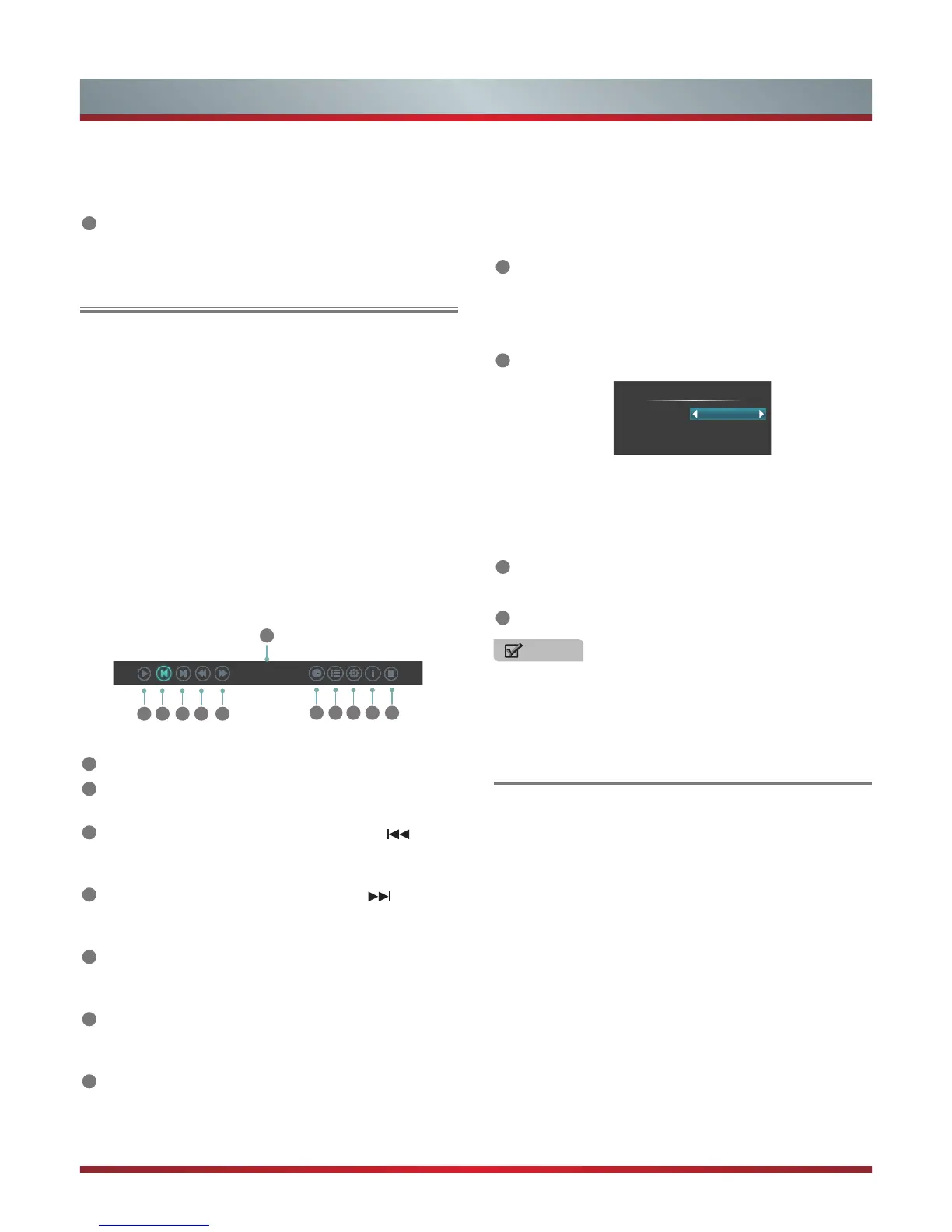
6. Press the [Info] button to display/exit the picture control
bar
7. Press the [◄/►] buttons to select the function icon and
then press the [OK] button to confirm.
2 3 4 5 6
1
7 8 9
10 11
00:00:36/00:20:01
Function of icons:
1
The progress bar when playing.
2
Play/Pause. You can press the [►II] button directly to
play/pause when there is no control bar on the screen.
3
Play the previous video. You can press the [ ] button
directly to achieve the function when no control bar
displayed on the screen.
4
Play the next video. You can press the [ ] button to
achieve the function when no control bar displayed on
the screen.
5
Fast backward. Then press the [OK] button to select
the backward speed. You can press the [◄◄] button to
achieve the function.
6
Fast forward. Then press the [OK] button to select
the forward speed. You can press the [►►] button to
achieve the function.
7
Select time to play
·
Press the [◄/►] buttons to select the position you want
to set.
1. Press the [◄] button to switch to the left hand side
menu bar, select All or Music by pressing the four-way
directional [▲/▼/◄/►] button on the remote.
2. Press [►] button on the remote control to select the
USB source and then Press the [OK] button to enter.
2. Press the [▲/▼/◄/►] buttons to select the folder that
contains the music file you want to listen.
3. Press the [OK] button to play the music.
4. All the music is listed on the left. Press the [▲/▼]
buttons to select the music and press the [►] button
to mark it. You can press the [Yellow/Blue] buttons to
move page up/down. Press the [Green] button to select
the Mode: Mark / All / Single.
5. Press the [Return] button to exit the music playback
interface.
·
Press the [0~9] buttons to set the time and press the
[▲/▼/◄/►] buttons to adjust it.
·
Press the [OK] button to confirm and the video will to
play at the time you have set or press the [Return]
button to exit.
8
Play list
·
Press the [Yellow/Blue] buttons to page up/page down
and press the [▲/▼] buttons to select the video.
·
Press the [OK] button to confirm.
9
Options
Option Set
Repeat:
Subtitle Selection:
AUDIO1:
Once
No
1/1
·
Press the [▲/▼] buttons to select the options in the
menu.
·
Press the [◄/►] buttons to select the settings.
·
Press the [OK] button to confirm.
10
Program info
·
Allows you to view the program information.
11
Stop playback
NOTE
You can press the [Zoom] button to change the aspect ratio
(Normal, Full Screen, Original Size) while playing the video.
·
Effect - Select transition effects between images, such
as: random, Box in, Box out, Wipe right, Wipe left, Wipe
up, Wipe down, Dissolve, and None.
10
Picture info. Displays information about the pictures.


 To Next Page