14
Basic Features
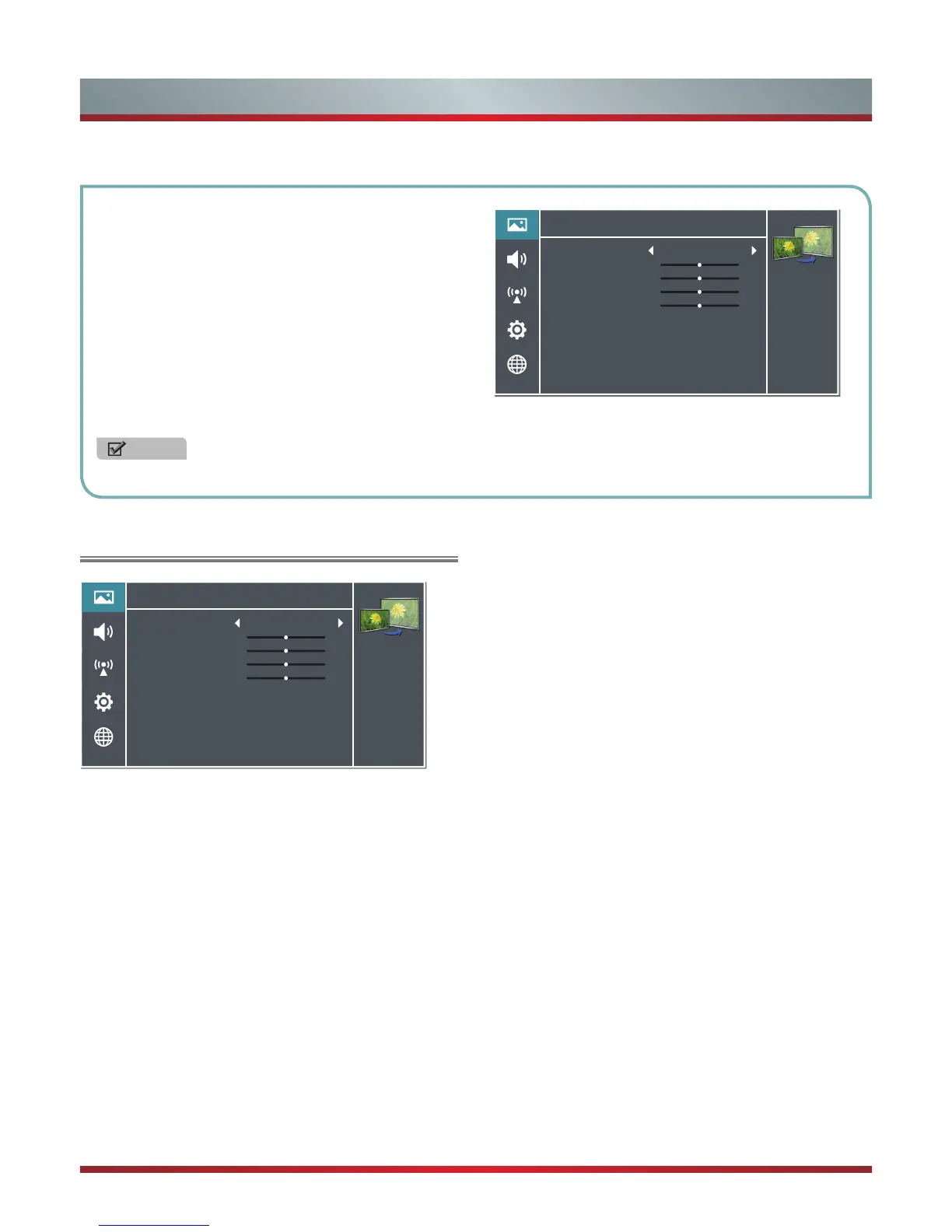
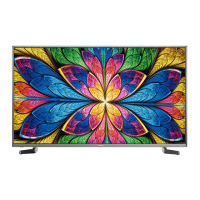
Using the Picture Menu
The picture setting allows the user to optimize the output
quality picture of the TV.
Picture Mode - For setting up the picture mode and
improving the TV picture quality, press the [Menu] button
and then select Picture Mode. Based on the environment
and the requirement select the correct picture mode from the
following options: Bright, Standard, Soft, and User.
Bright: Select the Bright Mode for better viewing the
picture in a bright environment.
Standard: Select the Standard Mode which provides
optimum picture viewing for standard broadcast, cable, or
satellite programs.
Soft: Select the Soft Mode to lower the contrast and
brightness of picture view in a dark environment.
User: Select the User Mode when using your own
personal adjustment. The personal parameter setting for
Brightness, Contrast, Colour, Sharpness, and Backlight
will be stored in the memory.
NOTE
The menus in the user manual may vary slightly from the actual screen.
To Use the Menu
1.
Press the [Menu] button to open the main menu.
2.
Press the [▲/
▲
] buttons to select a menu option, then
press the [
▲
/OK] buttons to enter the sub-menu.
3.
In each menu, you can:
Press the [▲/
▲
] buttons to select an option in the
submenu list,
Press the [
▲
/
▲
] buttons to adjust the option for the
submenu,
Press the [
▲
/OK] buttons to enter the submenu,
Press the [Return] button to return the previous menu.
4.
Press the [Exit] button to terminate this menu.
Brightness (for User mode) - Adjust the overall luminance
of the picture.
Contrast (for User mode) - Adjust the luminance ratio
between black and white.
Colour (for User mode) - Adjust the color saturation within
the picture.
Tint - Adjust flesh tones so they appear natural. (Only
available when receiving systems is NTSC)
Sharpness - Adjust to achieve the optimum sharpness of
edges and details within the picture.
Backlight - Adjust backlight to suit light conditions of the
environment. Please note that this option is not available
when 3D Mode sets to On.
Backlight Mode: Adjust backlight mode by selecting the
Manual or Adaptive Backlight mode.
Backlight Adjust : It is only available when Backlight
Mode sets to Manual. Adjust the backlight level bar to
select the optimum levels of illumination.
Advanced Settings - The advance setting provides the
specialized features settings.
Colour Temperature: Adjusts the colour components
independently to achieve the desired warm or cool feeling
by selecting one of the following options: Standard, Warm,
and Cool.
Noise Reduction: Reduces the noise level of the
connected devices. You could select one of the following
options: Auto, Off, Low, Medium, and High.
Picture
Personalize the
picture to suit your
preferences and
viewing conditions.
Picture Mode
Brightness
Contrast
Colour
Sharpness
Backlight
Advanced Settings
3D
Reset Picture Settings
50
50
50
10
>
>
>
>
Standard
Picture
Personalize the
picture to suit your
preferences and
viewing conditions.
Picture Mode
Brightness
Contrast
Colour
Sharpness
Backlight
Advanced Settings
3D
Reset Picture Settings
50
50
50
10
>
>
>
>
Standard


 To Next Page