32
Network Function
Brief introduction
Skype allows you to speak with your friends and family
via video using a camera. You require a Skype account to
use this app.
Operation instructions
1. Press the [HiSmart] button to display HiSmart hub.
2. Press the [◄/►] buttons to select the Skype icon and
press the [OK] button to enter it.
3. Then the sign in interface will appear on the screen.
Press the [OK] button to display soft keyboard, input your
Skype name and password. Then press "Sign in" to run
Skype.
If you use Skype at the first time, you should press "Don’t
have a Skype Name?" to create an account.
Please input information according to prompts on the
screen.
4. After you sign in Skype, press the [▲/▼] buttons to select
desired option among Sign out, Call phones, Contacts,
Settings, Profile, History.
Sign out - On the Welcome to Skype screen, if you want
to exit Skype, you can press "sign out" directly, and you
can also press the [Menu] button to minimize Skype.
Call phones - Press the [OK] button to enter the call
phones interface. Select the country and enter the
number with the area code.
NOTE
You need to top up with PC to use this feature.
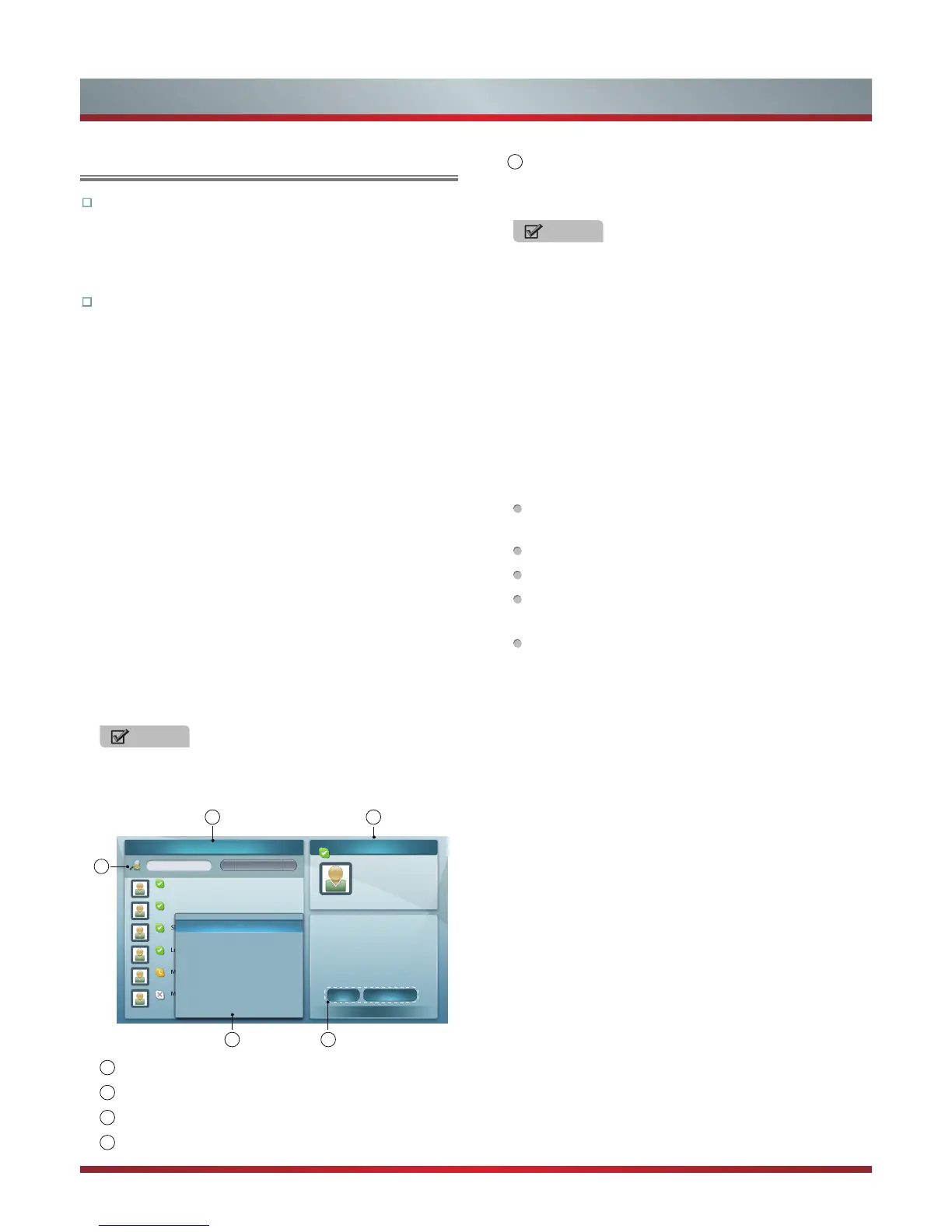
Contacts - Display all contacts and details.
1
3
5 4
2
All contacts
Mthe2
Call Video call
All contacts
Add Skype Contact
Echo/Sound Test Service
Mthe2
Location:
Full name
Press MENU Key to Option List
Echo/Sound Test Service
Skype name
Skype 123
Language English
Location
About me
TimeZone:GMT+0
Add SkypeOut Contact
Block
Rename
Search
Send Voicemail
(2 / 8)
1
All contacts list
2
The selected contact’s information
3
Search bar
4
Shortcut of Call and Video call
5
Option list. Press the [Menu] button to display the
option list, then press the [▲/▼] buttons to select the
option which you desire to set.
NOTES
·
Before having call and video call with Skype, please
install the TV camera.
·
Please buy and use the TV camera of the
manufacturer only. The TV Camera of the other
companies is incompatible with your TV. Please
consult the sales personnel for the details.
·
Other request of call and video will not respond when
Skype is minimized
·
This version of Skype TV app supports voice and
video but not text messaging.
Settings - you can set the options: General settings,
Change password, Video settings, Privacy settings and
Blocked contacts.
General settings: Select whether you want Skype to
launch automatically when you turn on the TV.
Change password: Set new password.
Video settings: Adjust the settings for video.
Privacy settings: Choose who you will receive calls
from.
Blocked contacts: Any blocked persons will be listed
in this window.
Profile - Set your personal information: Public, Protected,
Private, Profile picture and Online status.
History - Show history, including all Incoming and
Outgoing calls, Missed calls, Contact requests and
Voicemails.
Skype



 To Next Page