eSpace IAD
Troubleshooting
3 Common Troubleshooting Methods
Huawei Proprietary and Confidential
Copyright © Huawei Technologies Co., Ltd.
CLI Mode
Web Mode
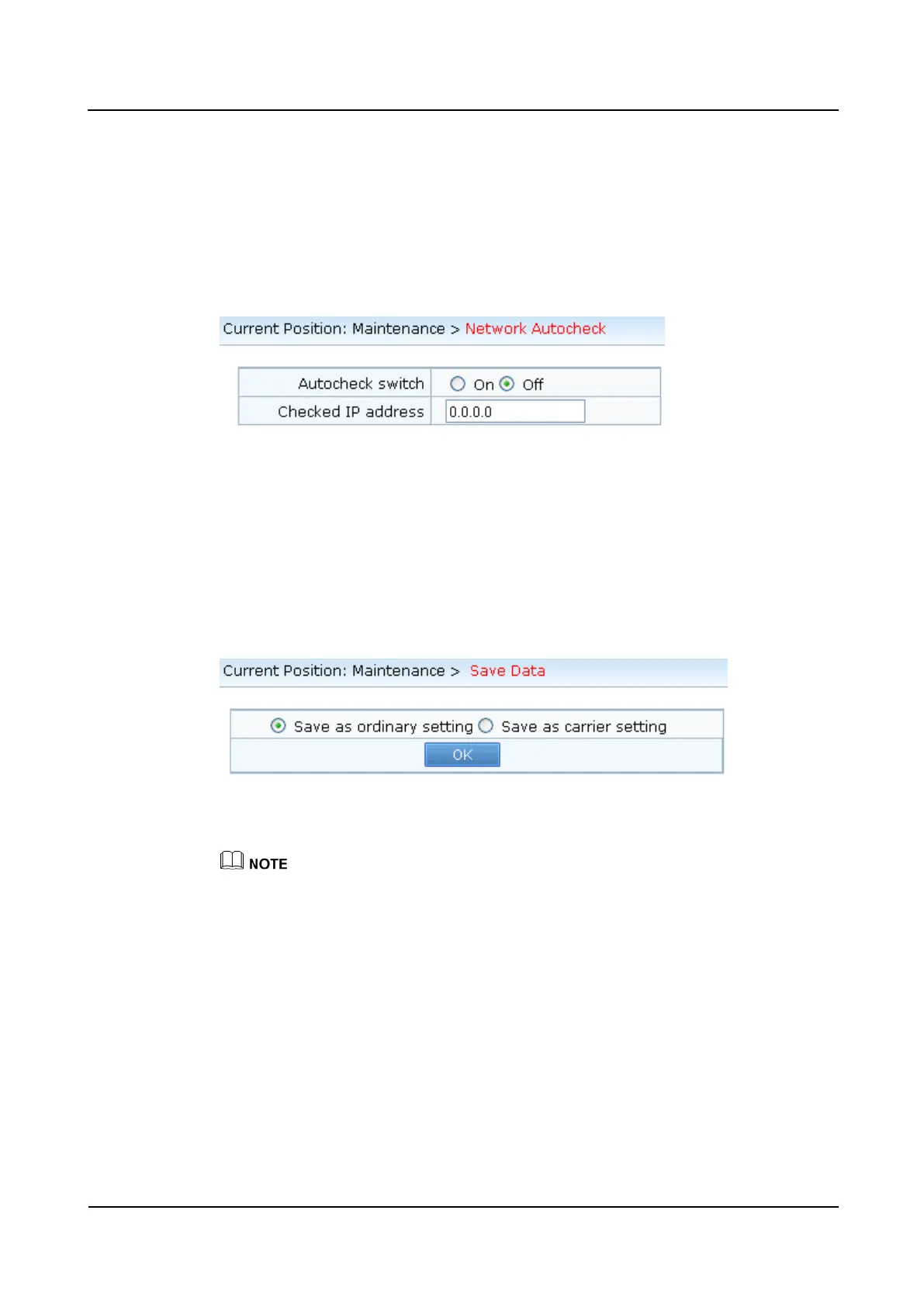
Step 1 Choose Maintenance > Network Autocheck from the navigation bar.
The page shown in Figure 3-2 is displayed.
Figure 3-2 Setting parameters for automatically checking the network status
Step 2 Enable the automatic check function.
Step 3 Set Checked IP address to 192.163.1.8, and click OK.
Step 4 Save the data.
Choose Maintenance > Save Data from the navigation bar. The data storage page is
displayed, as shown in Figure 3-3.
Figure 3-3 Save Data page
Click Save as ordinary setting or Save as carrier setting, and then click OK.
When the data is saved as the carrier setting, the system automatically backs up the current setting. You
can choose to restore to the carrier setting as required.
Step 5 Choose Maintenance > Network Autocheck from the navigation bar to check the network
status.
The page shown in Figure 3-4 is displayed.








 To Next Page