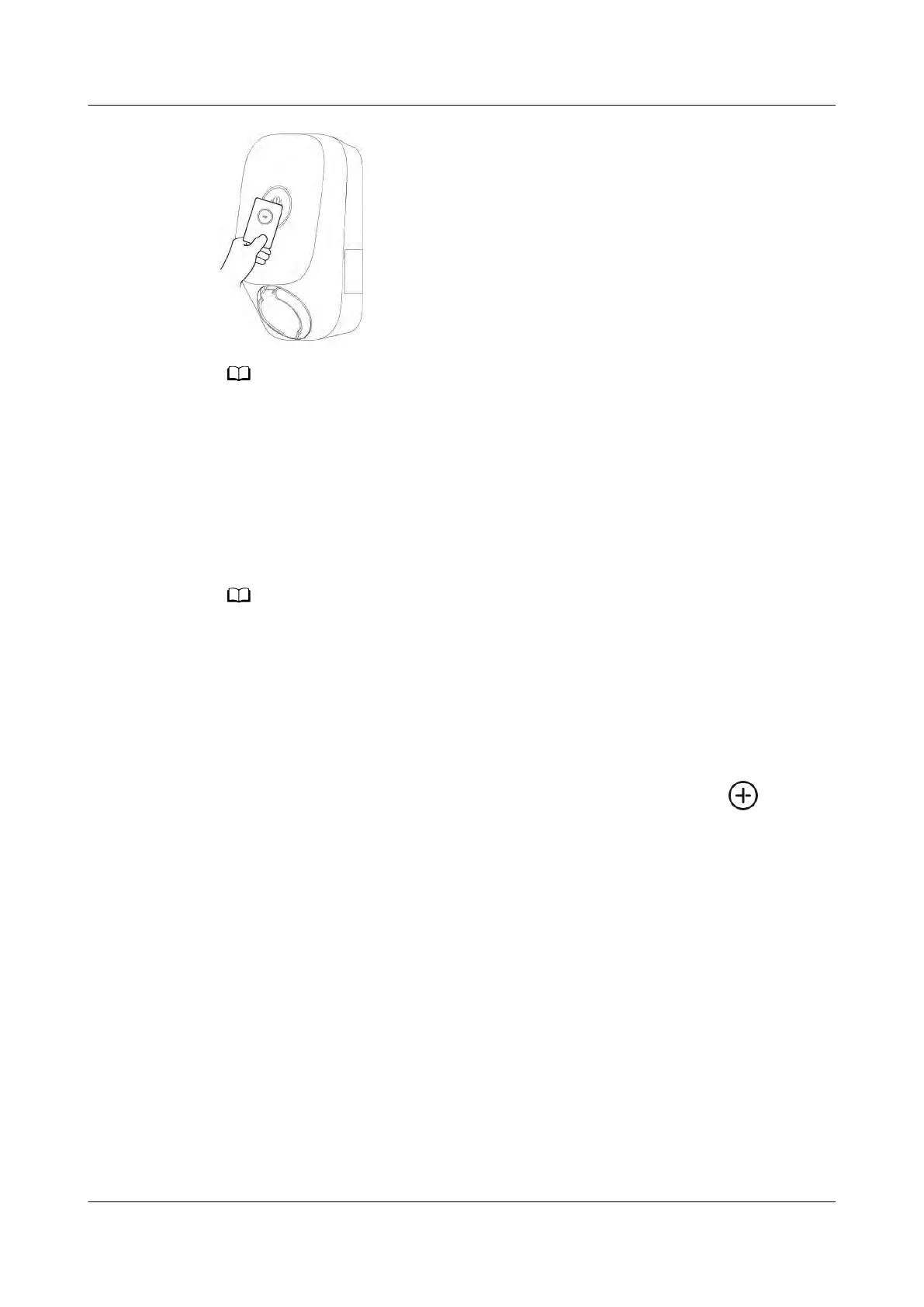
If you swipe your card in the swipe protection state, the swipe protection time will start
again.
5.5 RFID Car
d Management
You can add or delete RFID cards and query the RFID card list on the FusionSolar
app. After adding an RFID card and enabling identity authentication, you can start
or stop charging by swiping the RFID card.
Before using an RFID card, choose Set
tings > Advanced Settings > Identity
Authentication, and enable Identity Authentication. For details about the Identity
Authentication, see Identity Authentication.
Adding an RFID Card
1. Connect to a charger.
2. On the Charger screen, choose Settings > Card management.
3. In the upper right corner of the Card Management screen, tap
and
select a car
d adding mode.
– Swiping
i. After the indicator blinks white fast twice, place the ring pattern on
the RFID card in the swiping area. If the indicator is steady white for
5s, the card is successfully swiped.
ii. Enter the user-dened card name and tap Conrm.
PV+ESS+Charger Solution
User Manual 5 Maintenance
Issue 02 (2023-01-13) Copyright © Huawei Technologies Co., Ltd. 74



 To Next Page