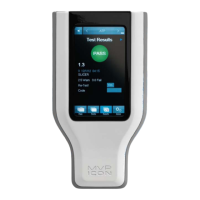
The buttons on the bottom of the screen are used to access the following functions:
• Plans – allows the user to select a specific sample plan
• Points – allows the user to select a specific test point
• Results – provides a list of recorded results for each test point
• Device – provides access to the instrument specific settings including screen brightness,
volume, language, date and time, deleting results, and calibration
To preserve battery life, the ICON screen will automatically dim after one minute of inactivity and
turn dark after two minutes. To awaken the instrument, simply touch the screen or power
button. After five minutes of inactivity the ICON will completely shut down (
See Chapter
25 for
customizing these settings).
C
alibrating the Touch Screen
It is recommended to calibrate the touch screen, should it freeze or become difficult to navigate.
Connect the MVP ICON to the Dashboard software.
• Select ICON Setup from the top toolbar menu
• Select “Calibrate Display”
• The ICON instrument will then enter its screen calibration mode
• Follow the prompts on the screen, ensuring to touch the tip of each arrow for the most
precise and accurate calibration.
Note: Calibrating the touch screen requires precisely touching specific areas of the screen. This
procedure should be performed using the blunt end of a pen, an ICON sampling device, or similar
stylus-like object.
Self-Diagnostic
When the ICON is powered on, the instrument will perform a 45-second self-diagnostic and
record a baseline reading. The chamber must be empty during the initial start-up procedure.
measurement
parameters
one screen
Access a list of sample plans,
test points, results, or
change instrument settings
4


 To Next Page
 Loading...