Taking a Reading 6
ATP
• Select “ATP” mode in the top menu bar from any screen. Use < or > arrows to toggle
through modes.
• Select “Points” from the bottom icon menu
• Select desired test point or use the scroll bar to scroll through the list of available test
points.
Note: To locate a test point not currently displayed, please reference Chapter 2 – “Finding
a Test Point”.
• At the “Test Point” screen, designate if sample is a “Re-Test” (
see Chapter
7).
• Enter an optional customized code (
see Chapter
9)
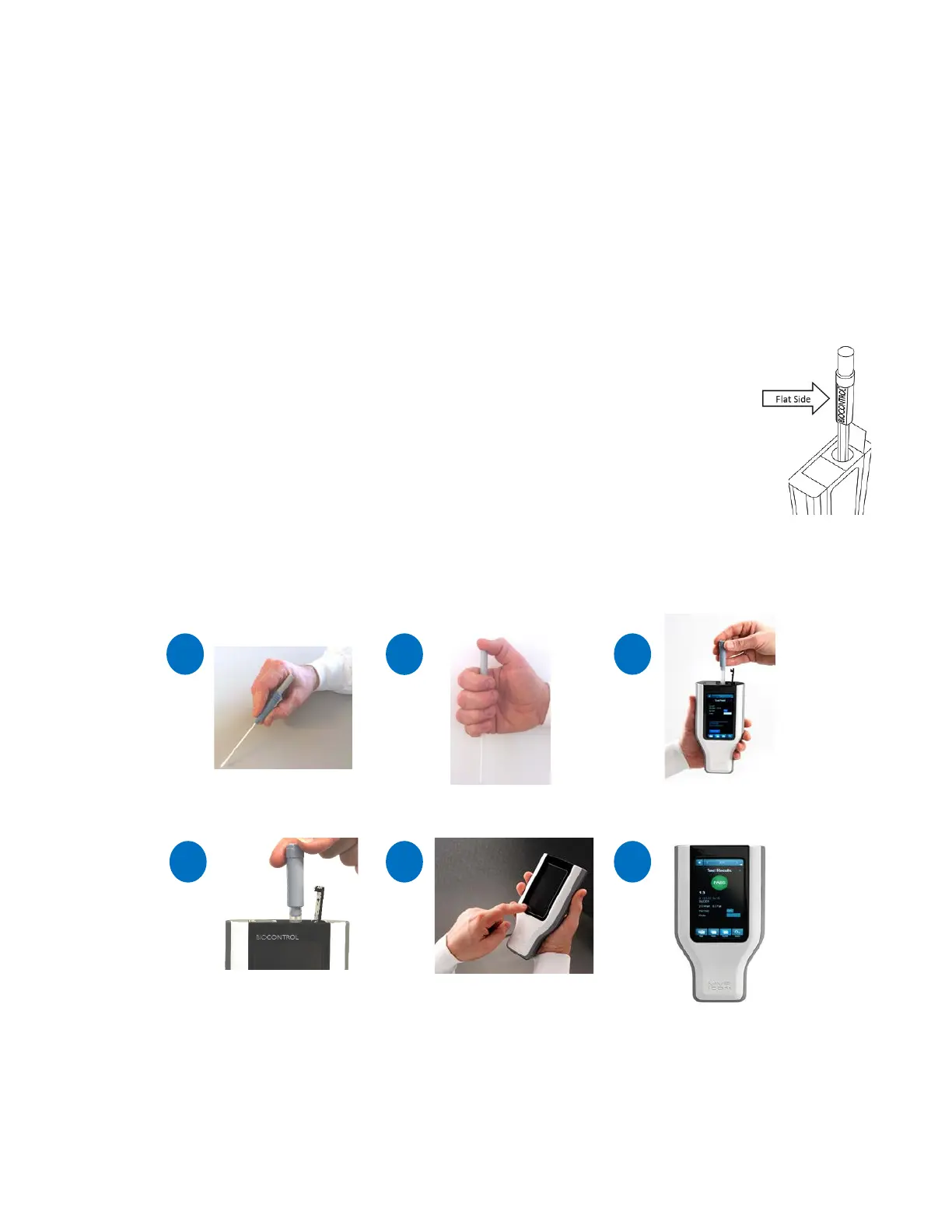
• Follow the directions in blue to swab the area and insert the sampling device.
Note: When inserting a sampling device into the MVP ICON, ensure the flat
sides of the swab chamber face left to right. Do not force the sampling
device into the MVP ICON (see Figure 1).
• Press “Run Test”
• Screen will show “Test in Progress” with a countdown to completion.
Note: Please reference the Directions for Use included with the LIGHTNING
MVP ICON Surface or Liquid Sampling Devices for additional information.
Insert activated
swab into ICON
Select test point or
quick test
two flat sides facing
13


 To Next Page
 Loading...