InfiNet Wireless R5000 Technical User Manual
Copyright © 2004-2010 by InfiNet Wireless
42
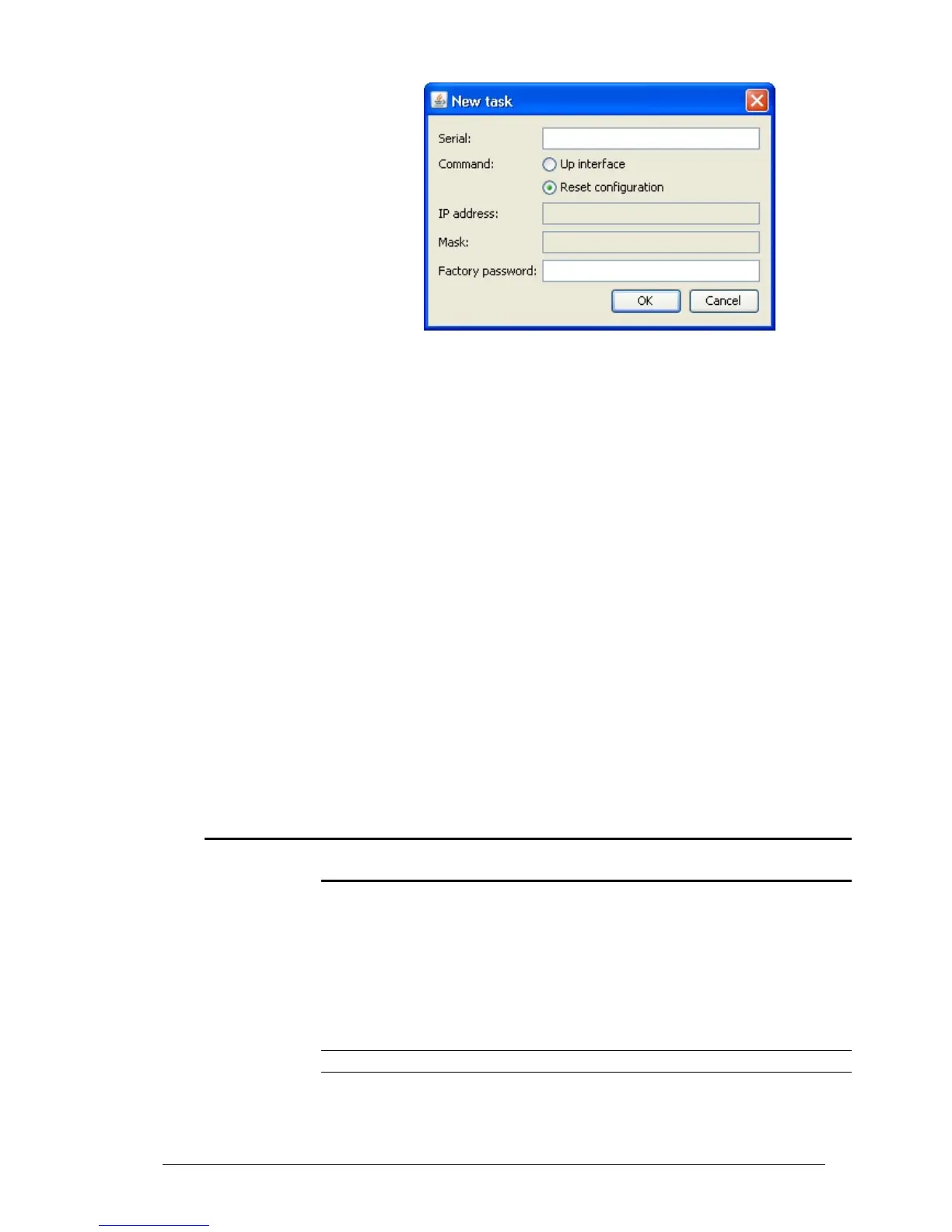
«New task» window.
8. Restart the device.
After device restart “ERConsole” utility will reset device configuration to the
default.
9. Now login the device with any non-zero length login and password.
10. Reconfigure device username and password.
The “ERConsole” utility’s “New task” window also allows setting the units’ IP-
address on its Ethernet interface (eth0) without login to the unit. To perform this
procedure please follow the below steps:
1. Firstly, do steps 1-3 as described above.
2. Press «+» button in the «Scheduled tasks» section of the main window.
3. In the opened “New task” window choose “Up interface” in the “Command”
field. Then type the required IP-address and network mask in the corresponding
fields of the window and press “Ok” button.
4. Restart the device.
After the restart the “ERConsole” utility will add the IP-address into its Ethernet
interface configuration and will up the interface (in case it was configured
“down”).
5. Configuration manipulations
Printing and saving your configuration
You can easily review your current device’s
“config show” command. The output of the command is sorted by the
configuration sections (e.g. “System parameters”, “Interfaces configuration” etc).
You can review some particular parts of the configuration specifying the part of
the configuration you want to see.
Example:
config show ifc
This command will print the interfaces configuration. You can specify several
parts of the configuration separating them with a space bar.
Example:



 To Next Page