EasyManua.ls Logo

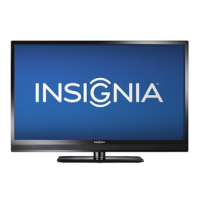
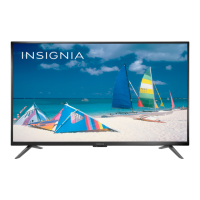
Insignia NS-42E859A11 - User Manual

Insignia NS-42E859A11
123 pages
Print Icon
To Next Page IconTo Next Page
Loading...
User Guide
NS-32E859A11/NS-42E859A11

Table of Contents

Other manuals for Insignia NS-42E859A11

Questions and Answers

  • K
    Kimberly AndrewsSep 23, 2025
    What to do if the LED blinks but device does not respond on Insignia LED TV?
    • Y
      ynewtonSep 23, 2025
      If the LED blinks when you press a button, but the device does not respond on your Insignia LED TV, make sure the remote is aimed at your device and is not more than 40 feet (12.2 m) away.
  • D
    Dylan YatesAug 25, 2025
    Why is my Insignia NS-42E859A11 LED TV showing no picture?
    • J
      Jonathan PattonAug 25, 2025
      If your Insignia LED TV displays no picture, try the following: * Press on the TV or remote control. * Ensure the power cord is plugged in. * Try another channel to rule out station issues. * Check that video cables are securely connected to the back of the TV. * Adjust the contrast and brightness settings. * Select the correct video source. * Confirm the incoming signal is compatible. * Verify the antenna or cable TV is properly connected. * Check the closed caption settings, as some TEXT modes can block the screen.
  • W
    William ButlerAug 25, 2025
    How to fix Insignia NS-42E859A11 when there is no power?
    • J
      Jose FullerAug 26, 2025
      If your Insignia LED TV has no power, take these steps: * Ensure the power cord is correctly connected to the power outlet. * Unplug the power cord, wait 60 seconds, then plug it back in and turn on the TV. * Other devices may be interfering with your TV. Try turning off one device at a time to determine which device is causing interference. Once you have determined which device is causing interference, move it further from the TV to eliminate the interference.
  • S
    slucasAug 26, 2025
    Why is there good picture but no sound on my Insignia LED TV?
    • D
      Dean WilliamsAug 27, 2025
      If your Insignia LED TV has a good picture but no sound, try these solutions: * Increase the volume. * Make sure that the sound is not muted. * Ensure the correct audio mode is selected. * Check that the audio cables are connected correctly and securely to the back of your TV. * Verify the antenna or cable TV is connected correctly and securely. * If you are using an antenna, the digital channel signal may be low. * The audio cable(s) you are using may be bad. Try a new set.
  • M
    Mr. Tyler LeonardAug 27, 2025
    What to do if Insignia NS-42E859A11 displays 'searching for a signal'?
    • E
      Edward BurkeAug 27, 2025
      If your Insignia LED TV displays 'searching for a signal on this source' and never shows a picture: * Press INPUT and ensure you've selected the correct input for the device or service you're using. * If using a cable or satellite box, use its remote to change channels. * Ensure you've selected the correct input to view channels from the cable or satellite box.
  • C
    Clarence BergSep 16, 2025
    What to do if there is no volume on a device connected to Insignia NS-42E859A11?
    • C
      Cody RichardsSep 16, 2025
      If there is no volume on a device connected to your Insignia LED TV, make sure that the volume is not locked to a different mode.
  • H
    Heidi JimenezSep 14, 2025
    What to do if Insignia NS-42E859A11 device does not power on or off?
    • E
      Elizabeth McmillanSep 14, 2025
      If your Insignia LED TV device does not power on or off, make sure that the power button is not locked to a different mode or the power button is not assigned to another device.
  • A
    athomasSep 15, 2025
    How to fix VGA picture that is not stable on Insignia NS-42E859A11 LED TV?
    • F
      fieldssuzanneSep 15, 2025
      To fix a VGA picture that is not stable or synchronized on your Insignia LED TV, make sure that you have selected the correct VGA mode on your computer.
  • C
    Chelsea TurnerSep 6, 2025
    How to fix unstable network connection on Insignia NS-42E859A11?
    • E
      Eric BeckSep 6, 2025
      To fix an unstable network connection on your Insignia LED TV: * Unplug the Ethernet cables, then plug them back in. * Move your wireless access point closer to your TV.
  • N
    nancyclarkSep 2, 2025
    What to do if automatic network setup fails on Insignia LED TV?
    • M
      Matthew MeyersSep 3, 2025
      If automatic network setup fails on your Insignia LED TV: * The DHCP service is not enabled on the router, or no router is present. Refer to your router’s documentation for instructions on enabling DHCP. If you do not have a router, you must manually set up the network address. * Internet service is not available. Check your cable or DSL modem or contact your ISP for Internet service issues.

Summary

Safety Information

Child Safety

Tips for safe usage and placement of flat panel displays to prevent injury.

Important Safety Instructions

Detailed safety guidelines and warnings for operating and maintaining the TV.

Cautions and Warnings

Important cautions regarding power lines, LCD panel, service, and outdoor antenna grounding.

Getting Started

Making Connections

Steps for connecting various external devices and power to the TV.

Turning on Your TV for the First Time

Steps for initial TV setup using the Setup Wizard.

Using Your TV

Adjusting Video Settings

How to customize picture settings for optimal viewing experience.

Adjusting Audio Settings

Options for manually adjusting sound levels and audio features.

Adjusting Internet Settings

Configuring wired or wireless network connections for internet access.

Rocketboost Setup

Setting Up Rocketboost with TV as Hub

Step-by-step guide to configure the TV as the primary hub for the Rocketboost network.

Maintaining, Troubleshooting, and Specifications

Troubleshooting Common Problems

Solutions for issues like no power, no picture, audio problems, and remote control failures.

Resetting TV to Factory Defaults

Guide to reset the TV to its original factory settings and re-run setup.

Appendix

Setting Up Your Z-Wave Remote Control

Instructions for adding the remote to the Z-Wave network and toggling between IR/RF modes.

Insignia NS-42E859A11 Specifications

General IconGeneral
Display diagonal42 \
Display brightness450 cd/m²
Supported video modes1080p
Contrast ratio (dynamic)12000:1
Screen format adjustments16:9
Supported graphics resolutions1920 x 1080 (HD 1080)
3DNo
Backlight-
Headphone connectivity3.5 mm
HDMI ports quantity4
DVI-D ports quantity1
DVI-I ports quantity0
USB 2.0 ports quantityUSB 2.0 ports have a data transmission speed of 480 Mbps, and are backwards compatible with USB 1.1 ports. You can connect all kinds of peripheral devices to them.
Compatible memory cardsNot supported
Product colorBlack
Panel mounting interface200 x 200 mm
RMS rated power- W
Number of speakers3
Power consumption (standby)1 W
Power consumption (typical)115 W
Remote control typeStandard
Weight and Dimensions IconWeight and Dimensions
Depth (with stand)279.4000 mm
Weight (with stand)17780.8209 g
Depth (without stand)50.8000 mm
Width (without stand)990.6000 mm
Height (without stand)609.6000 mm
Weight (without stand)14605.6743 g

Related product manuals