D-0116684-B – 2020/03
OtoRead™ - Instructions for Use - US Page 39
3.18.2 Accessing the menus
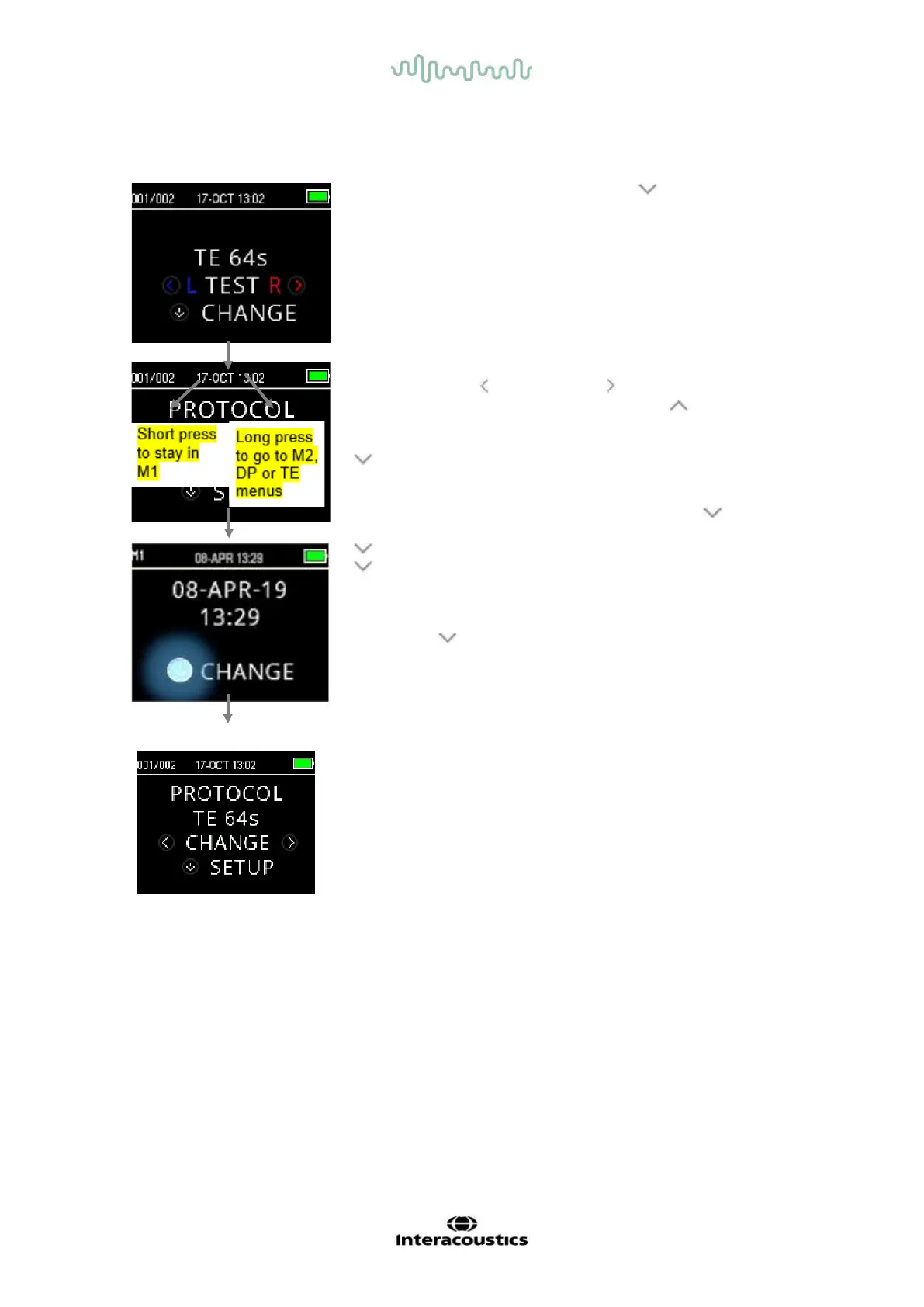
To access the different menus, press the DOWN key from the
Main Menu screen.
The Protocol Menu screen allows the user to change the test
protocol using the LEFT or RIGHT key. Once the desired
protocol is displayed on the screen, press the UP key to return
to the Main Menu and begin testing.
To access the Setup menus M1, M2, DP and/or TE press the
DOWN key from the Protocol menu.
The first accessible menu is M1, indicated by M1 in the top left
hand corner of the screen. You will notice that the DOWN key
is pulsing in blue. To adjust the date and time settings, press the
DOWN key once. To move to M2, press and hold down the
DOWN key for 3 seconds until the ‘READY’ light (green LED)
turns off, and then release the key.
The pulsing DOWN key on the display indicates a long press
is required to move to the next menu.
To access the TE or DP menus, you must have selected the
relevant protocol. E.g., to access the DP menu, a DP protocol
must have been selected and appear on the Main Menu screen.
DP and TE menus are not accessible in the OtoRead
TM
Screening
and Screener Plus Version.














 To Next Page