D-0116684-B – 2020/03
OtoRead™ - Instructions for Use - US Page 40
3.18.3 Date and time settings (menu M1)
When the OtoRead
TM
is first used, the correct date and time will need to be set on its internal clock. The date
and time are listed on the test printout as day-month-year (e.g., 07-MAR-17). The clock should be set prior to
testing, as changing it after tests are saved will not change the date on the printout (i.e., the date that was
previously in memory will be the date on the printout).
Seasonal time changes such as Daylight Saving Time will also require resetting the clock. If the instrument is
being powered on for the first time or if the instrument’s battery is completely discharged and the battery is
not charged within approximately one hour a TIME/DATE ERROR message will occur. If this message
appears, reset the time and date.
3.18.3.1
Changing the date and time
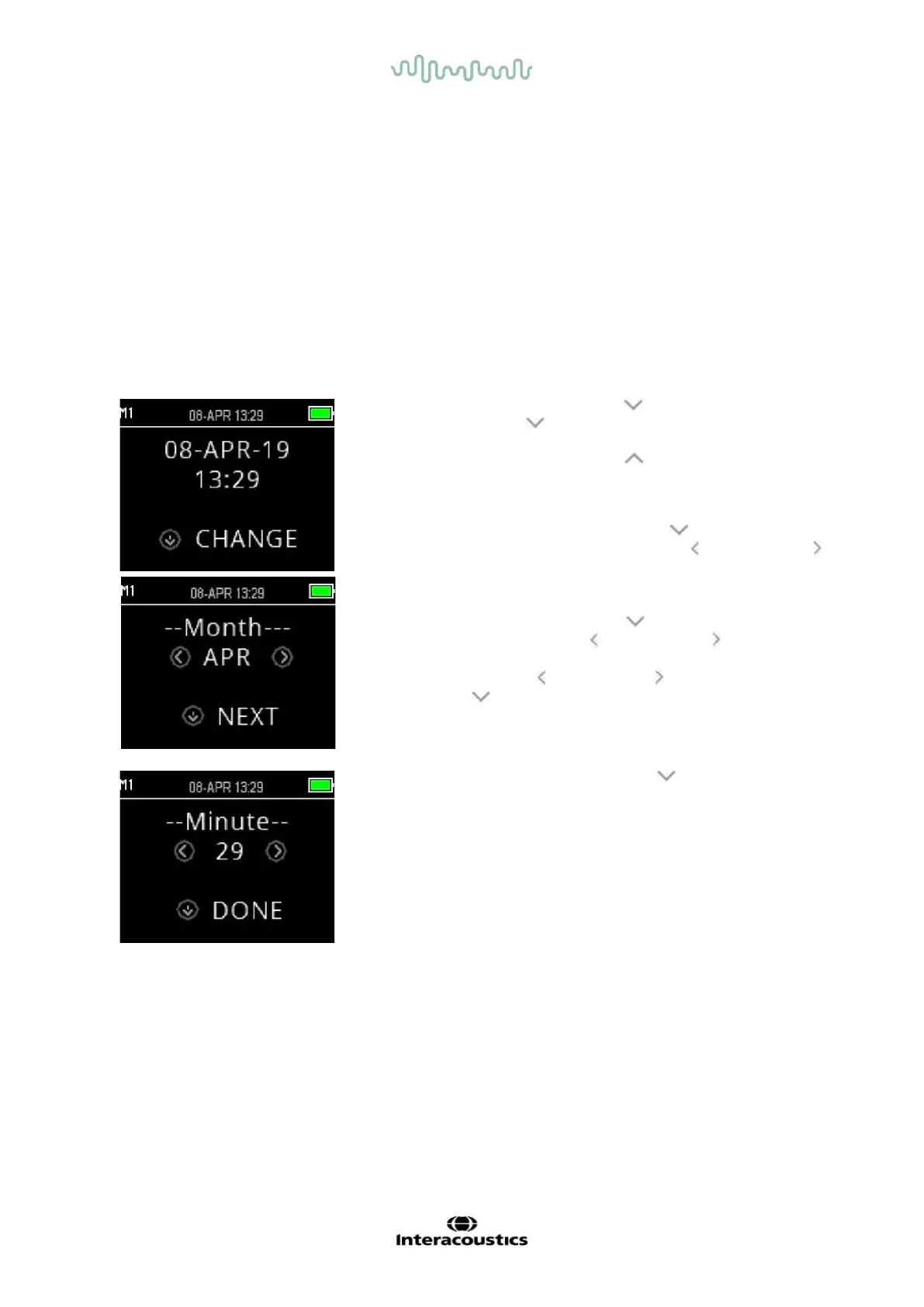
To change the time and date, press the CHANGE key at the Main
Menu and then press the SETUP key again at the Protocol menu.
The current date and time presently set in the device will be shown. If
the time and date are correct, press the UP key to return to the
Main Menu
If either the date or time is incorrect, press the CHANGE key to
access the menu to change the month. Press the LEFT or RIGHT
keys to scroll forward or backward through the months.
You will see the abbreviated name for each month. When the desired
month appears on the display, press the NEXT key to enter the
day selection screen. Pressing the LEFT or RIGHT key will scroll
through the days of the month. Repeat this process for the year,
hour, and minute using the LEFT or RIGHT key to make the
selection and the NEXT key to advance to the next display.
When the correct minute is set, pressing the DONE key will return
to the Main Menu. The time and date changes are automatically
saved.














 To Next Page