D-0116684-B – 2020/03
OtoRead™ - Instructions for Use - US Page 41
3.18.4 Device settings (menu M2)
3.18.4.1
Wireless device pairing
The OtoRead
TM
pairing menu allows the user to pair the OtoRead
TM
unit with a wireless device, such as a thermal printer or personal
computer, for printing test results and data transfer.
The OtoRead
TM
can be paired with only one device at any one time,
meaning that the pairing process will have to be repeated on
previously used devices, in cases where the OtoRead has been
wirelessly connected to other devices. To establish wireless pairing,
turn on the device that will be paired with the OtoRead
TM
(e.g.,
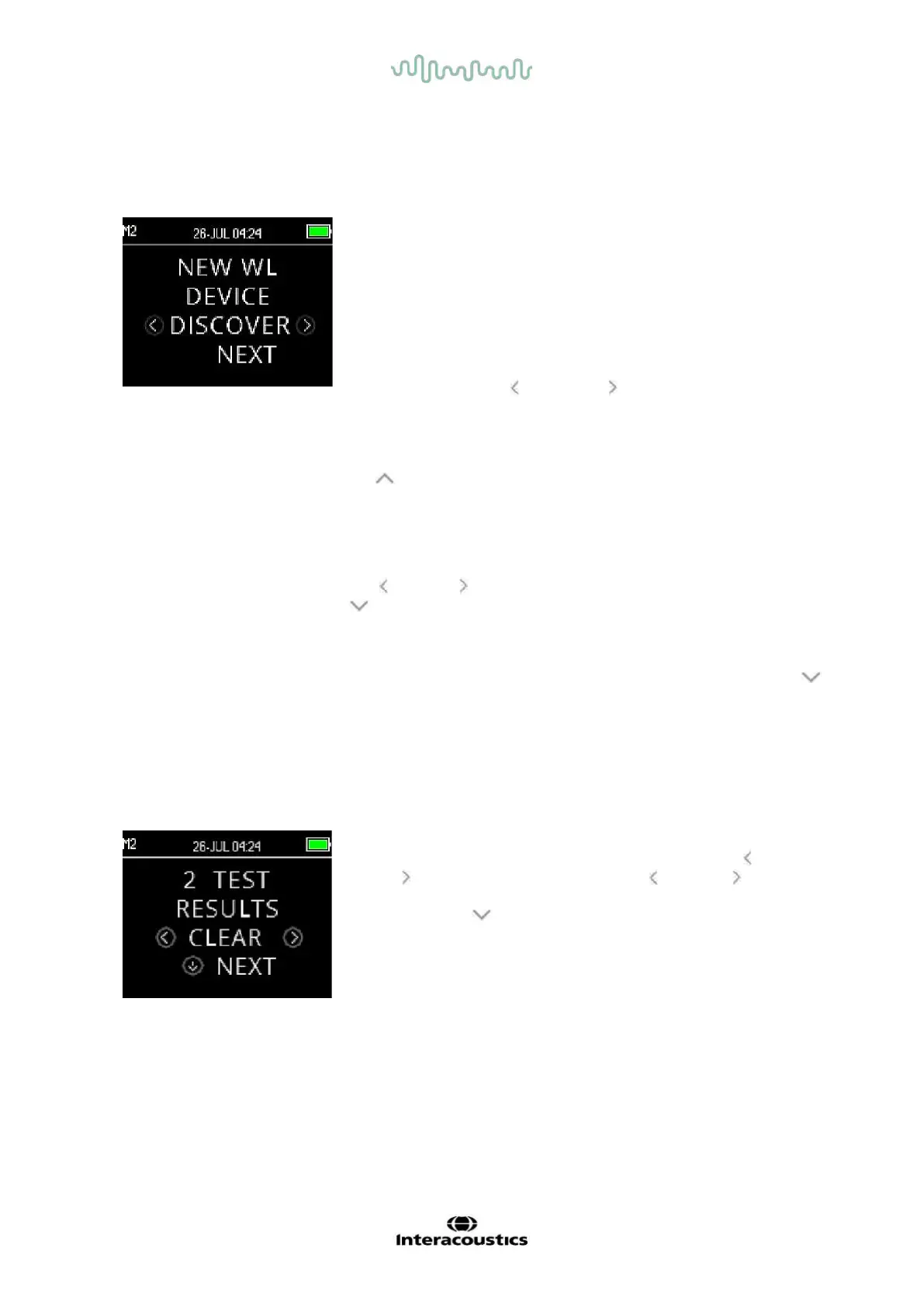
thermal printer). Select DISCOVER to initiate discovery of
available wireless devices. The OtoRead
TM
will search for available
wireless devices for approximately 15 seconds. During this time the
user will see the message ‘PLEASE WAIT’ on the display and the
orange ‘TEST’ LED will flash. Discovery can be canceled by pressing
the CANCEL key.
When discovery is complete, all discovered devices will be shown in
the order in which they were found. A compatible thermal printer will
appear as ’PRT-##-##’ (e.g., PRT-ab-8f) and other devices will be
shown by their name which can vary depending on the device. Use
the CHANGE keys to select the desired device and then use the
PAIR key to pair the OtoRead
TM
to the selected device.
The printer will print out a connection confirmation page.
Pairing will be confirmed. The pairing process is complete. Select
Main Menu to exit the wireless pairing menu.
Refer to the OtoRead
TM
Module & Auto Print Instructions for Use for detailed information about pairing the
device to a PC.
3.18.4.2
Clearing test results
The Test Results Clear menu allows the user to clear the test
results stored in the unit without printing them. Select the LEFT or
RIGHT key to clear the results and select Yes or No to verify
clearing or to cancel. To advance to the next menu without clearing
the results, press NEXT key.
Following printing or data transfer to the PC software, all tests saved
in memory are marked for deletion and will be permanently deleted
when a new test is started. It is not necessary to manually clear the
results using this menu.














 To Next Page