Event # De scription
27 card/code mismatch
29 program mode started by user #N
30 logerasedbyuser#N
32 unprogrammedcarddata
33 unprogrammed code data
50 log retrieved
51 access denied to user #N, user group
lockout
1. Place the prox.pad plus unit in Program mode.
Press:
99 # Master Code * (default is 1234)
A slow blinking yellow LED indicates that the unit
is in Program mode. A steady yellow LED, in
contrast, means that errors were detected during
programming. Error states can be cleared by press-
ing the asterisk * key.
2. Press:
73#event#0/1#**
“0/1” in the command syntax is the ON/OFF in-
struction for the unit. Pressing 0 at a certain event
means that that event is not logged and is not
available to be printed. Pressing 1, in contrast,
restores logging and printing for a p articular
event. “Event” is a two-digit number that repre-
sents a specific transaction as listed on the pre-
vious page. A steady yellow LED indicates an
error; if this occurs, start again.
3. Press * to exit Program m ode. The yellow LED
stops blinking.
4.5.2 Printing a
Transaction Log
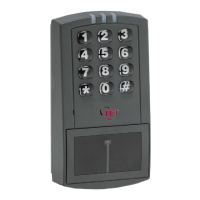
If you have the optional PDA DCD software, you can
capture a Transaction Log on it via the prox.pad plus
IR port. Transaction Logs can be printed using two
different methods, (1) by programming a “dump” code
into me mory and (2) by placing the prox.pad plus unit
into Program mode and manually entering the print
Transaction Log command. For details, see the sub-
sections 4.5.2.A and 4.5.2.B on the next page.
Chapter 4: Programming 4.5 Using the Printing Features
4-30 prox.pad plus Install/Program. Manual, PPP, D2


 To Next Page