22
Ioline FlexJet User Guide
Clean
Runs the print heads through a cleaning cycle in the Service Station.
Put the FlexJet in STOP mode and wait until the OK light turns red.
Then press the Clean button. If the carriage is not already parked,
it will return to the Service Station. After auto cleaning, the FlexJet
will react differently when you put it in green light (START) mode,
depending on what it was doing just prior to the cleaning:
FlexJet state before auto cleaning—e.g. what
the printer is doing just before before it is
put in STOP (red light) mode
FlexJet reaction when put in
START mode after auto cleaning
Printing in START mode (OK light is green) Resumes printing
Idle in START mode (OK light is green) Stays parked and capped.
Idle, in STOP mode (OK light is red) Stays parked and capped.
Quality
Switches between the Best—or dark (600 dpi)—line mode and Draft
mode (300 dpi), which prints lighter and consumes less ink. You can
change line quality while the FlexJet is printing.
Set Origin
The Set Origin key sets the initial origin or starting position for the
marker. It’s best to always set a new origin point after cycling power.
To set a new origin, press Start/Stop until the OK light turns red
(STOP mode). Use the Arrow keys to move the carriage so that the
‘V’ notch and red LED light are positioned over the desired starting
point. Press the Set Origin key. The OK light will turn green, indi-
cating the printer is ready to accept plot les. (See Figure 12.)
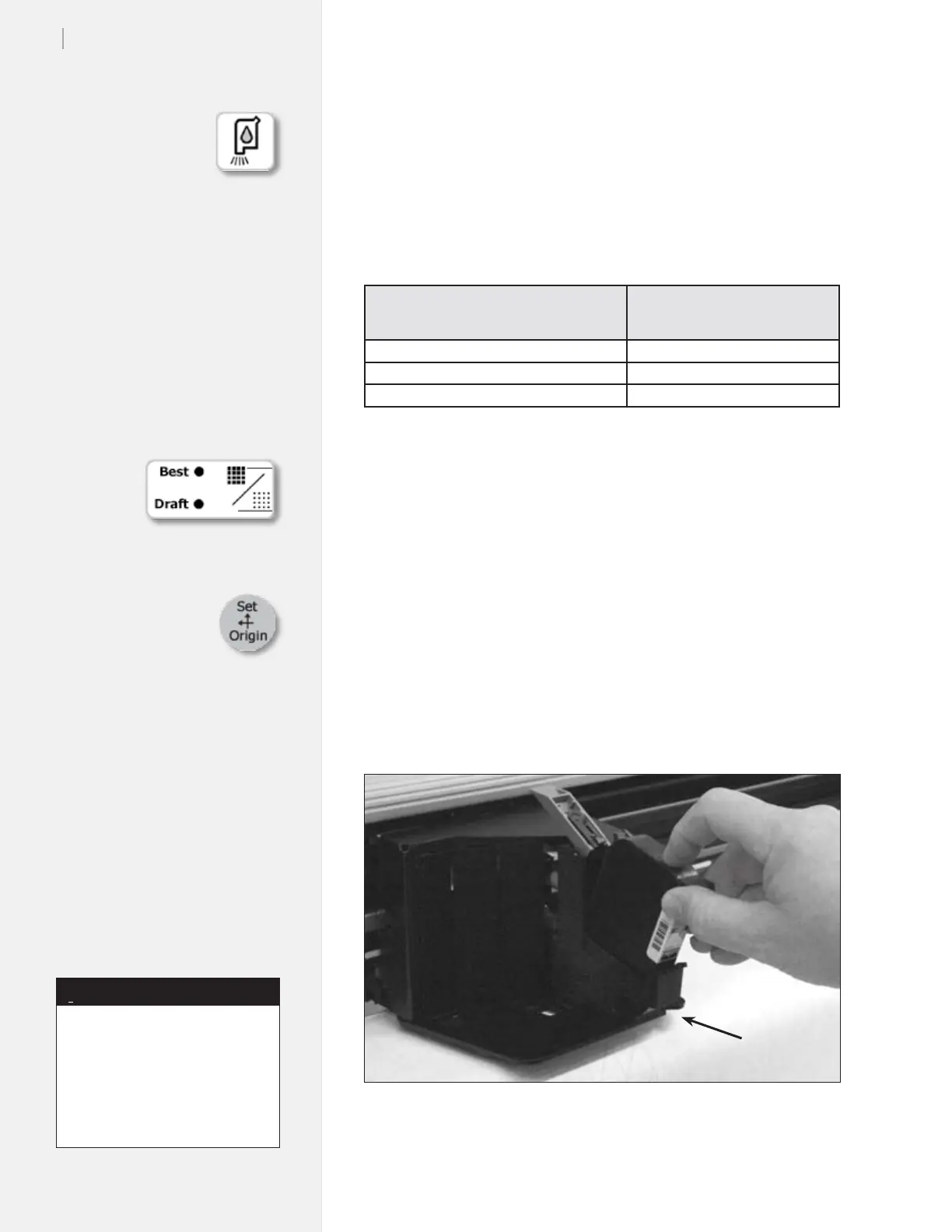
Figure 12. The Set Origin key sets the marker origin point directly below the
top of the notched ‘V’ on the carriage base—located on the right side, near the
red LED light.
‘V’ Notch
Apparel design software usually
refers to the origin as “lower
left” because it is the lower left
corner of a marker. Because the
plot is usually oriented as shown
in Figure 5, it is physically on the
right side of the printer.
Note
i



 To Next Page