46
Ioline FlexJet User Guide
Print Cartridge Storage
Short-term Storage (7 days or less)
n Simply leave the print cartridge in the machine, capped in the
Service Station.
n If the cartridge was not in the Ser-
vice Station, it may require manual
cleaning.
Long-term Storage (greater
than 7 days)
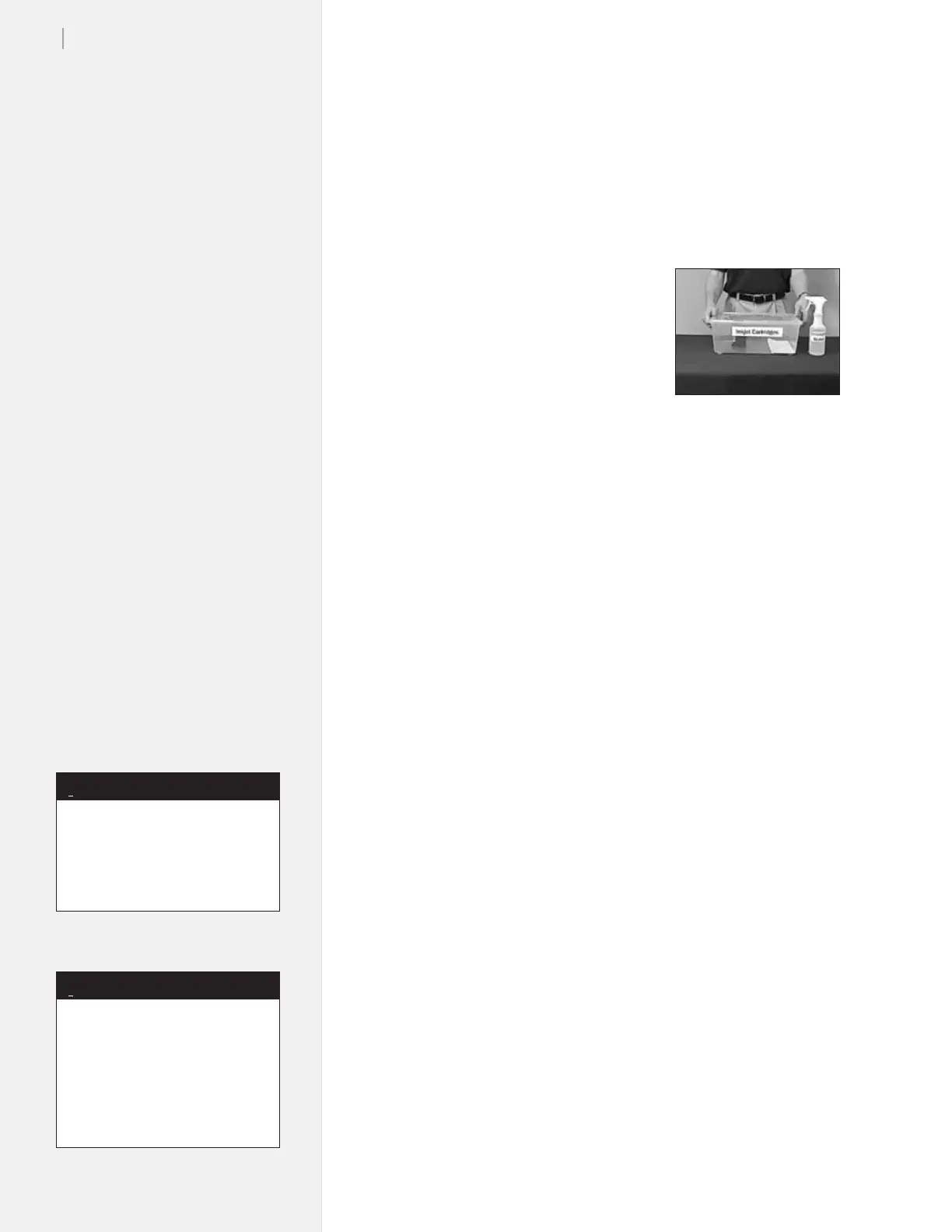
n lace the print cartridge upside-
down in an air-tight container. Lay
a sponge or cloth dampened with
de-ionized water next to it to help
prevent the cartridge from drying
out.
n To return the cartridge to service, follow the manual cleaning
procedure above.
Updating Firmware
using the Control Center
Summary
1. Prepare the FlexJet.
2. Check the Current Version.
3. Update the rmware.
Prepare the FlexJet for a Firmware Update
1. Power on the PC and FlexJet.
2. Ensure that the serial cable is connected between the PC and
the FlexJet.
3. Copy the rmware le to the folder c:\Ioline\Firmware (or
another location that is easy to remember.)
Check the Current Firmware Version
1. Start the FlexJet Control Center.
2. The main screen shows the current rmware version in the
upper right corner. If the version is less than 253.2 then please
follow the directions under the section labeled Manually
Updating Firmware using a Terminal Program like TeraTerm.
Figure 33. Ink cartridges
should be stored in an air-
tight container..
If the rmware le is a ZIP
archive, make sure it is decom-
pressed before sending it to the
FlexJet. You can download a ZIP
decompression utility at
http://www.winzip.com if
necessary.
Note
i
If you are using rmware version
247.x or older, you will need to
update the rmware manually. The
Control Center will not upgrade
the older rmware.
Note
i



 To Next Page