nano3G AP Installation Manual Finalize Installation
N3G_INST_300 v8.1 for N3G_2.0.5 © ip.access Limited 2011 Page 62
7 Finalize Installation
All the activities in this section are managed from the OMC-R Client.
7.1 Check and Upgrade the nano3G AP Software Image
This is a useful check to ensure that the AP has the required software version, even if the
AP software was recently updated during commissioning.
7.1.1 Check the Current Software Image Version
1) Login to the OMC-R Client with a user name (and password) that has Full Access
rights for changing the AP's configuration.
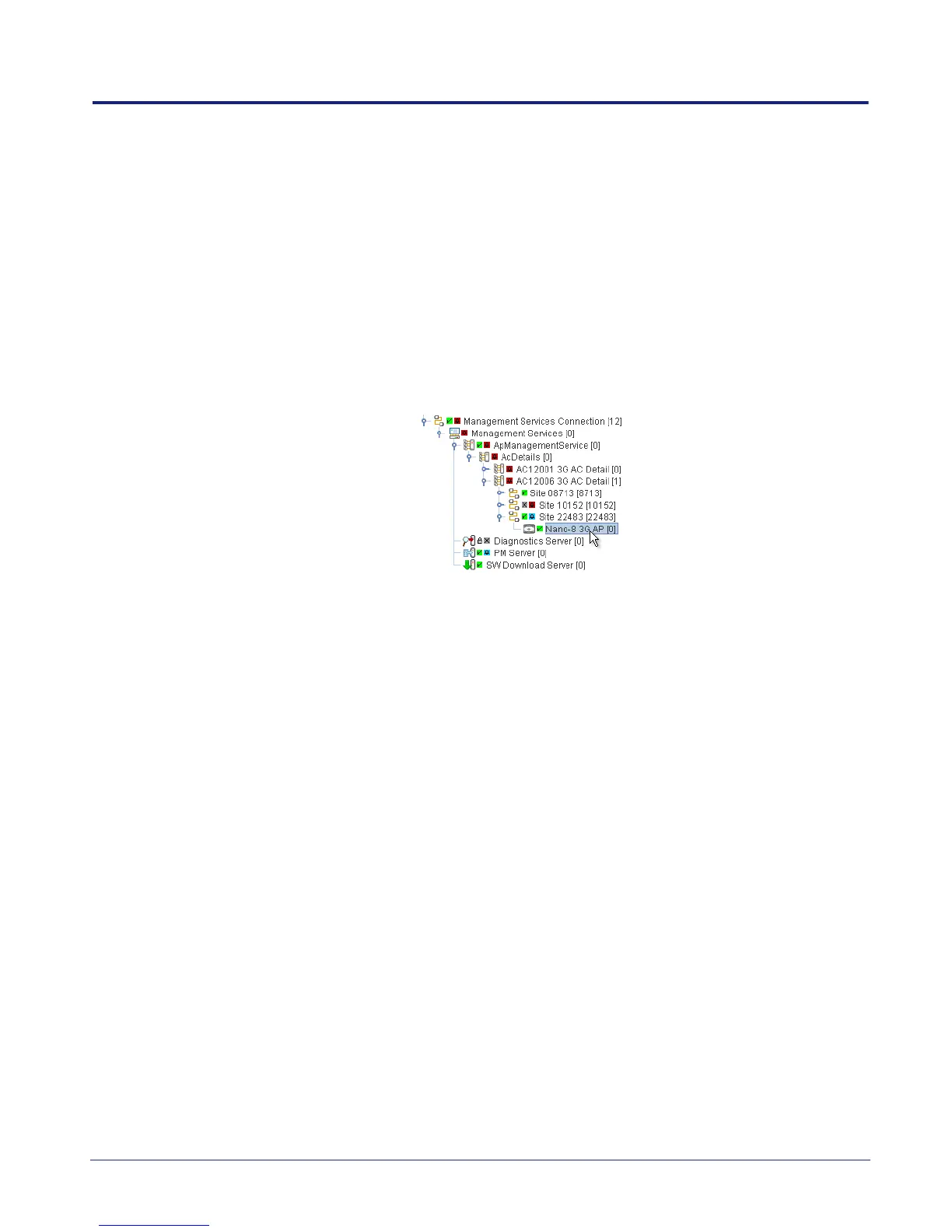
2) Find the AP according to its Site and select the AP object.
Note: For full information on using the OMC-R Client, see [OPM_410].
3) Verify that the Site has a green tick, to show that the AP is connected to the AP
Management System. The AP object, below the Site, may be currently locked. The
AP will remain locked if it is not ready to provide service.
4) In the Navigation pane, browse to the AP Admin Package.
5) Check the values of the Active SW Version and Standby SW Version attributes.
6) If the AP does not have the latest software image, download it to the AP from the
AP Management System according to the instructions below.
7.1.2 Download the Latest Software Image from the AP Management
System to the AP
For instructions about how the software images (SDP files) are uploaded to the AP
Management System, see [OPM_440].
1) Select the AP in the OMC-R Client.



 To Next Page