Editing Milling Jobs
99
7.3.3 Inserting blocks
You can either place blocks with help of the Wizard in the main menu [ToDo] or, as an
advanced user, remove them independently from the material and tool changer via the main
menu [Service - Blocks].
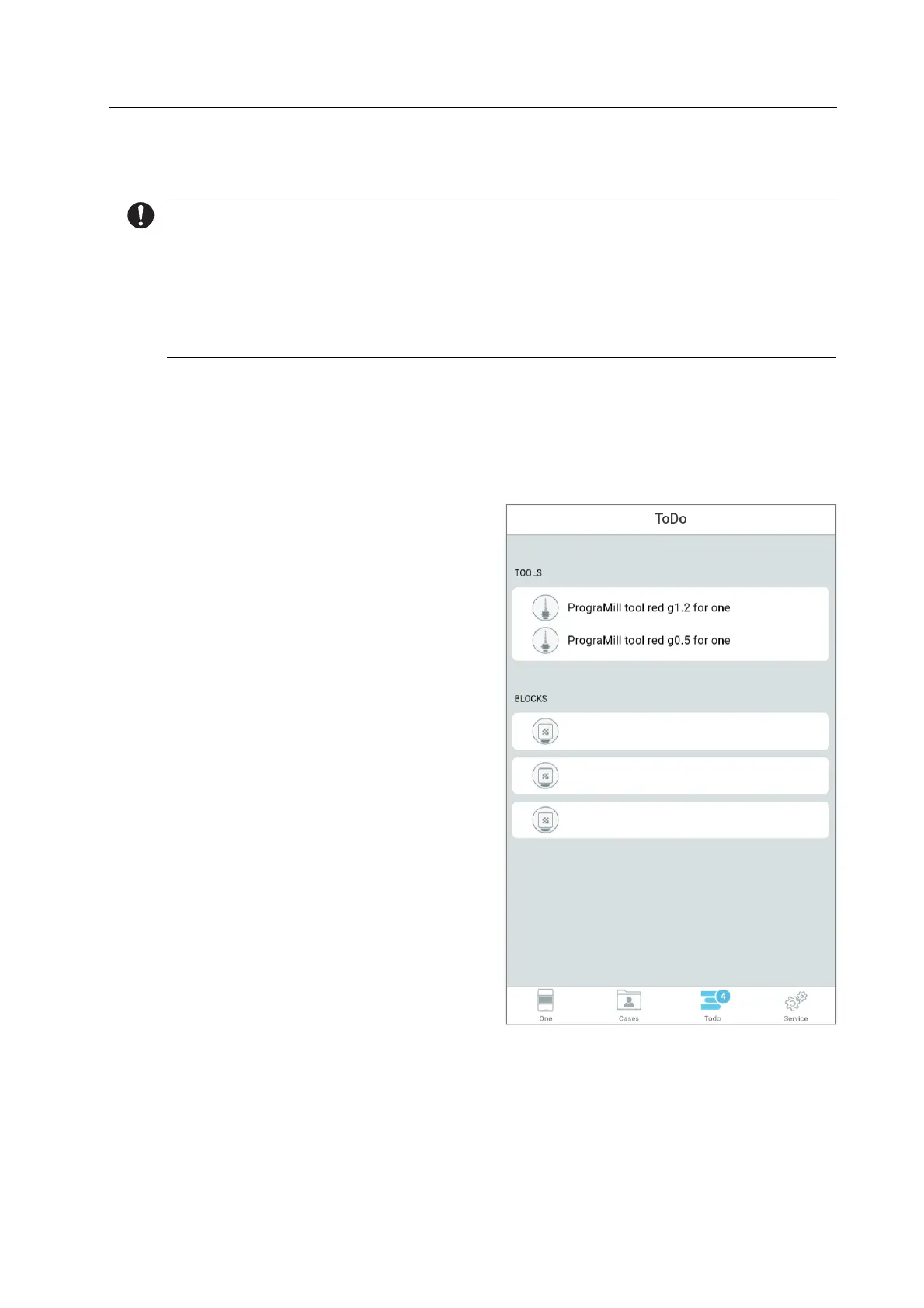
In the menu [ToDo] only the blocks which are required for the milling jobs will be displayed.
In the menu [Service - Blocks] you have access to all block holders.
The options will be described below.
Operating the material and tool changer via the main menu [ToDo]
You are in the main menu [ToDo].
The material and tool changer is not active.
In the [Blocks] section, in the list of
required blocks, tap the block of your
choice.
The material and tool changer will be brought into position and the block holder will be
provided at the loading aid.
You can insert the block (“Inserting the block into the device using the loading aid”,
page 101).
The app shows a Wizard which will guide you step by step through the insertion process.
Tetric® CAD HT A3 C14
IPS e.max® CAD HT A1 I12
IPS Empress® CAD LT B1 C14



 To Next Page