SESAME
Connections
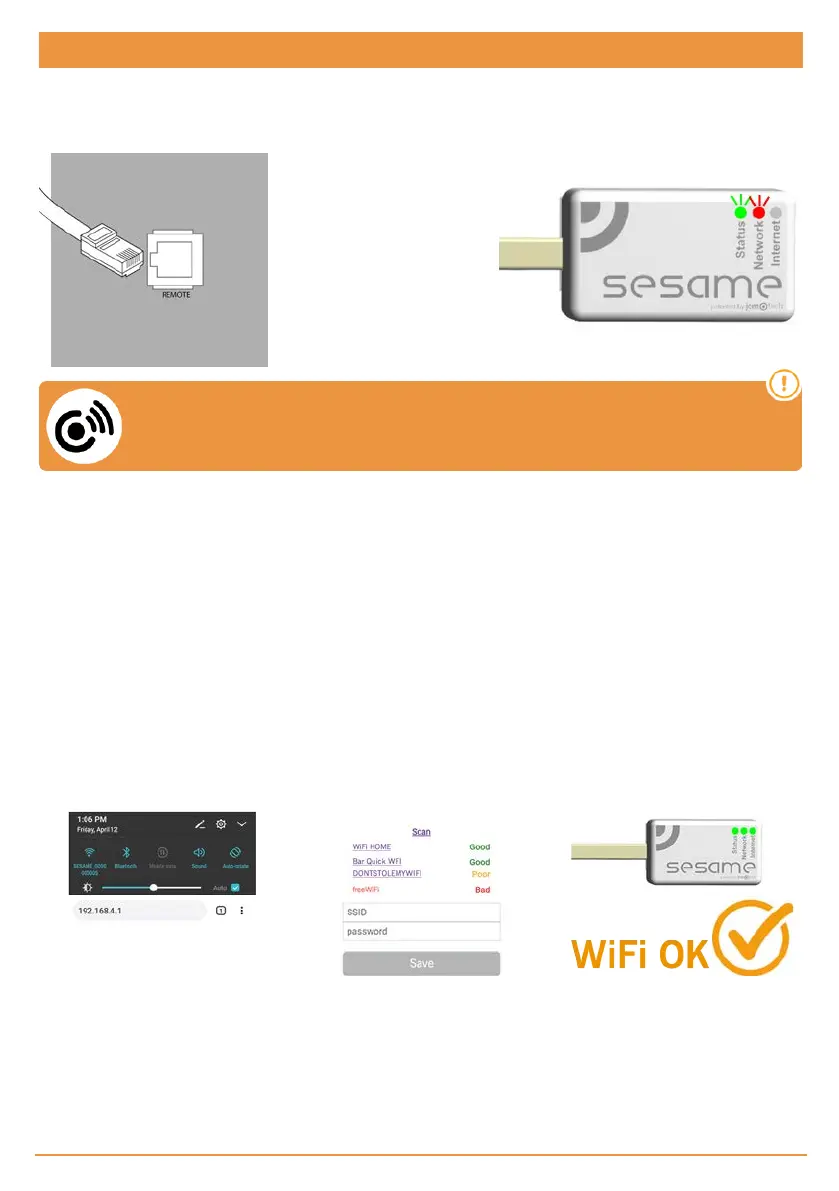
Connect the SESAME device to your KEEroll control panel (use the RJ-45 connector). The LED status should be flashing green
and the LED network should be flashing red, which shows that the device needs to be configured.
Make sure your control panel has this symbol on it's label, otherwise it won't work
with Sesame.
Configuration
Once properly connected, the equipment's settings must be adjusted.
Set up WiFi connection
1.On your mobile: Settings -> WiFi & Networks -> WiFi (search: SESAME_XXXXXXXXXX, does not require password).
2.Configure the SESAME_XXXXXXXXXX connection: the settings website will automatically appear (if not, go to
192.168.4.1 on your browser).
•2.1. Look for your home WiFi (the signal must be Good or Poor for optimum operation) and input your home's
WiFi password.
•2.2. Wait until the three LED are solid green, indicating that the WiFi connection has been successfully estab-
lished. This operation may take a minute.
jcmtechnologies
40


 To Next Page