Chapter 7
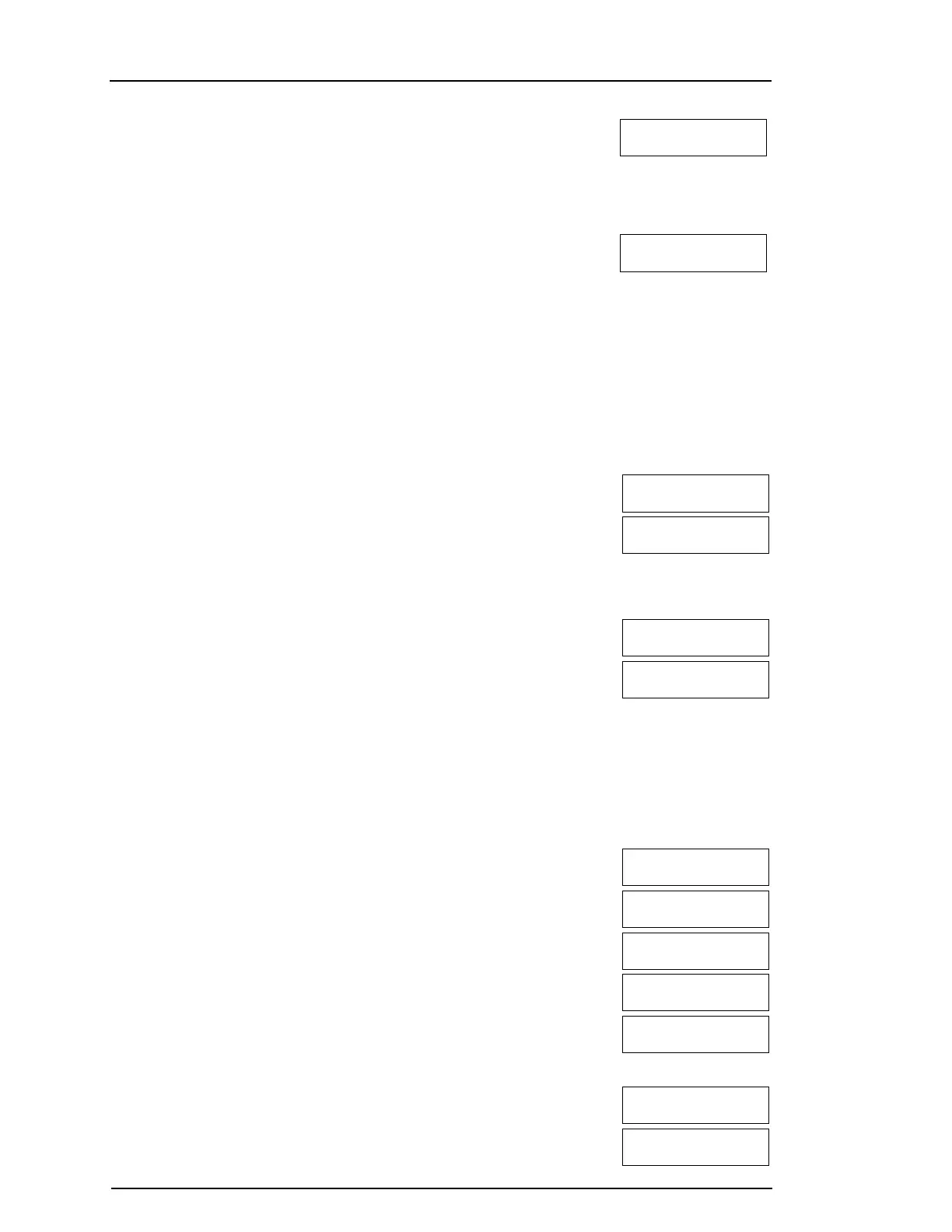
To Open the Access Codes Menu LCD Display
1. Press [*][5]
OR
press [*] and use the scroll keys to navigate to Access Codes and
press [*] to select.
Press (*) for <>
Access Codes
2. Enter Master or Supervisor code.
3. Enter User #
or
scroll through the list of users and press [*].
Press (*) for <>
{User Label}
4. To go back to the Ready state press [#].
7.1.1 Adding, Changing and Deleting Access Codes
Each configured user is assigned a number as follows:
l 01-72 for HS3032
l 01-1000 for HS3128
A “-” beside a user ID indicates it is not programmed.
To Add or Change User Access Codes LCD Display
1. Enter the user number and press [*].
Press (*) for < >
Access Code
2. Enter a new 4, 6, or 8-digit access code. After entering a new code,
the display indication is changed to “P” from “-”. If a duplicate code
is entered, an error tone sounds. After the code is programmed, the
keypad returns to the previous menu.
Enter New Code
AAAA
To Delete a User Access Code LCD Display
1. Enter the user number and press [*].
Press (*) for <>
Access Code
2. Press [*]. The code is deleted and the flag is changed to “-” from “P”.
After the code is programmed, the keypad returns to the previous
menu.
Enter New Code
030516
NOTE: Any proximity tags associated with deleted user codes must be re-enrolled.
7.1.2 Enrolling and Deleting Proximity Tags
When enrolling or deleting proximity tags for a user, the system provides a choice of options. For more
information see "Using Proximity Tags".
To Enroll a Proximity Tag LCD Display
1. From the desired user press [2] or scroll to Prox Tag and press [*].
Press (*) for <>
Prox Tag
2. If no tag is enrolled for this user you will be asked to present the tag
to the reader.
Present Tag or
Press # to Exit
l If the card successfully enrolls the blue LED bar flashes.
Tag Enrolled
Successfully
l If the tag is invalid the following message is displayed.
Invalid Tag
Not Enrolled
l If the tag is enrolled with another user the following message is
displayed.
Duplicate Tag
Not Enrolled
To Delete a Proximity Tag LCD Display
1. From the desired user press or scroll to Prox Tag and press [*].
Press (*) for <>
Prox Tag
2. If a Prox Tag is enrolled for this user you will be asked if you would
like to delete the Tag. Press [*] to delete the tag.
* To Delete Tag
Press # to Exit
- 21 -


 To Next Page