Full import
1
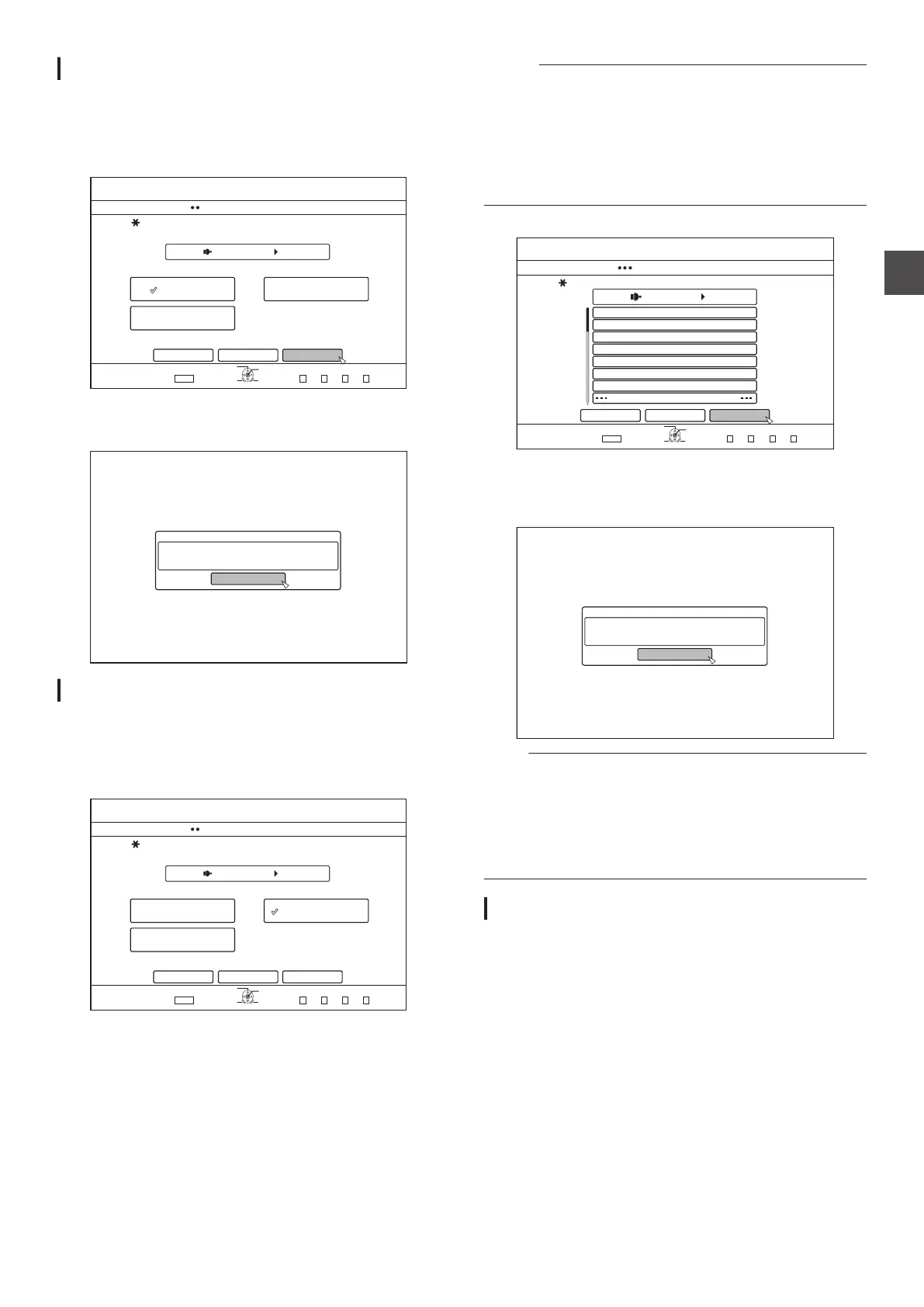
Select “FULL IMPORT”
in the import selection
screen, and press the [OK] button
0
A check mark is added to the “FULL IMPORT” item.
2
Select
“START”, and press the [OK] button
.
75$
126+10
1-
4'6740
&7$$+0)
56'2
5'.'%66*'/'6*1&1(+/2146
*&&
(7..+/2146 5'.6+6.'8+&'1
5'.6+6.'2+%674'
%#0%'. $#%-
':+6
5'.'%6
&7$$+0)
56#46
0
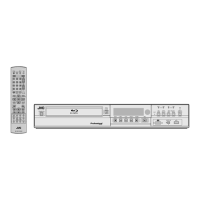
Importing of the titles starts.
0
After titles are successfully imported, a
“DUBBING IS
COMPLETED” message appears on the monitor.
.
%10(+4/
&7$$+0)+5%1/2.'6'&
1-
Specify a title
1
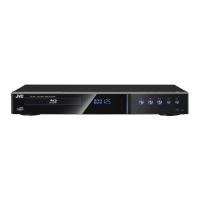
Select
“SEL. TITLE(VIDEO)” in the import
selection screen, and press the [OK] button
0
A check mark is added to the “SEL. TITLE(VIDEO)” item.
2
Select
“NEXT”, and press the [OK] button
.
75$
126+10
1-
4'6740
&7$$+0)
56'2
5'.'%66*'/'6*1&1(+/2146
*&&
(7..+/2146 5'.6+6.'8+&'1
5'.6+6.'2+%674'
%#0%'. $#%-
':+6
5'.'%6
&7$$+0)
0':6
0
A screen for creating the import title list appears.
3
Create an import title list
0
Follow the steps below to create an import title list.
A
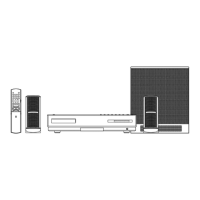
Select
“ADD TITLE LIST FOR DUBBING”, and press
the [OK] button
The Title List screen is displayed.
B
Select the titles to import, and press the [OK] button
Titles selected are added to the list.
Memo :
0
Press the [MARK] button. A check mark will appear beside the
title.
All titles with a check mark can be added to the list at the same
time.
0
Select a title from the dubbing title list, and press the [OK] button
to perform the following changes.
0
Delete the selected title from the list
0
Thumbnails will not be displayed when a title is selected.
4
Select “START”, and press the [OK] button
.
75$
126+10
1-
4'6740
2/
2/
2/
#/
#/
#/
#/
&7$$+0)
56'2
2.'#5'%4'#6'#6+6.'.+56(14+/2146
*&&
#&&6+6.'.+56(14&7$$+0)
%#0%'.
':+6
5'.'%6
&7$$+0)
$#%- 56#46
0
Importing of titles starts according to the sequence in the
created title list.
0
After titles are successfully imported, a
“DUBBING IS
COMPLETED” message appears on the monitor.
.
%10(+4/
&7$$+0)+5%1/2.'6'&
1-
Note :
0
“START
” cannot be selected for the following cases.
0
A title that cannot be dubbed has been selected
0
HDD memory is insufficient
0
The
amount of titles in the HDD has reached the maximum
amount
0
A dubbing title list has not been created
Check “Troubleshooting” (A P 114), and operate accordingly.
Canceling importing
To cancel importing before it starts
0
Select “CANCEL”
from the menu, and press the [OK] button
to cancel importing of a title.
0
Alternatively, you can press the [RETURN] button to cancel
importing and return to the initial screen.
To cancel importing while it is in progress
0
Press the [OPTION] button. Select “CANCEL” from the
Cancel Importing menu, and press the [OK] button. Doing so
imports data to the HDD up to the position where you have
chosen to stop.
Importing Data from a USB-compatible Device to the HDD
39
Dubbing/Importing



 To Next Page