Playing Still Images (JPEG)
Still
images stored on the HDD/BD/DVD/SD card can be played
back using Playback Navigation.
Playing still images
1
Select the playback location
HDD : If
the current playback location is “BD/DVD” or
“SD CARD”, press the [HDD] button on the
remote control unit to switch it to “HDD”.
BD/DVD : If the current playback location is “HDD” or “SD
CARD”, press the [BD/SD] button on the
remote control unit to switch it to “BD/DVD”.
SD : If the current playback location is “HDD” or
“BD/DVD”, press the [BD/SD] button on the
remote control unit to switch it to “SD CARD”.
2
Set the media
0
To
play a media other than “HDD”, set the media on which
the still images are stored.
BD/DVD : Set a BD or DVD on the disc tray
SD
: Insert the SD card into the [SD SLOT]
3
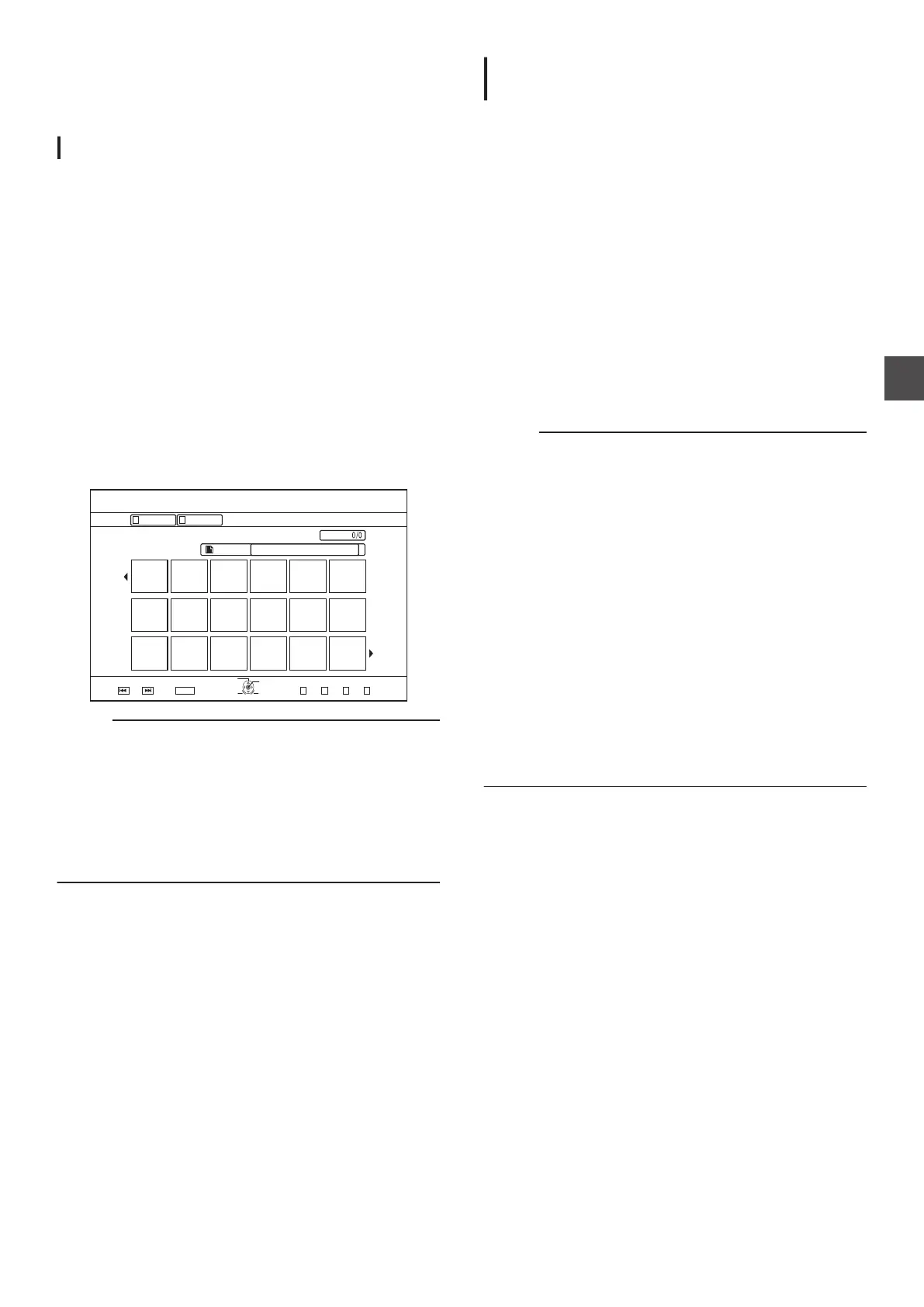
Select the still images to play, and press the [ I
]
button
0
Images selected are played back in a slideshow.
.
2CIG
OKP
0#8+)#6+10
126+10
4'6740
1-
(1.&'4%106'06
5'.'%6
':+6
0':62)24'82)
(1.&'4
4'/#+0+0)4'%14&+0)6+/':2
2+%674'
8+&'1
6+6.'6*7/$0#+.
0#8+)#6+10
Memo :
0
The slide show plays back images according to the date of
the files.
0
If folders exist, files inside the selected folder will be played.
0
You can specify the “REPEAT”, “SLIDESHOW INTERVAL”
and “SLIDESHOW EFFECTS” settings in the Playback
Settings menu.
For details, refer to the “REPEAT” (A P
66), “SLIDESHOW
INTERVAL” (A P 66), and “SLIDESHOW EFFECTS”
(A P 66) items under “Playback Settings”.
Enabled button operations during still
image playback
[ I ] button
0
Pressing the button when a title/group is selected starts
playback of the still images in the title/group in a slideshow.
[ o
] button
0
Pressing the button stops the slideshow and displays the
Playback Navigation screen.
[ W
] button
0
Pressing the button stops the slideshow temporarily.
[ S
] / [ T ] button
0
Pressing the button displays the previous or next still image.
[ A ] button
0
Pressing the button ends playback of the still images and
turns the power of the unit to “Off”.
Memo :
0
The display of still images can be zoomed in/out or rotated
using the following buttons when the slideshow is paused.
0
[ v
]/U: [YELLOW], E: [BLUE] button
Rotates the still image by 90° in the clockwise direction.
0
[ w
]/U: [BLUE], E: [YELLOW] button
Rotates the still image by 90° in the anti-clockwise
direction.
0
[OK]/
[GREEN] button
Enlarges the still image.
0
[RETURN]/[
RED] button
Reduces the enlarged still image.
0
[ J / K / H / I ] button
Moves the display position of the enlarged still image
toward the direction indicated by the button.
0
This
unit does not have a still image edit feature. Still images
cannot be saved when they are zoomed in or rotated.
0
Priority of display is given to the media (“BD/DVD” or “SD
CARD”) that contains playable still images.
If both “BD/DVD” and “SD CARD” contain playable videos,
priority of display will be given to the most recently used
media.
Playing Still Images (JPEG)
65
Playing Back



 To Next Page