Entering Characters
Names can be changed or given to stored videos or groups.
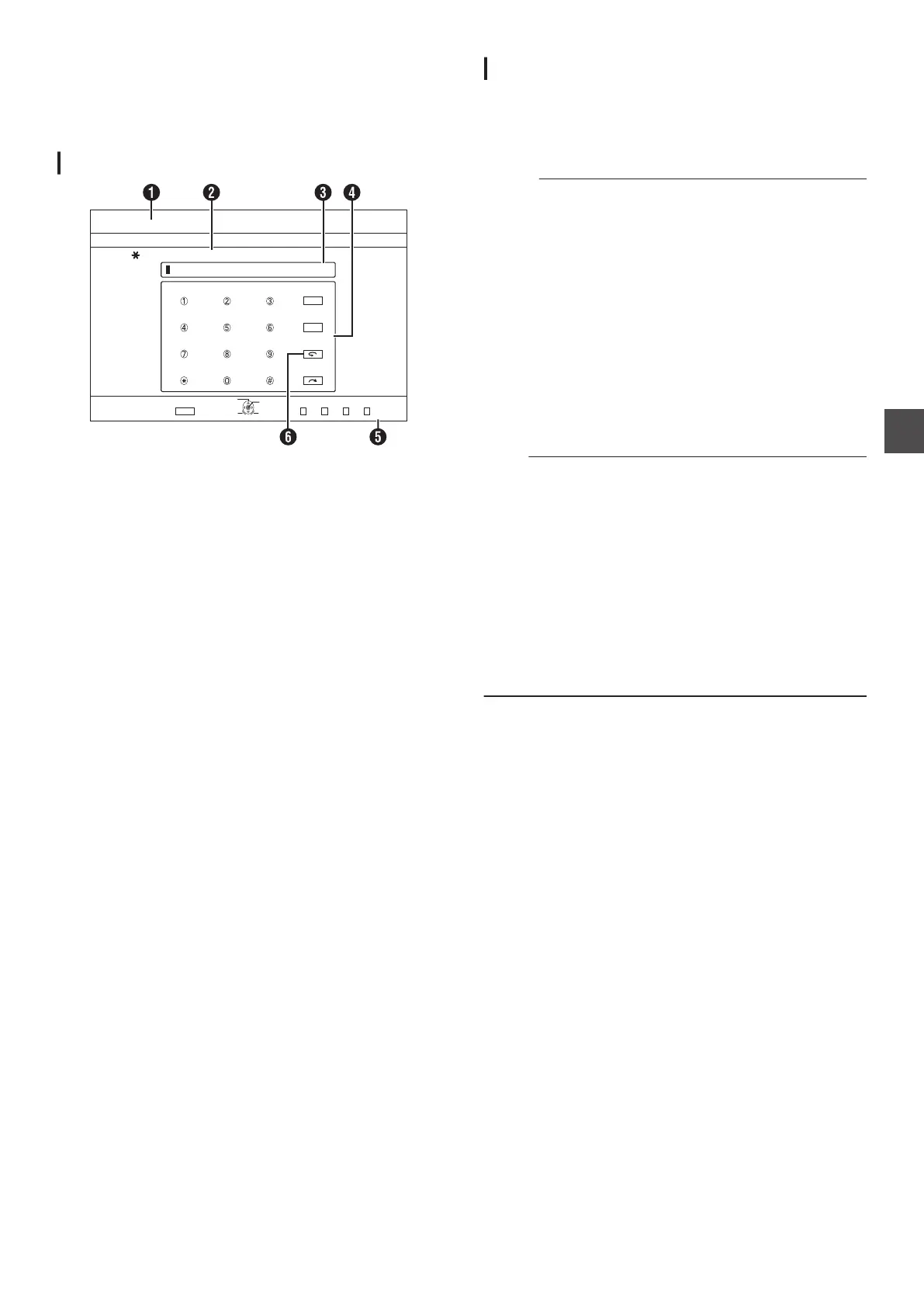
You can enter characters while referring to the input on the
monitor.
Character input screen
.
! CDE
IJK LMN OPQ
RSTU VWX
YZ[\
FGH
2#)'248
2#)'0':6
4'0#/'6+6.'
4'0#/'6*'5'.'%6'&6+6.'
':+6
5'.'%6
126+10
%10(+4/
1-
4'6740
+0(1%144'%6
24'8%*#4#%6'4
0':6%*#4#%6'4
%*#4#%6'46;2'
%.'#4
A
Function name field
B
Screen description
C
Input window
Characters entered appear on the input window.
D
Operation guide 1
The
[ 0 ]-[ 9 ], [Z], [#], [PAGE PRV], [PAGE NEXT], [w] and
[v] buttons are displayed.
E
Operation guide 2
[ J / K / H / I], [OK], [RETURN], [OPTION], [BLUE], [RED],
[GREEN] and [YELLOW] buttons are displayed.
F
Character input keyboard
A character input keyboard appears during input of character
or symbol.
You can enter characters by selecting them accordingly from
the keyboard.
Entering characters
1
Enter characters using the [ 0 ]-[ 9 ], [Z] or [#]
buttons
2
After character input is complete, press the
[YELLOW]
(U model) / [BLUE] (E model) button
Memo :
0
Switch between alphanumeric and symbol input by pressing
the [ w ] button.
0
For
details on the correspondence between each button and
the input characters, refer to the “Character List”.
0
Press the [ v ] button to delete an input character.
Press and hold down the [ v ] button to delete all input
characters.
0
Pressing the [RETURN] button calls up the confirmation
screen to cancel character input.
To cancel character input and return to the initial screen,
select “YES” and press the [OK] button.
To
return to the character input screen, select “NO” and press
the [OK] button.
0
Up
to about 20 alphanumeric characters can be displayed on
the disc menu of BDMV and DVD-VIDEO. (The number of
characters that can be displayed varies with the character.)
Note :
0
If you switch the screen display before confirming the input
characters, a message will appear on the screen.
To cancel character input and return to the initial screen,
select “STOP
” and press the [OK] button.
To return to the character input screen, select “BACK” and
press the [OK] button.
0
If the converted characters exceed the maximum number of
input characters, a message will appear on the screen.
Select “OK” and press the [OK] button to delete the excess
characters and to input the remaining ones.
Select “RETURN” and press the [OK] button to restore the
unconfirmed characters.
0
No more characters can be input if the maximum character
limit has been reached.
Entering Characters
69
Editing



 To Next Page