Scene Name/Camera Title Setting
You can change a scene file name (up to eight characters). You can
add a title to a camera (up to 24 characters).
Changing the Scene File Name (SCENE NAME)
"Default Values of Scene Files" (A page 54)
1
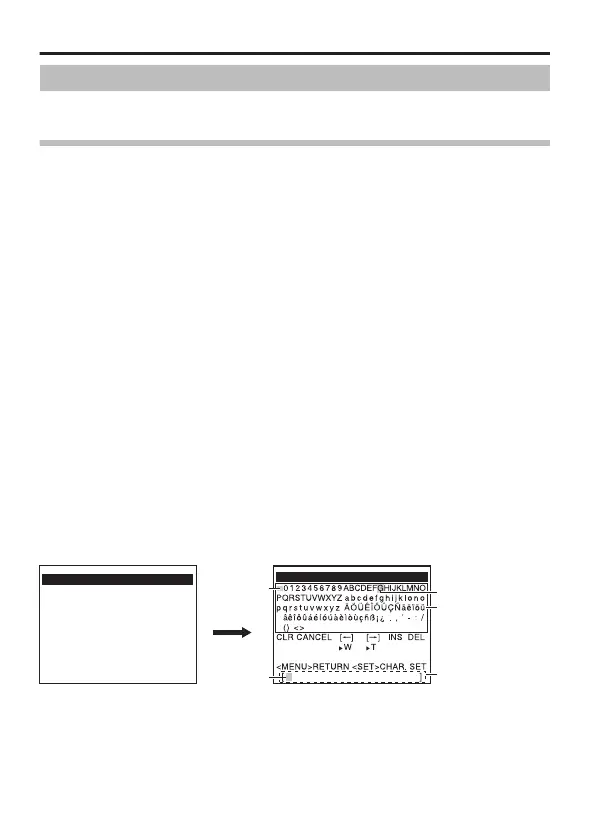
On the [MENU] screen, select [SCENE FILE], and move the
cross key to the left/right to select the scene file for which you
want to specify a name.
The [SCENE FILE] screen appears.
2
Select the [SCENE NAME] item on the [SCENE FILE] screen, and
press the [SET] button.
The [SCENE NAME EDIT] screen appears.
The first character in the character list appears blinking. You can input a
character in this state.
3
Move the cross key up/down/left/right to select a character from
the character list.
The selected character starts blinking.
4
Press the [SET] button.
Confirm the first character for the name, and the second character in
the title input area starts blinking.
5
Repeat steps 2 and 3.
6
Press the [MENU] button.
The setting is saved.
.
SCENE FILE (SCENE A)
E SCENE NAME GENERAL
COPY
INITIALIZE
<MENU>RETURN <SET>SUB MENU
[SCENE FILE] Screen
[SCENE NAME EDIT] Screen
SCENE NANE EDIT (SCENE A)
GENERAL
Blinking
Space
Character
to edit
Title input area
Character area
Detailed Settings
E-58


 To Next Page