SoftStep advanCed editor
34
SoftStep3
led+diSplay SettinGS
The LED+Display Settings section can be accessed by clicking the LED+DISPLAY SETTINGS button in the
top-right corner of the key modulation window. These settings dene how the SoftStep Key LEDs behave,
and how the SoftStep display behaves when the key is pressed�
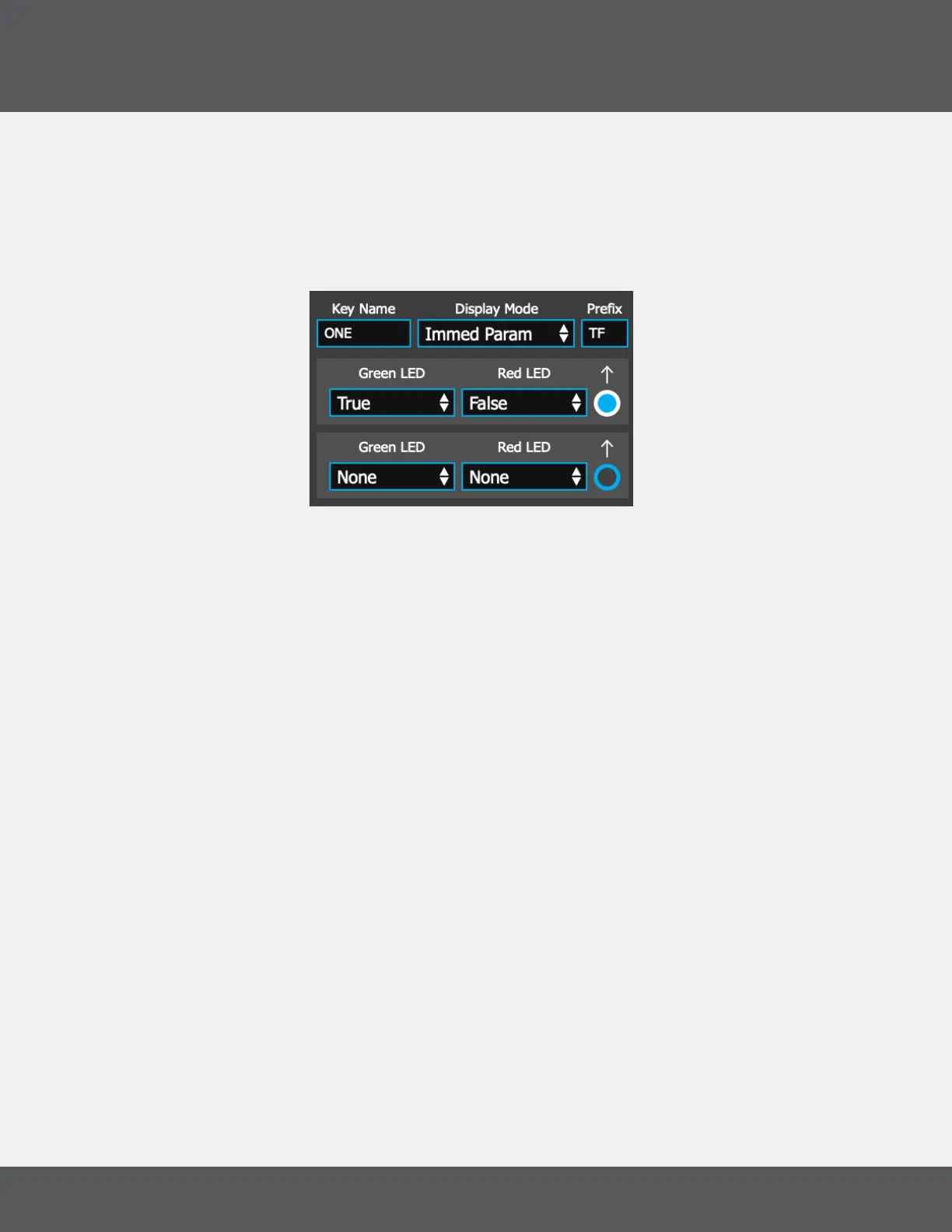
When displayed, the LED+Display Settings look like this:
key naMe
Sets the name of the key. Key names appear on the SoftStep display as dened by the Display Mode
option� Key names can also be edited in the key box area of the editor’s Main Window�
diSplay Mode
Sets how the Key Name appears on the Display when the key is pressed� For a complete list of all
available Display modes and their behavior, see the Display Modes section
prefix
One or two characters that can be added in front of the parameter value on the SoftStep’s display —
e.g. with a prex of “FF” and a modline value of 57, the display would read “FF57”. Leave blank for no
prex.
Green led
Sets the behavior of the key’s green LED� For a complete list of all available LED modes and their
behavior, see the LED Modes section�
red led
Sets the behavior of the key’s red LED� For a complete list of all available LED modes and their
behavior, see the LED Modes section�
aCtive diSplay Modline SeleCtor
Selects which modline’s data will be used for the Display mode settings� Only one modline can be
selected per key�


 To Next Page