Remote Interface Configurations 7
Keysight 11713D/E Operating and Service Manual 93
8 Now you can use various programming environments to control the 11713D/E. For an overview
on programming instruments via GPIB, refer to the Connectivity Guide.
Connecting over USB
The USB interface requires no front panel configuration.
1 After the I/O software is installed on your computer, connect a 11713D/E to your computer
using a Type Mini-B 5 pin USB cable.
2 Make sure power is applied to your computer and verify that the operating system is fully
booted. Then apply power to the 11713D/E.
3 The Found New Hardware Wizard will automatically start and guide you through configuring
the 11713D/E as a USB device. To install the software automatically, accept all defaults.
Step Action Illustration
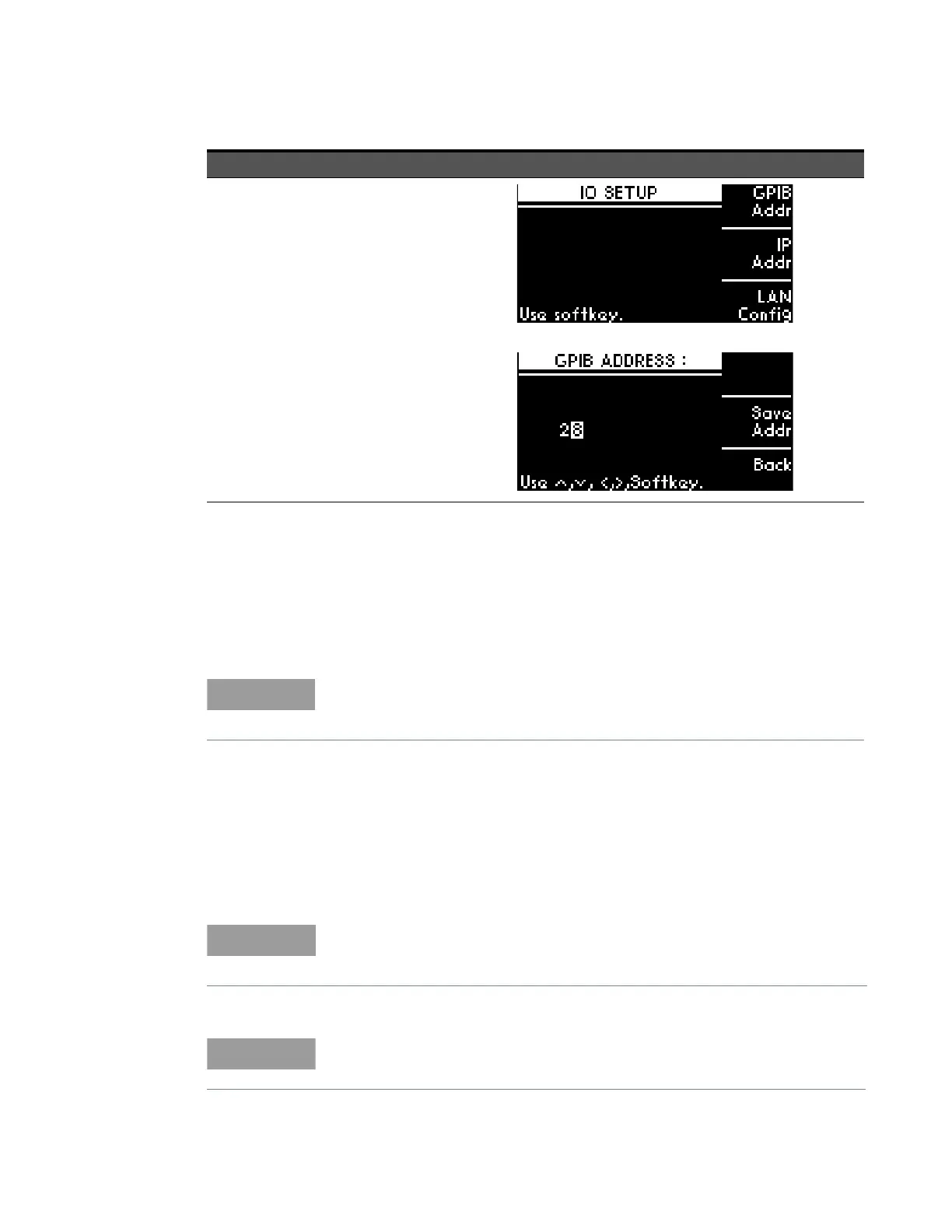
1 Changing GPIB
address (integer
between 0 to 30)
a At IO SETUP screen, press GPIB
ADDR softkey.
b Current GPIB address is
displayed on screen (default
address is 28).
c Use navigation keys to change
value.
d Press SAVE ADDR to save and
GPIB ADDR SAVED is displayed
at the bottom of LCD.
e Press BACK soffkey to return to
IO SETUP.
Before connecting the USB cable, make sure that I/O software is installed on
your computer. See “Connecting the 11713D/E to your Computer” on page 92
for more information on installing the Keysight IO Libraries software.
If you have installed the Keysight I/O Libraries Software, this also installs the
required low-level software drivers. Therefore you do not need to insert the CD
when the Found New Hardware Wizard instructs you to do so.
If you have installed any other I/O interface software, refer to the
documentation included in that software.


 To Next Page