7 Remote Interface Configurations
94 Keysight 11713D/E Operating and Service Manual
4 Use the Connectivity Expert utility of the Keysight I/O Libraries Suite to verify that the 11713D/
E is displayed under the USB interface.
5 Now you can use various programming environments to control the 11713D/E. For an overview
on programming instructions via USB, refer to the Connectivity Guide.
Connecting over LAN
The 11713D/E has two LAN operating modes:
–Auto mode
– Manual mode
Selecting the LAN network type
You can connect and configure your 11713D/E for site LAN or isolated (non-site) LAN operation.
–A Site LAN network is defined as a local area network (LAN) in which computers and
LAN-enabled instruments are connected to a site LAN (workgroup LAN, Intranet, or enterprise
LAN) via optional routers, hubs, and/or switches.
–An Isolated LAN network is defined as a local area network (LAN) in which computers and
LAN-enabled instruments are not
connected to a site LAN.
Auto mode
This mode is used when you are connecting 11713D/E via site LAN. In auto mode, the IP Address,
Subnet Mask, and Default Gateway values are obtained from the DHCP server or automatically
assigned and the values cannot be configured from the front panel.
To prepare the 11713D/E for auto mode,
Step Action Illustration
1 Ensure your
computer and
11713D/E are
turned on and
connected to
LAN
a Connect your computer and 11713D/E to LAN outlets using standard LAN cable.
b Make sure power is applied to your computer and verify that the operating system is fully booted.
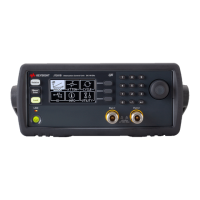
c Apply power to 11713D/E and background LED color turns red, indicating standby mode.
d Allow 11713D/E to warm up for 15 seconds, then press the ON button (LED turns from red to green).


 To Next Page