Remote Interface Configurations 7
Keysight 11713D/E Operating and Service Manual 97
Now you can use the 11713D/E Web Browser Interface to access and control the instrument. See
“Exploring the 11713D/E Web Interface over LAN” on page 98.
If you plan to program the instrument over LAN or use such programs, make sure you have
installed the required I/O software on your computer.
Use the Connectivity Expert utility of the Keysight IO Libraries Suite to add the 11713D/E and verify
a connection. When identifying the instrument, it is easiest if you use the IP address noted in step 3
above.
Now you can use various programming environments to control the 11713D/E. For an overview on
programming instructions via USB, refer to the Connectivity Guide.
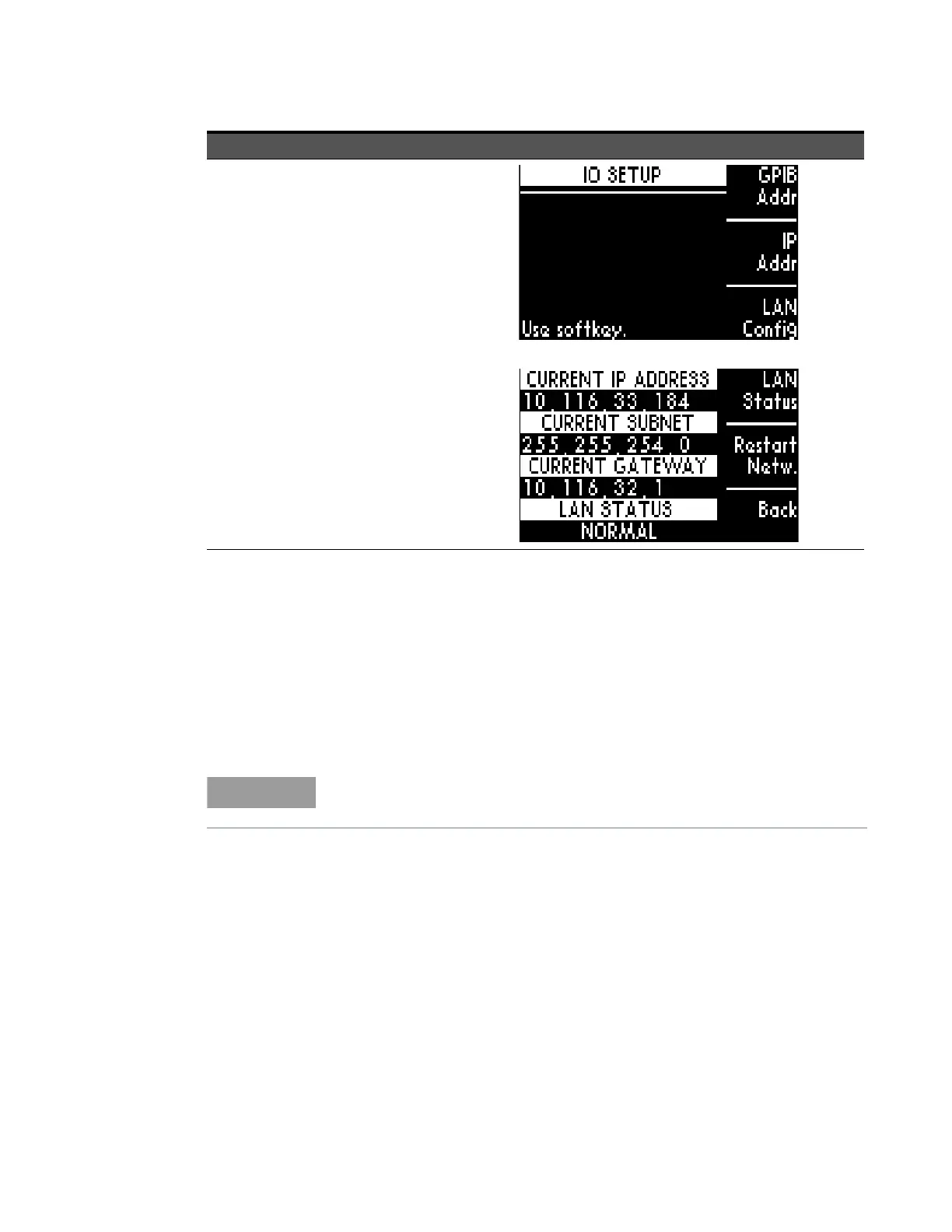
4 Verify LAN
status on
11713D/E
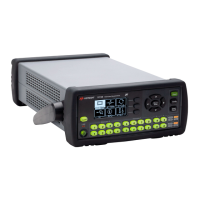
a At IO SETUP screen, press IP
ADDR softkey.
b At IP ADDRESS screen, select LAN
STAT softkey.
c Verify values CURRENT IP
ADDRESS, CURRENT SUBNET,
and CURRENT GATEWAY are valid.
d Ensure LAN STATUS is NORMAL.
e If LAN STATUS is FAULT, check
your LAN connection and then
press Restart Netw softkey and
wait.
f Press BACK softkey to go back to
IP ADDRESS screen.
If you have installed any other I/O software, refer to the documentation
included with that software.
Step Action Illustration


 To Next Page