7 Remote Interface Configurations
96 Keysight 11713D/E Operating and Service Manual
Now you can use various programming environments to control the 11713D/E. For an overview on
programming instructions via USB, refer to the Connectivity Guide.
Manual mode
In a manual mode, you must set up the IP Address, Subnet Mask, and Default Gateway that are
compatible with your network infrastructure. If it is not correctly set up, the 11713D/E will not be
visible on your network.
To prepare the 11713D/E for manual mode,
Step Action Illustration
1 Ensure your
computer is
connected to
11713D/E are
turned on
a Connect your computer to 11713D/E using CAT5 crossover cable.
b Make sure power is applied to your computer and verify that the operating system is fully booted.
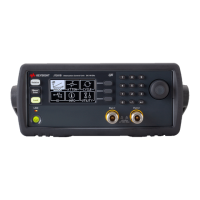
c Apply power to 11713D/E and background LED color turns red, indicating standby mode.
d Allow 11713D/E to warm up for 15 seconds, then press the ON button (LED turns from red to green).
2 Verify 11713D/
E LAN
configuration is
ready for
manual mode
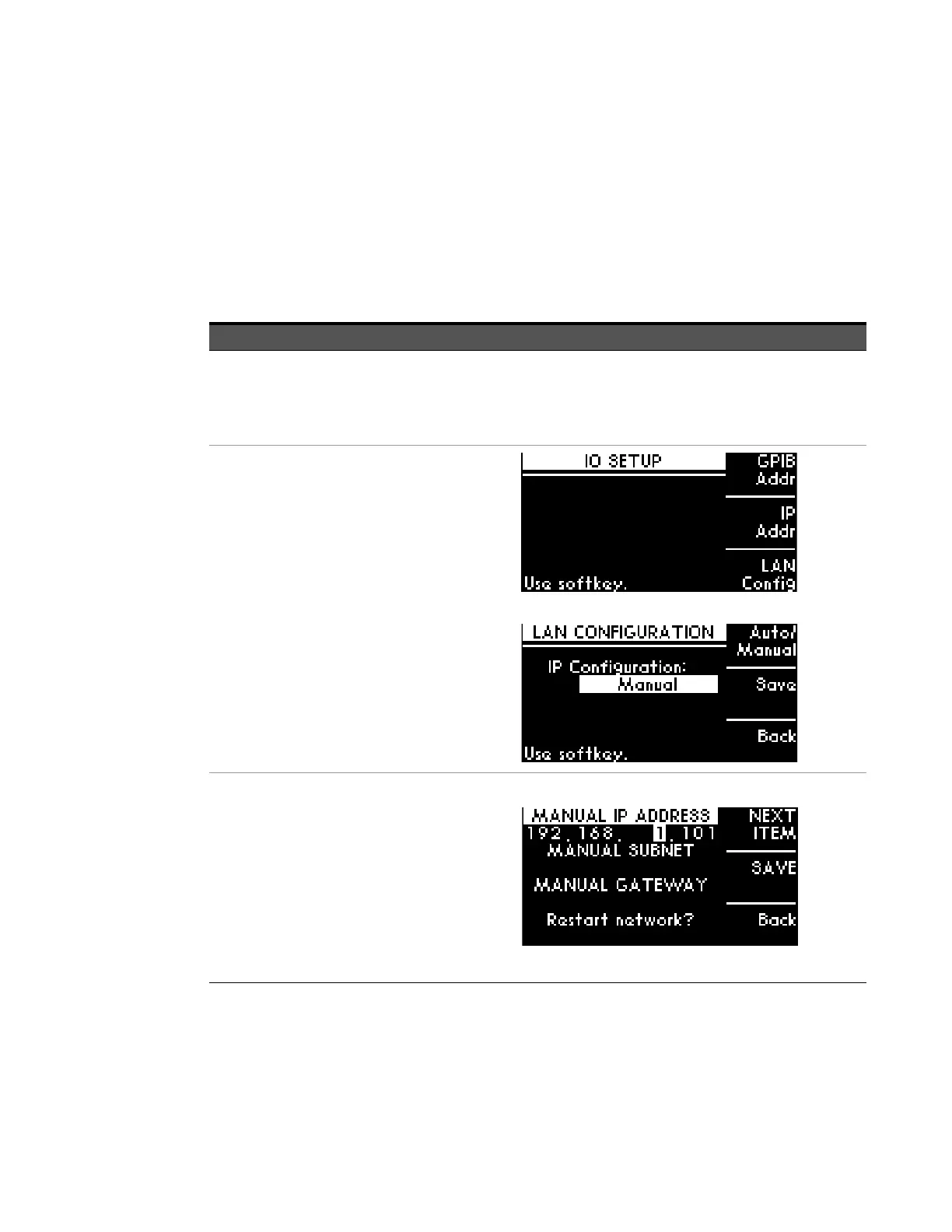
a Press Menu/Enter button on the
front panel of 11713D/E.
b Select IO using navigation keys
and press Menu/Enter.
c At IO SETUP screen, press LAN
CONFIG softkey.
d At LAN CONFIGURATION screen,
ensure IP Configuration is Manual.
e If needed, press Auto/Manual
softkey until Manual is displayed
and SAVE.
f Press BACK softkey to go back to
IO SETUP screen.
3 Manually enter
IP ADDRESS,
SUBNET, and
GATEWAY
a At IO SETUP screen, press IP
ADDR softkey.
b At IP ADDRESS screen, select
MANUAL IP softkey.
c At MANUAL IP ADDRESS screen,
enter IP ADDRESS, SUBNET, and
GATEWAY (scroll using NEXT ITEM
softkey).
d Then SAVE.
e Press BACK softkey to go back to
IP ADDRESS screen.


 To Next Page