2 How to Reset Camera?
2.1 Reset Camera’s Hardware
If the camera doesn’t function, for example, can’t power on/off normally,
the TF card is inserted but reminds “No SD card”, buttons no response,
camera freezing/lagging, or any other operational or functional issues,
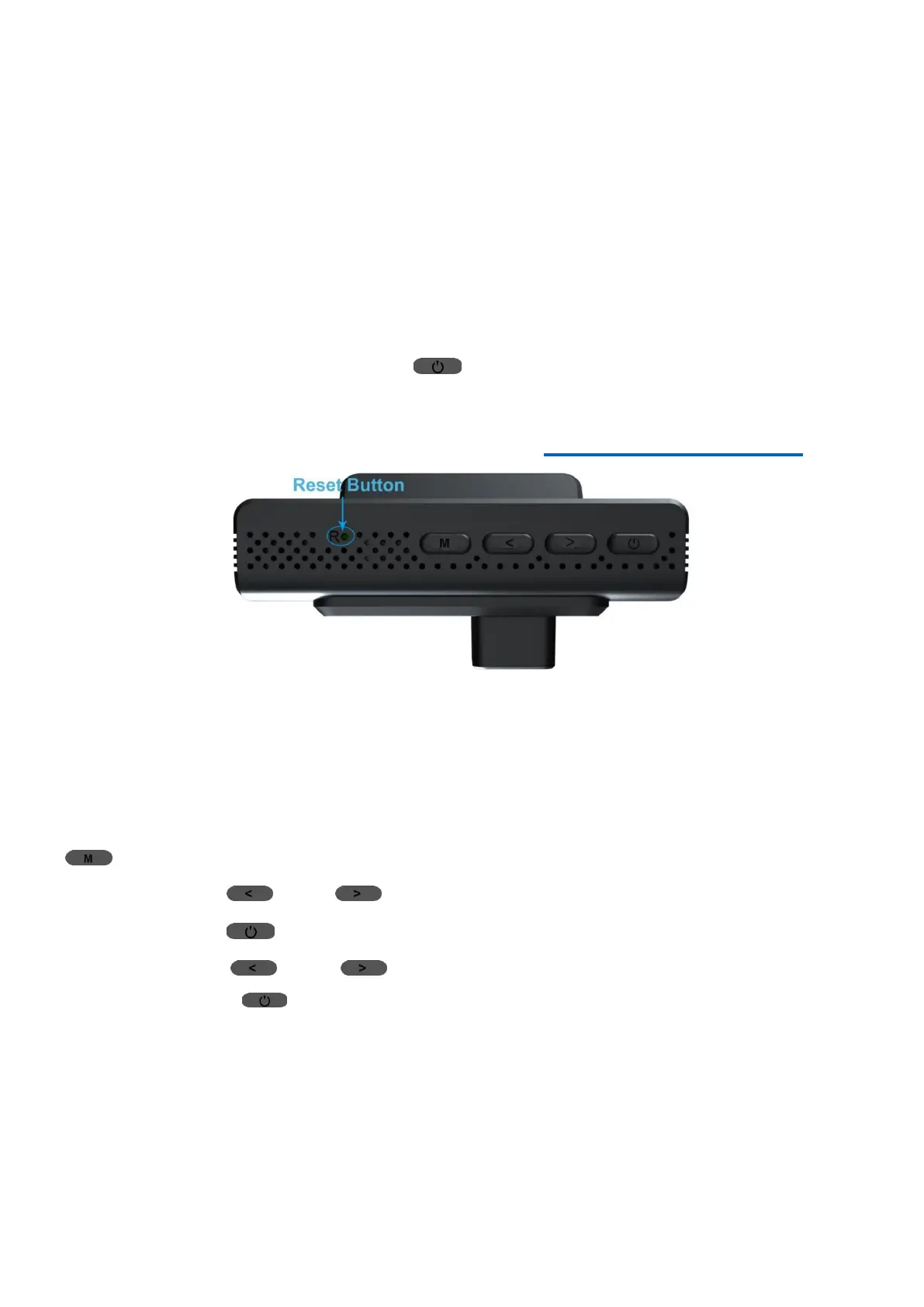
please Press the “Reset Button” to RESET the camera:
① Keep power supply, press the “Reset Button” at the bottom of camera
with a paperclip, and a click will be heard;
② Wait for seconds, long press (Power/OK) Button to turn camera
on, then check whether the issue has been solved.
Still not work? CONTACT US via Email:LESA_1688@163.com
2.2 Reset Camera’s Firmware
If you get stuck on any settings or if you want the camera to restore its
default settings, please set the “Default” in Setup Menu as follows:
①
In Video Mode, when the camera is not recording, short press the
(Menu) Button once to access Setup Menu;
② Short press (UP)/ (Down) Button to navigate to “Default” ;
③ Short press (Power/OK) Button once to access the submenu;
④ short press (UP)/ (Down) Button once to go to “Confirm”,
and short press (Power/OK) Button to confirm to restore.
2 Time Settings
Please set Time Zone and Date/Time before using the camera to
retain effective and accurate footage for road disputes.
2.1 Set Time Zone
①
In Video Mode and when the camera is not recording, short press the


 To Next Page