switch to Playback Mode.
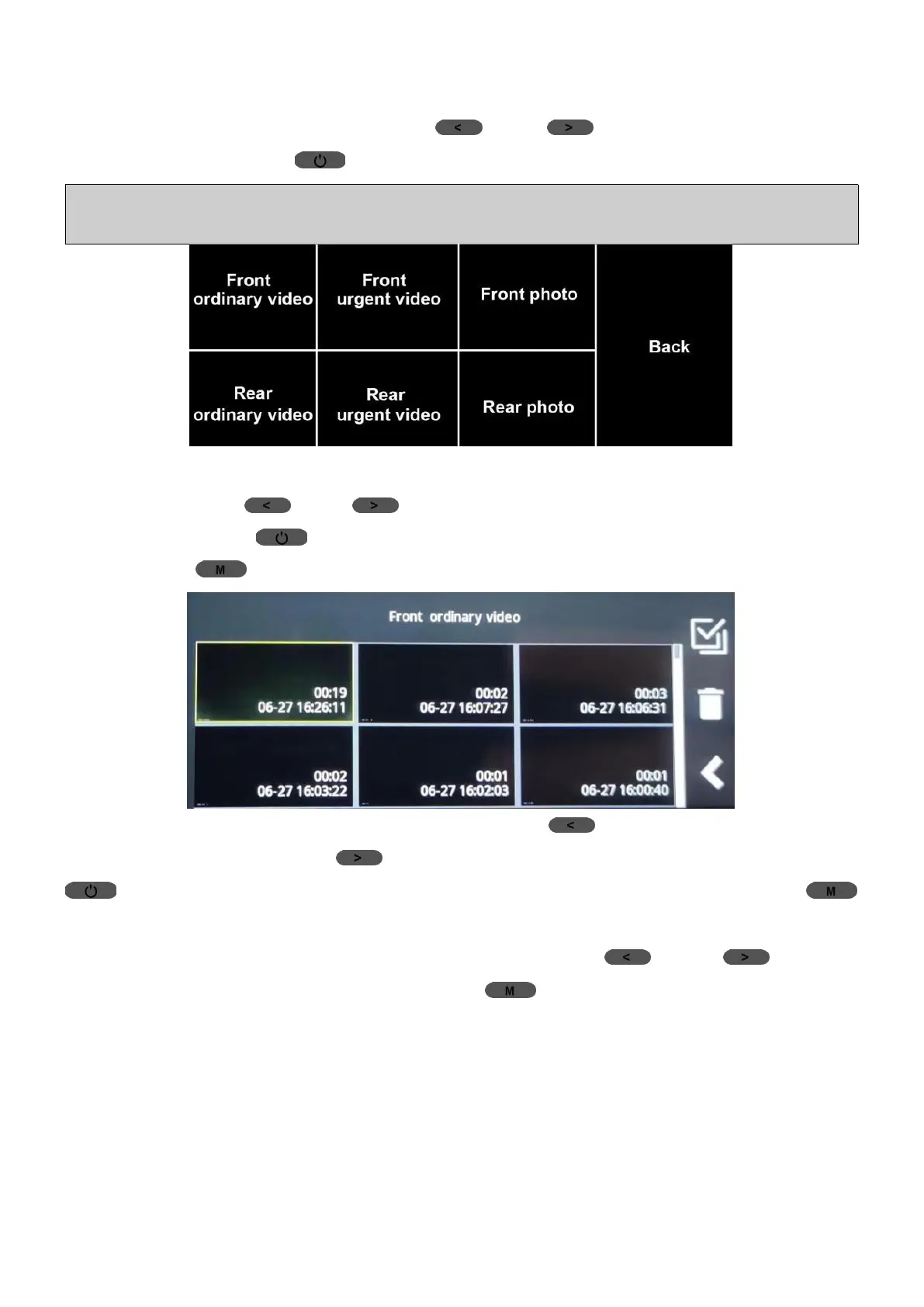
(2) How to View Footage in Playback Mode:
①
In Playback Mode, short press (UP)/ (Down) Button to scroll
files and short press (Power/OK) Button once to access a file.
Note: Front footage is archived in “Front” files and rear footage in “Rear” files.
Ordinary Video is for unlocked videos and Urgent Video for Locked videos.
② When you’re in a specific video/image file, like “Front ordinary video”
file, short press (UP)/ (Down) Button to browse videos/images
in it, short press (Power/OK) Button once to view a video/image,
short press (Menu) Button to return to Playback Mode.
③ When you’re viewing a video, short press (UP) Button to wind the
video back, short press (Down) Button to go forward, short press
(Power/OK) Button once to play/pause the video, long press
(Menu) Button to exit viewing page and return to the specific file page.
④ When you’re viewing an image, short press (UP)/ (Down)
Button to browse images, long press (Menu) Button for at least 3s
to exit the viewing page and return to the specific file page.
3.2 View Footage on PC/MAC
Remove the memory card from camera and insert it to your PC/MAC via
a card reader to view and download footage. It is recommended VLC
Media Player and GXPlayer to view videos.


 To Next Page