Q7: Can I view footage, download video or monitor my car via the
App from a remote location?
A: No, you CAN’T. If you want your phone to connect to camera WiFi,
you MUST be within the camera WiFi signal range, which is about 10ft
radius of device when there are no obstructions in the middle. If you are
beyond the WiFi signal range, your phone cannot connect to camera
WiFi. Also, the camera WiFi has NO Cloud transfer or Internet function.
So you CANNOT receive/view footage or monitor your car remotely.
Any other problems? Contact Us: LESA_1688@163.com
Warning:
Please install GXPlayer to view videos and GPS logs!
GXPlayer is the default GPS player of K8, other GPS players
may have problems on reading GPS data in videos.
1 How to Install the GXPlayer on Your PC/Mac?
①
Connect GPS module to the USB port on the camera first, then
connect hardwire kit/car charger to the USB port on the GPS module;
② Record videos and the software of GPS player will automatically
generated in the TF card;
③ Remove the TF card from camera and read it on your PC/Mac with a
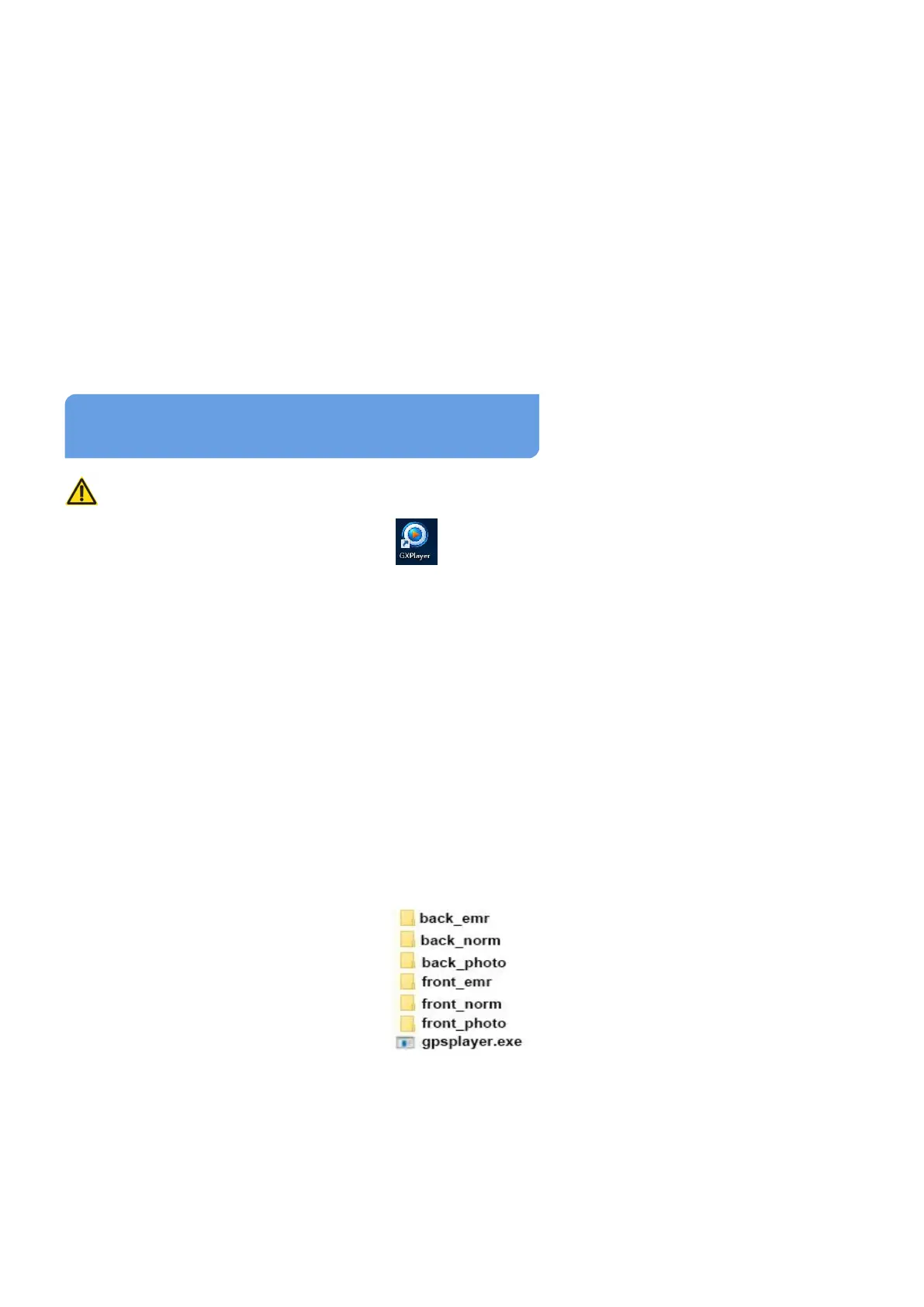
card reader, then you will see the gpsplayer.exe in the file of TF card;
④ Click the gpsplayer.exe to install it, if you haven’t install this GPS
player before, you will see the progress bar to download the GXPlayer;
⑤ After download it, follow the GXPlayer Setup Wizard to install it;
⑥ Go to the GXPlayer to do some settings after installing it successfully;
How to set up the GXPlayer?
Please set the Maps to Google Map!


 To Next Page