3 Introduction for Roadcam App
4 How to Download Video/Image on App?
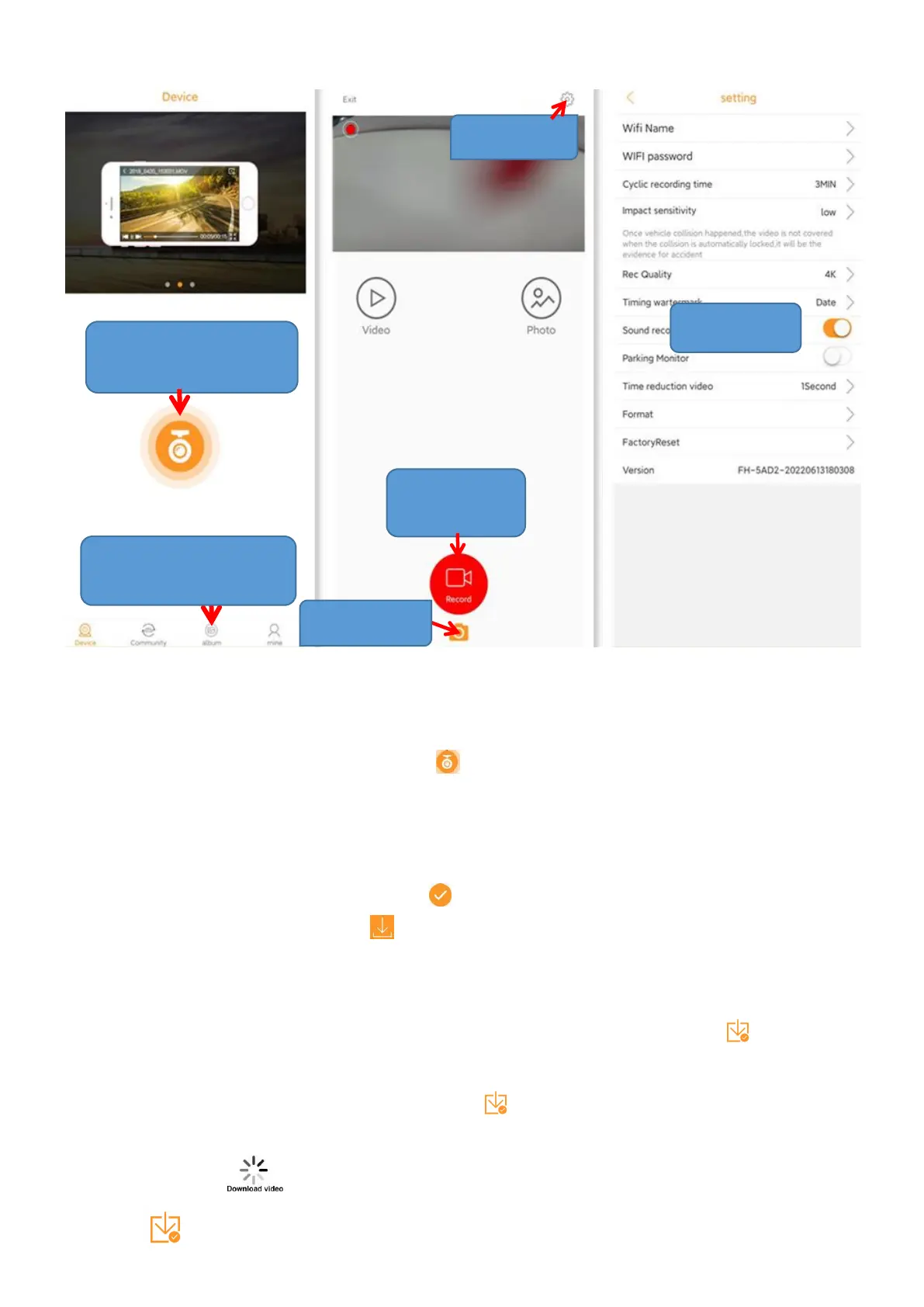
① Connect the camera WiFi, tap on the front page of App to access
the Camera Controlling Interface of app;
②
Stop recording, tap “Video”/”Photo”icon to enter Video/Photo gallery;
③ Tap “Select” on the upper right corner of App, tap a video/image to
choose and then a Selected Icon appears on the video/image;
④ Tap the Download Icon on the bottom left corner of App to start
download, for the latest version of App, its download status as follows:
For some android devices, during download, there may be no symbol or
tip shows on App; after download, a Finished Download Icon shows.
For other android devices, during download, a Progress Bar shows; after
download, a Finished Download Icon shows on the video/image.
For IOS devices, during download, it may has loading symbol (Download
Video Icon) shows on App; after download, a Finished Download
Icon shows on the video/image;
Click to access Camera
Controlling Interface
View video, image and
GPS log after download


 To Next Page