(Menu) Button once to access Setup Menu;
② Short press (UP)/ (Down) Button to navigate to “Time Zone”;
③ Short press (Power/OK) Button once to access the submenu;
④ Short press (UP)/ (Down) Button to go to a needed option;
⑤ Short press (Power/OK) Button once to confirm the option.
2.2 Set Date/Time
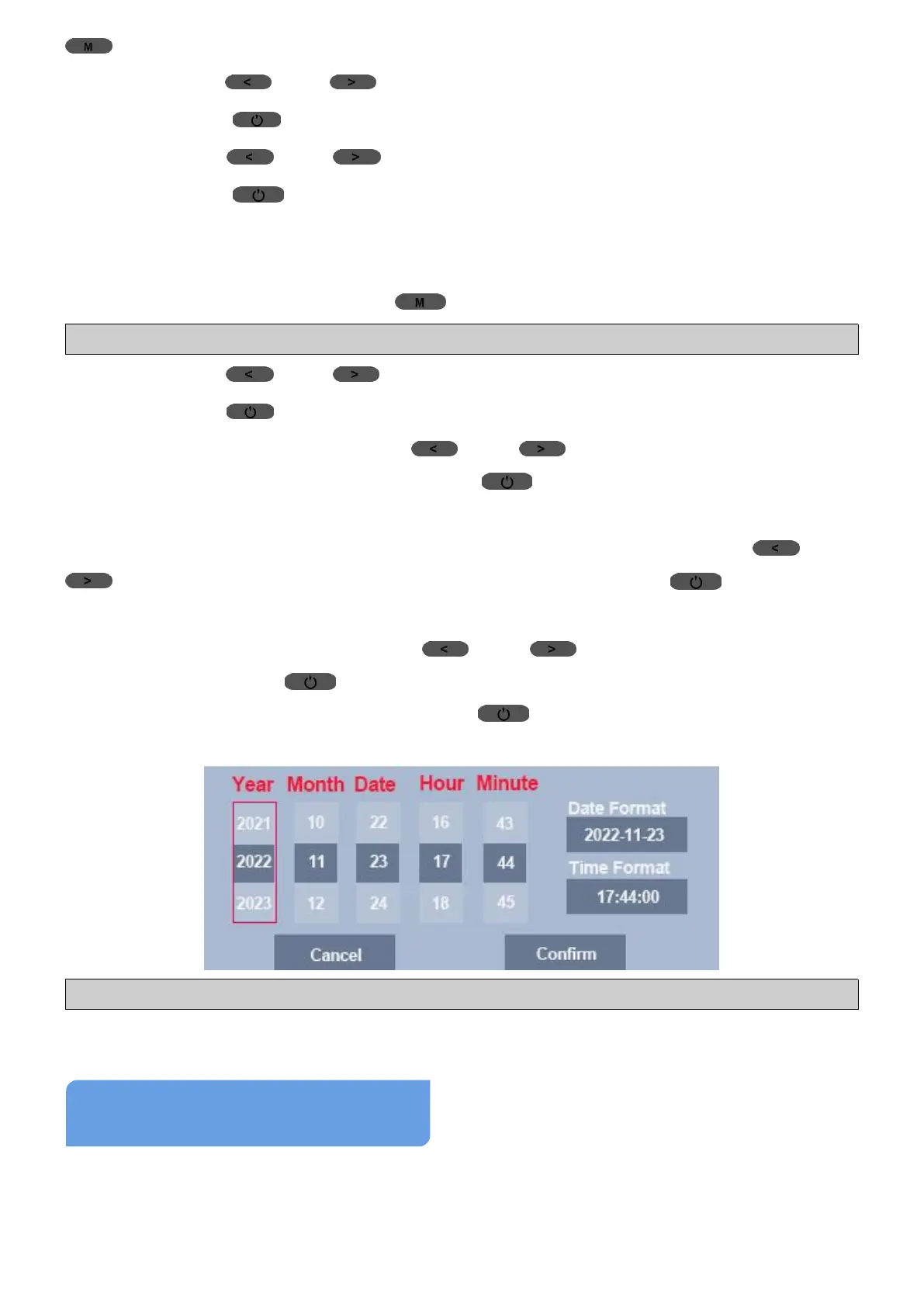
① In Video Mode, short press (Menu) Button to go to Setup Menu;
Note: Setup Menu can’t access when camera is recording. STOP it first.
②
Short press (UP)/ (Down) Button to navigate to “Date/Time”;
③
Short press (Power/OK) Button once to access the submenu;
④
In the submenu, short press (UP)/ (Down) Button to browse
options in a column, and short press (Power/OK) Button once to
confirm options and skip to next column;
⑤
After set date and time, it skips to Date Format, short press (UP)/
(Down) Button to switch date formats, short press (Power/OK)
Button once to confirm option and skip to Time Format;
⑥ In Time Format, short press (UP)/ (Down) Button to switch
formats, short press (Power/OK) Button once to confirm option and
skip to “Confirm”, then short press (Power/OK) Button once to
confirm all settings in Date/Time settings and exit the submenu.
Note: Continuous short press (Power/OK) Button to skip to a needed column.
This dash cam has 3 different modes:
Video Mode


 To Next Page