files are produced to take up the TF card.
Set the clarity of an image.
Auto (default),
Daylight,
Cloudy, etc.
Adjust the warmth of a light according to
different light conditions while taking
photos.
Color (default),
Black&White,
Sepia
Set the color effect for images taken.
Camera’s sensitivity to light.
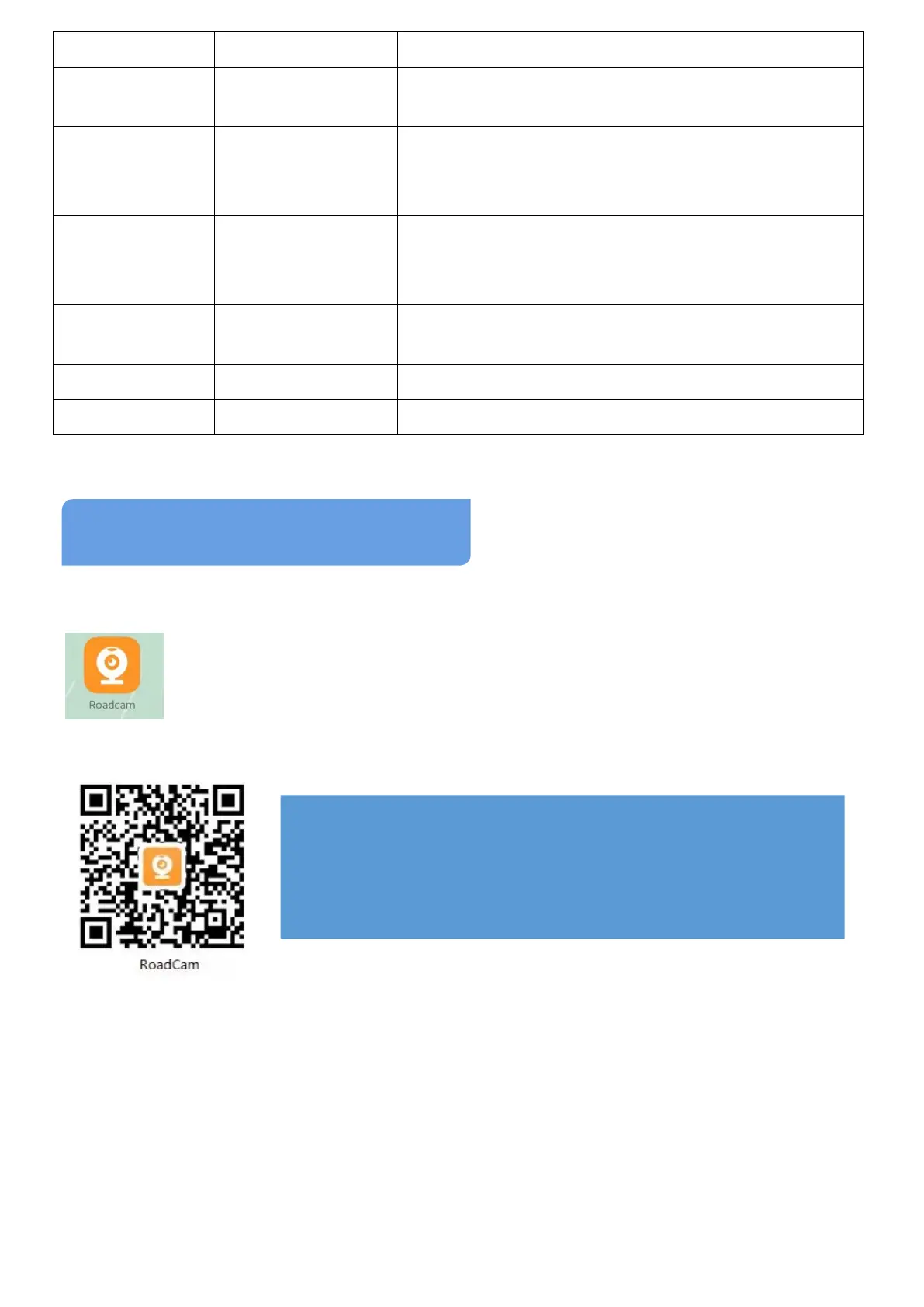
1 Install “Roadcam” APP
Scan the QR code below to download and install “Roadcam” APP:
See QR code, WiFi Name&Password in WiFi App too. (See page 23)
2 Connect WiFi
2.1 How to Connect Camera’s WiFi
Note: Please connect camera WiFi in its signal range, which
is about 10ft radius of device when there is NO obstructions
in middle. Otherwise, WiFi can’t work well or be connected.
Install the latest version of RoadCam App first before you
connecting your smartphone to the camera’s WiFi. So you
can view and manage footage on your phone via the App.
Note: Please download the latest version of App
or update the App you downloaded before to the
latest version. Otherwise, there may be some
problems occur while using the App.


 To Next Page