25
Multiple Copies and Sequencing
This section explains how to use the Repeat key to print multiple copies
of a file or sequence text either numerically or alphabetically.
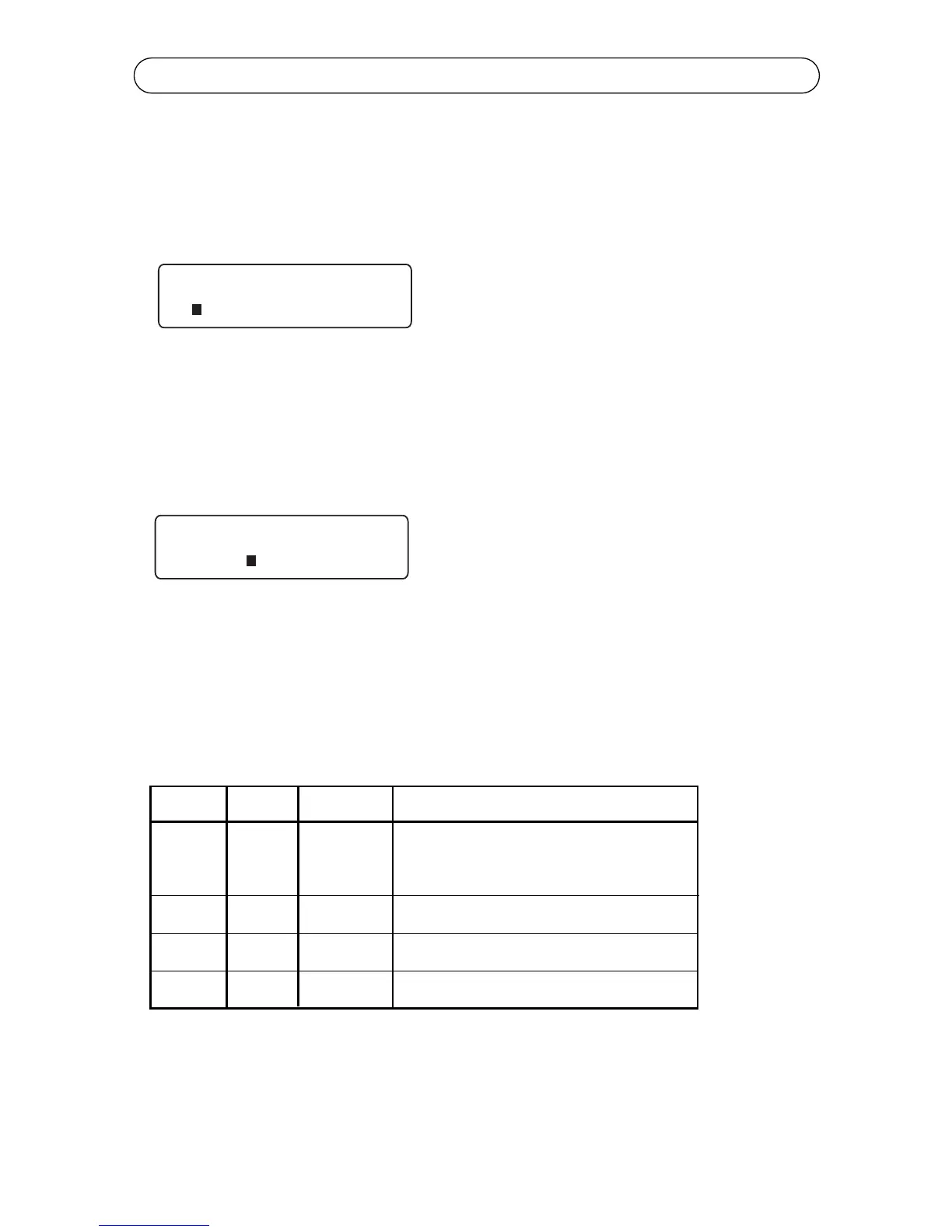
Press the Repeat key to make copies or sequence labels. The prompt below
will appear.
Select Copies to specify the number of copies you want to print (1-999). Use
the left and right cursor keys to move the cursor to the left of Copies and press
Enter. The printer displays the current setting for this option (see the following
example) and waits for your entry. Press Delete to accept the number of copies
shown, or type in your specific number and press Enter. Press Print.
Select Sequence to automatically generate and print labels containing a
sequence of one letter or one to three numbers (101 102 103, ABC....etc.) with-
out having to type the text of each label yourself. You simply tell the printer what
characters to print on the first and last labels an how much to increment
between labels (see following table).
The sequence character takes on the current character attributes previously defined.
Optionally, you can redefine the sequence character’s attributes like any other char-
acter.
Note: You can only define one sequence type (numeric or alpha) per docu-
ment/file, but you can place the sequence character in your document/file once on
each line.
Start Stop Increment Individual Labels Printed
1 10 1 1 2 3 4 5 6 7 8 9 10
01 10 1 01 02 03 04 05 06 07 08 09 10
001 10 1 001 002 003 004 005 006 007 008 009 010
2 12 2 2 4 6 8 10 12
A J 1 A B C D E F G H I J
a z 4 a e i m q u y
Printing Sequential Labels



 To Next Page