44
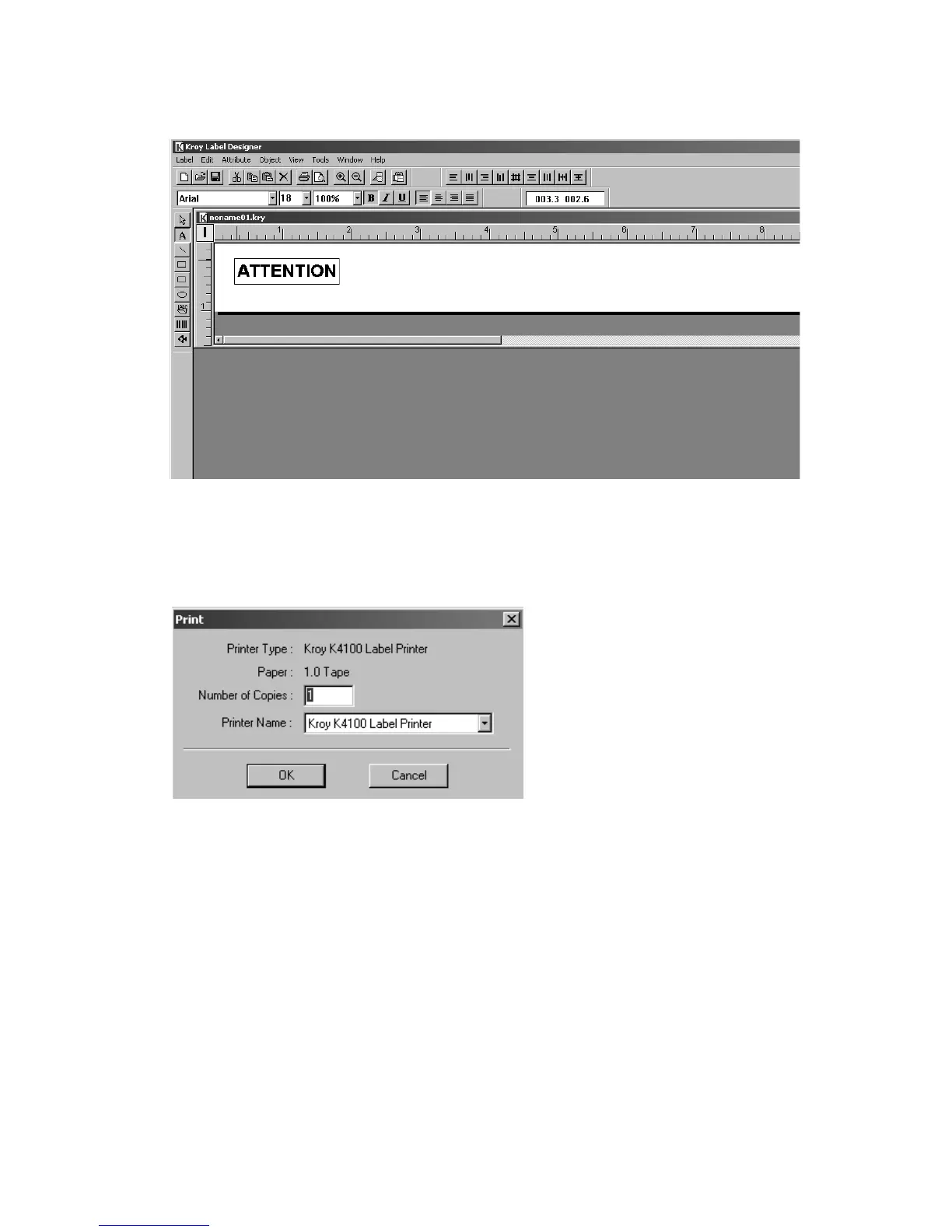
3. A label template will appear on the Main Menu Screen. Select the Text
Tool “A” from the Main Tool Bar, click your left mouse button on the label
template and input text at the blinking cursor.
4. After creating your label, click on the Print Icon from the top tool bar, or go
to the Label Menu and select Print. Select the number of copies and click
OK to print your label.
5. The K4100 will then print your label.
For further assistance, go to the Help Menu of your KLDS Software.



 To Next Page