48
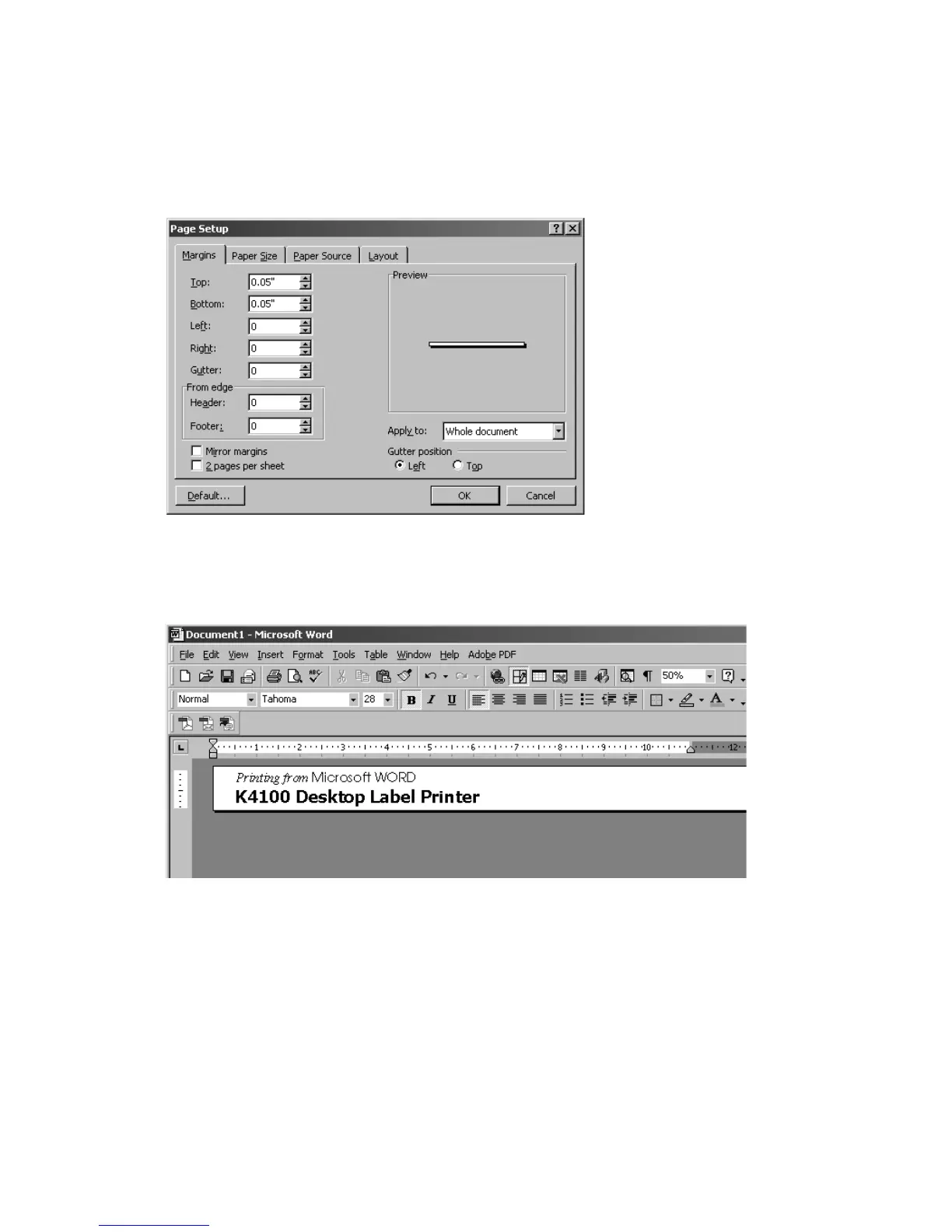
5. Select the Margins tab and change the top, bottom, left, right, gutter, header
and footer to “0” or desired margin values. The default margins must be
changed since you are not printing to a full 8.5” x 11” page. For some media,
Word will want to “Fix” the margins based on the maximum printable area of
the media selected. In this case, 1” tape requires a 0.05” top and bottom
margin. Click on OK.
6. It is recommended to click on the View menu and select Page Layout mode.
7. A blank label template with a blinking cursor will appear on your PC monitor.
8. Enter the label text.
9. Select Print from the File menu. Make sure that the K4100 is selected and
Click OK to print the label.
Note: When printing and the cartridge runs out of
tape, remove and install a new cartridge, and press Feed to continue printing.
DO NOT TURN OFF THE PRINTER.
To Save your label, go to the File menu and select Save. You can also save the
document as a template to start other label files.



 To Next Page